Chapter 1 — Initial Setup
Initial Setup
First-time configuration: business profile, logo, invoice defaults, and license activation
LT-, Pro keys with PRO-. On Android or iPhone there is no key to enter — buy from Upgrade and the purchase unlocks through your app store account. Either way this removes the demo limits and the watermark.Chapter 2 — Getting Your Gemini AI Key
Gemini AI Key
Powers AI receipt scanning and smart email drafting — free to set up
The Gemini AI key connects the app to Google's AI for receipt scanning (automatically reads vendor, amount, and date from a photo) and composing professional invoice emails. It is free for typical small-business usage.
Chapter 3 — Google App Password
Google App Password
Why it's different from your regular Google password, and how to create one
Enable 2-Step Verification (if not already on)
Create an App Password
SMTP Host: smtp.gmail.com · SMTP Port: 587 · Email: your Gmail address · Password: the 16-character App Password
Tap Test Connection to confirm it works.
• 2FA not enabled → App Passwords option won't appear in Google settings
• Using port 465 instead of 587 → connection hangs or times out
• Extra spaces before or after the pasted password → authentication fails
Chapter 4 — Adding Customers
Adding Customers
Build your customer list for fast invoice creation and service history tracking
Chapter 5 — Creating Invoices
Creating Invoices
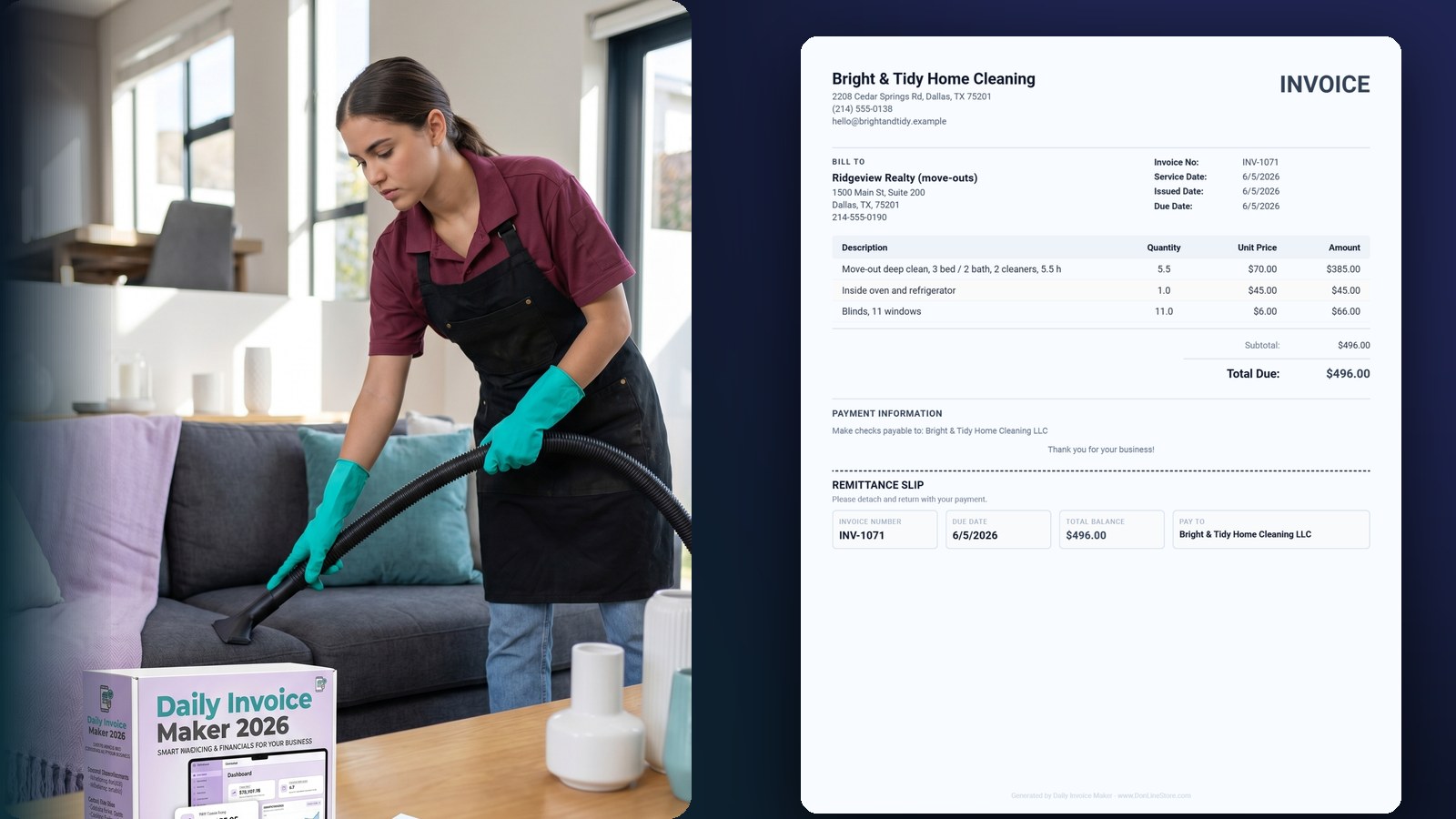
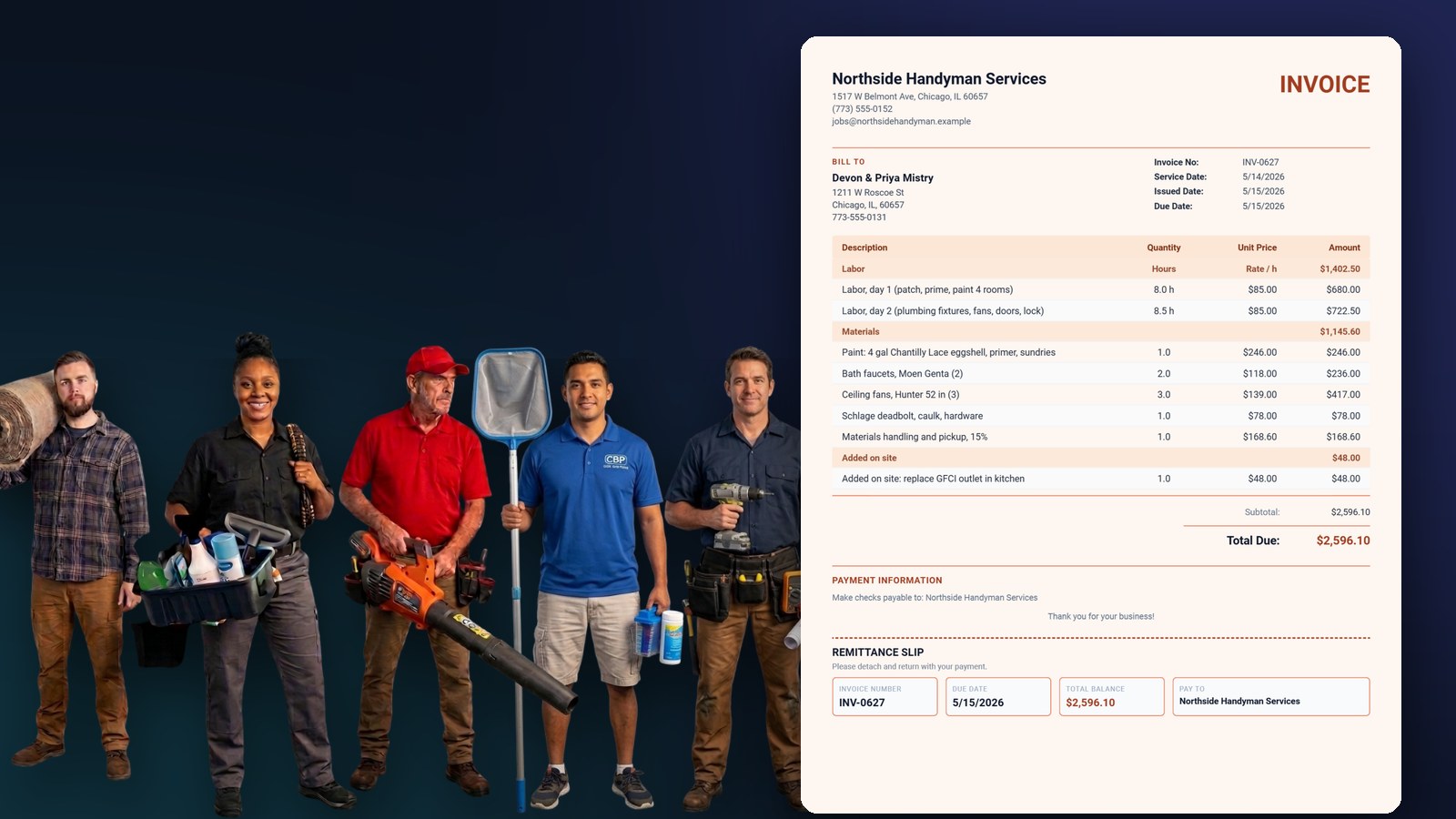
Single invoices, bulk sending, PDF export, and email / SMS delivery
Creating a Single Invoice
Sending Invoices in Bulk
Chapter 6 — Job Estimates
Job Estimates & Quotes
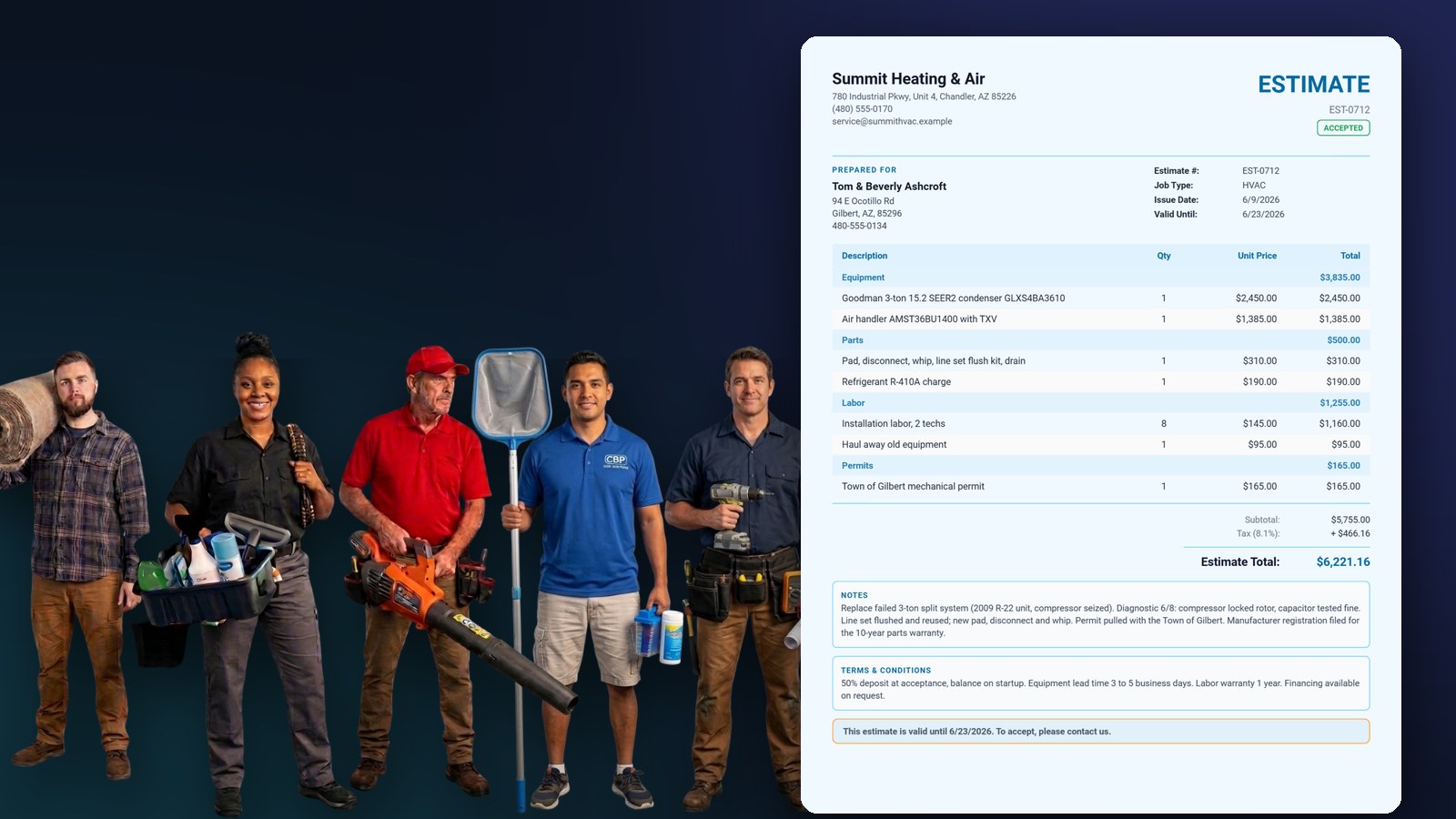
Create professional estimates, save templates, convert to invoices in one tap
Chapter 7 — Expenses & AI Receipt Scanner
Expenses & AI Receipt Scanner
Track business costs and scan receipts with AI — no manual entry needed
Scanning a Receipt with AI
| Expense Category | Examples |
|---|---|
| Supplies | Chlorine, acid, chemicals, brushes, nets, test kits |
| Fuel | Gas receipts, diesel, fuel surcharges |
| Equipment | Pumps, filters, vacuums, repair parts |
| Vehicle | Truck maintenance, tires, registration fees |
| Subcontractor | Payments to other technicians or trades |
| Office / Admin | Phone bill, software, insurance |
Chapter 8 — Service Log
Service Log & Job History
Record every service visit with chemistry readings, chemicals added, and technician notes
Chapter 9 — Using the Dashboard
Business Dashboard
Real-time revenue overview, outstanding balances, and expense tracking — no internet needed
Chapter 10 — Route Planning
Route Planning
Map your daily service stops and optimize the most efficient driving order
Chapter 11 — AI Email Features
AI Email Features
Let AI write professional invoice emails and follow-up reminders for you
Compose Email: name the document and attach it
Open Email in the sidebar. Pick the customer, the purpose (invoice, overdue reminder, estimate, thank-you…) and the tone. A list of that customer's invoices and estimates appears — tick the ones the email is about and they are attached as PDFs; the green bar confirms "ready to send". Then either Generate draft (AI, needs a key) or Use a written email — a professionally written message for every purpose-and-tone combination that works with no AI key at all.
AI Follow-up Reminders
Chapter 12 — Recurring Invoices
Recurring Invoices
Automatically bill repeat customers weekly, bi-weekly, or monthly
Chapter 13 — Backup Files & WiFi Sync
Backup Files & WiFi Sync
Save a backup you control, or push data straight to your desktop over local WiFi — no cloud, no fees, no account needed.
Three ways to move your data. A .dim backup file is a manual snapshot you control. WiFi Sync (below) pushes straight to your Windows PC on the same network. For hands-off syncing between devices, use Google Drive Sync — Chapter 14.
Exporting a backup file
- Open Backup & Sync from the menu.
- Tap Export Data — this creates a
.dimfile containing everything. - Save it somewhere off the device: Google Drive, email it to yourself, or copy to a USB stick.
Restore vs Merge — an important difference
When you import a backup you get two choices, and they do very different things:
- Restore — makes your data match the file exactly. Each section in the file is cleared and rebuilt from it. Anything you added since that backup is gone. Use this to roll back.
- Merge — keeps what you have and adds or updates from the file. Use this to combine two sets of data.
Per-section backups
You do not have to back up everything at once. Export just one section — service log, customers, invoices — when you only need to move that piece to another device or hand it to your accountant.
The WiFi Sync feature lets you spend your day in the field working on your phone — creating invoices, adding job notes, logging service visits — then sync everything to your Windows, Mac or Linux desktop the moment you get home. It works in both directions: changes made on the desktop also sync back to the phone.
How It Works
- Both devices must be on the same WiFi network (your home or office WiFi).
- The desktop app runs a local server that your phone connects to directly — no internet required.
- Data is merged using timestamps — the most recently edited version of each record wins.
- Photos and images are always merged from both sides and never deleted.
Step 1 — Start Sync on the Desktop
- Open Daily Invoice Maker on your Windows, Mac or Linux computer.
- Click Settings in the left sidebar.
- Click the Data & Backups tab.
- Under WiFi Sync, click Generate Sync QR.
- A QR code appears on screen. It is valid for 10 minutes.

Light mode — QR code ready to scan

Dark mode — same QR, same steps
Step 2 — Scan the QR Code on Your Phone
- Open Daily Invoice Maker on your Android or iPhone.
- Tap Settings → Data & Backups.
- Tap Sync with Desktop.
- Tap Scan QR Code — your camera opens automatically.
- Point your phone at the QR code on the desktop screen.
- The sync begins immediately once the QR code is detected.

Mobile — tap Scan QR Code and point at the desktop screen
Step 3 — Wait for Sync to Complete
- The phone shows "Connecting to desktop…" then "Merging data…".
- When done, a summary shows how many records were synced.
- The desktop updates automatically — you'll see "Sync complete!" on both screens.
- Refresh any open pages on the desktop to see the new data.
Manual Entry (No Camera)
If your phone's camera isn't available or permission is denied, use the manual entry option:
- On the desktop sync screen, note the IP address, Port, and Code.
- On the phone, tap Enter IP address manually below the camera button.
- Type in the IP address, port (usually 3000), and sync code.
- Tap Connect Manually.
192.168.1.17 · Port 3000 · Code f6d199387f1aaa93
Troubleshooting
Both devices must be on the same WiFi network. Check that your phone is on your home WiFi (not cellular data) and your computer is on the same router.
The first time you use sync, Windows may show a firewall popup asking to allow "Daily Invoice Maker". Click Allow access on private networks. The app adds this rule automatically, but the prompt may still appear on first use.
The QR code is valid for 10 minutes. If it expires, click Generate Sync QR again on the desktop to create a new one.
What Gets Synced
Everything in your database is included in every sync:
- Customers
- Invoices, line items, and attached photos
- Expenses and scanned receipts
- Transactions
- Estimates and quotes
- Service log entries
- Recurring invoice schedules
- Settings (business info, templates, preferences)
Chapter 14 — Google Drive Sync
Google Drive Sync
Work on your phone during the day, pick up on the desktop in the evening — through your own Google Drive.
Google Drive Sync keeps your devices in step automatically. It is included with the Monthly and Lifetime plans, with nothing extra to buy, and it runs entirely through your own Google Drive: there is no account to create with us and no server of ours in the middle. Your data goes from your device to your Drive and back. Manual backup and restore are free on every plan, including the demo.
Step 1 — Turn it on (do this on both devices)
- Open Backup & Sync then Google Drive Sync.
- Tap Connect and sign in to Google. Use the same Google account on every device — that shared account is what links them together.
- Approve access when Google asks.
- Give the device a name you will recognise, like Desktop or Work Phone. It appears in sync messages so you always know which device did what.
Step 2 — The everyday routine
Tap Sync now when you finish on one device, then Sync now on the other when you pick it up. Only what actually changed is uploaded, so a normal sync is small and fast — photos already in the cloud are never sent twice.
Step 3 — Reading the status panel
The Google Drive Sync screen always shows where that device stands — you do not have to press anything to find out:
- Green dot — up to date with the cloud.
- Amber dot — the cloud has newer changes; tap Sync now to pull them.
- Grey dot — cannot reach Google Drive right now (offline or signed out).
Underneath, it shows what that device last did and when — for example “Last sync: Pushed your changes to the cloud (v20) · Today 7:17 PM”. This is saved on the device, so it is still there tomorrow.
What gets synced
- Invoices, their line items and attached photos
- Customers, estimates, expenses and receipts, transactions
- Service logs, mileage, time entries, products, scheduled visits
- Service agreements and templates
Your app settings, license key, and saved email passwords stay on each device and are never uploaded.
If two devices disagree
Edits to different records merge automatically. If both devices changed the same record, the app asks which version to keep rather than guessing. If they ever drift badly out of step, you can force them back onto one copy:
- On the device with the correct data, tap Make this device the master.
- On the other device, tap Replace this device from the cloud, then close and reopen it.
- Both devices are re-anchored to the same starting point and normal syncing resumes.
.dim backup first if you are unsure.
Rolling back
Drive keeps recent snapshots. Restore earlier version lists them by date, so you can go back if something was deleted or imported by mistake.
Chapter 15 — Bank Statement Import
Bank Statement Import
Pull a year of expenses out of your bank in minutes instead of typing them one at a time.
- Log in to your bank and download your statement as CSV, OFX or QFX.
- In the app open Transactions then Import, and choose the file.
- The app detects the format automatically and shows you every row before anything is saved.
- Review: set each row as Income, Taxable Expense, or Non-Taxable, and assign categories. Bulk-apply a category to many rows at once.
- Confirm the import.
Supported banks and formats
Chase, Bank of America, Wells Fargo, Capital One, US Bank, Citibank, Discover, American Express, Navy Federal, USAA, Synchrony store cards, PayPal (CSV and PDF), Venmo, Stripe and Square all have dedicated support. Any bank works via OFX/QFX or a generic CSV with date, description and amount columns.
Importing the same file twice
If you re-import a statement you already loaded, the app spots it and offers Import Missing Only — it skips rows you already have and adds just the new ones. There is also a duplicate checker under Transactions that finds accidental double entries by date, amount and description.
Chapter 16 — Service Agreements
Service Agreements
Put recurring work on a signed contract — written, sent, and signed on the phone in your hand.
A service agreement locks in the scope, the price, and the cancellation terms before the work starts. Open Agreements then New Agreement and the app walks you through four steps: customer, terms, the agreement body, then review.
Three ways to write the body
- Start from a template — five ready-made starters are built in, covering common service arrangements.
- Let the AI draft it — describe the job in plain language and it writes a full agreement you can then edit.
- Write it from scratch — a formatting editor with headings, bold and lists.
Placeholders like the customer name, address, price and dates fill themselves in from the record, so you are not retyping details you already entered.
Getting it signed
- Hand the customer the phone and have them sign on screen with a finger, or photograph a signed paper copy.
- The signature is stamped into the agreement with the date and time.
- Send it as a PDF by email, text, or WhatsApp — or print it.
Reusing agreements
From any signed agreement: Duplicate for an exact copy with a new number, Use for new customer to keep the body and blank the customer, or Renew to push the dates forward a year and clear the signature — one tap to draft next year’s contract. Save any agreement as your own reusable template.
Chapter 17 — Time Tracker
Time Tracker
Find out what you are actually earning per hour — not what you hoped you were.
Most service businesses know their revenue but not their effective hourly rate. The Time Tracker closes that gap: clock in when you arrive, clock out when you leave, and the app divides what you invoiced by the hours you actually worked.
- Open Time Tracker, pick the customer, and tap Clock In.
- A live timer runs. Use the quick actions to switch to travel between jobs or take a break without stopping your day.
- Tap Clock Out when the visit ends.
Billable vs non-billable
Visits count as billable by default; travel and breaks do not. Every entry has a one-tap toggle, so a job that genuinely ran door-to-door can be flipped to billable without opening anything.
The number that matters
The analytics section shows your effective hourly rate overall and per customer — this month’s invoiced amount divided by billable hours. Set an optional target rate on a customer and the app shows you the gap: green when you are at or above it, red when an account is quietly costing you money.
Chapter 18 — Mileage Tracking
Mileage Tracking
Business miles are one of the largest deductions service businesses miss.
- Open Mileage then Add Trip. Set the date and pick a customer to tie the miles to a specific job.
- Enter the miles directly, or enter start and end odometer readings and let the app work out the distance.
- Short on time? Tap the camera icon and photograph your dashboard — the AI scanner reads the odometer number off the picture so you can capture it at the vehicle.
- Add the purpose and the start/end locations. That is what substantiates the deduction if you are ever asked.
The rate is stored per trip
Each trip saves the mileage rate that applied on the day you logged it. When the IRS changes the standard rate, your older trips keep their original value instead of being silently re-priced — exactly what your accountant wants to see.
Chapter 19 — Products & Rates
Products & Rates
Save parts, products and hourly labor rates once, then pick them into any invoice or estimate.
- Open Settings → Products & Rates. Choose Product for a part, material or fixed-price service, or Labor / hour for an hourly rate.
- Give it a name — Oil filter (OEM), Front brake pads, Diagnostic labor — and the price: per unit for a product, per hour for a labor rate.
- On any invoice or estimate line, use Insert saved product or labor rate. The description and price fill in, and you can still change either on that one line.
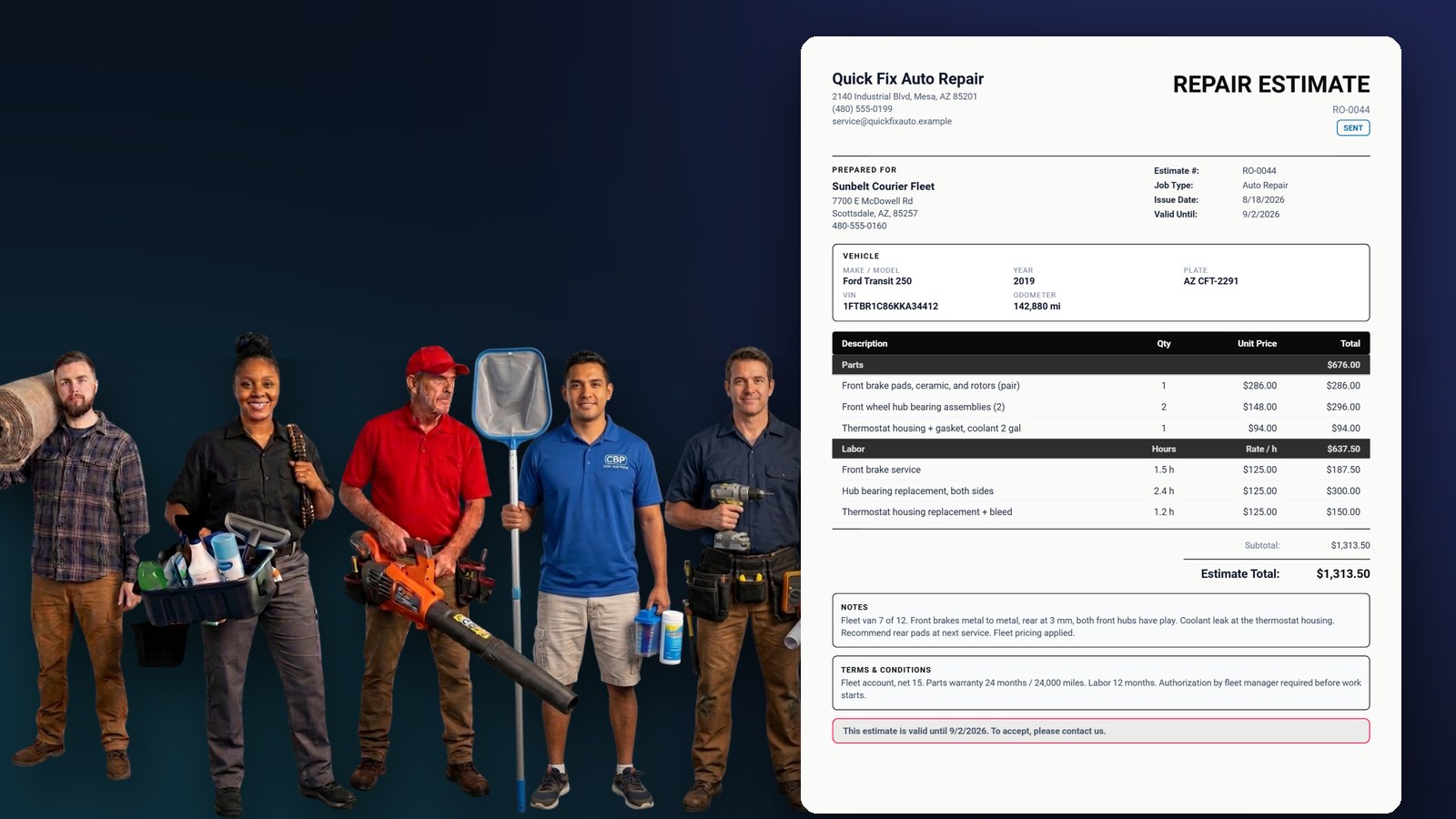
- On an estimate, a labor rate makes the line a Labor line: type the hours as the quantity. On an Auto Repair estimate the PDF then prints Parts and Labor as separate tables.
Changing a saved price affects only future lines. Invoices you already issued keep the price they were written at, so your history never shifts under you.
Chapter 20 — Schedule & Visit Reminders
Schedule & Visit Reminders
Plan the work ahead and get told before you are due somewhere.
- Open Schedule and add a visit — customer, date, start time.
- Set it to repeat weekly, biweekly or monthly for regular accounts. Recurring routes are grouped in their own panel so a long repeat list does not bury your one-off jobs.
- Turn on a reminder and choose how far ahead you want it — 30 minutes, an hour, whatever suits.
After the visit, log what you did in the Service Log, track the hours in the Time Tracker, and bill it from Invoices — or let a recurring schedule invoice it for you automatically.
Chapter 21 — Tax Prep & Multiple Businesses
Tax Prep & Multiple Businesses
Set up → Review → Download: your year-end figures and the files your accountant or tax software can import
Open Money & Tax → Tax Prep. The page is one workflow in three numbered steps, and the strip under the title jumps to each.
Step 1 — Set up your year
Step 2 — Review your numbers
Gross income, total expenses, net income and non-taxable transfers up top; then income by customer and by category, expenses by category and by vendor, month by month. With more than one business, each gets its own card on its own schedule, plus the combined self-employment tax base. Sales tax collected closes the step — it is money you hold for the state, not income.
Step 3 — Download your files
A banner states what every file is built from (year, income source, duplicates, businesses). Then two groups:
- For your accountant or tax software — Schedule C summary PDF (or a Tax Packet with a page per business) with Preview; TurboTax import (.txf in a zip, with a verify sheet); QuickBooks Desktop import (.iif); Xero / generic accounting CSV (also Wave, FreshBooks, Sage).
- This report as a file — the tables from Step 2 as a PDF (with Preview), an Excel workbook (a tab per table, or per business), or plain CSV.
Chapter 22 — Sales Tax
Sales Tax Collected
What you owe each state, kept out of your income
Chapter 23 — Auto Repair Estimates
Auto Repair Estimates
Vehicle details, parts and labor in their own tables, customer signature, one-tap invoice
Chapter 24 — PDF Language
Estimates and Invoices in Your Language
One setting switches every fixed label on the PDFs
Chapter 25 — Photos, Storage & Recovery
Photos, Storage & Recovery
How photos are handled, and what to do in the rare case a phone runs out of room.
Photos are compressed automatically
Every photo you take or attach — receipts, invoice and estimate photos, service-log images, odometer shots, signatures, your logo — is shrunk before it is saved. A modern phone camera produces 3 to 5 MB per shot; stored full size, a few hundred of those would exhaust the space an app is allowed. You do not need to do anything: it is automatic.
Shrink older / imported photos
In Backup & Sync there is a Shrink older / imported photos button. It is only for photos that arrived already large — restored from an old backup, or created by a much older version of the app. It re-checks stored photos and shrinks any oversized ones a few at a time, and the app also runs this quietly in the background about once a day.
Recovery Mode
If a phone ever runs out of memory while the app is starting, the operating system can close the app before it finishes loading. If that happens two or three times in a row, the next launch opens a small Recovery Mode screen instead of the full app. Recovery Mode loads almost nothing, so it opens even when the normal app cannot.
- Free up space — reclaims room the app is holding but no longer needs. Start here; on most devices this alone is enough.
- Shrink stored photos — compresses oversized photos a few at a time so the job itself cannot run out of memory.
- Open the app now — back to normal. No data is lost; only photo resolution is reduced.
- Remove all photos — last resort. Deletes stored photos while keeping every invoice, amount, customer and record. Restore the photos from a backup afterwards if you have one.
Good habits
- Export a
.dimbackup now and then and keep it off the device. - Turn on Google Drive Sync so a second device always holds a copy.
- Photograph what you genuinely need — six clear shots of a job beat sixty near-identical ones.
- Keep every device on the same app version.
Ready to get started?
Download the app free — demo mode included on Android, Windows, Mac, and Linux. No account required.
Download Free →Chapter 26 — Guides by Trade
Guides by Trade
One realistic business per trade, set up in the app and billed for a season: the estimate, the invoice, the profit dashboard and the Schedule C export, with the problems each one solves.
Each guide below was written from a real set-up in Daily Invoice Maker, not a mockup. Read the one for your trade first; the small-business guide covers shops that sell products or custom work. Every guide has a companion article on the money side (pricing, margins, cash flow and tax) on our sister site.