In this article
- Why Venmo, Cash App, and Zelle income matters at tax time
- What you’ll need: your three exports
- Step 1 — Open the Transactions screen
- Step 2 — Import your Venmo statement
- Step 3 — Import your Cash App export
- Step 4 — Import Zelle payments from your bank statement
- Step 5 — Review a full year of income at a glance
- Step 6 — Generate your tax report
- Watch the whole workflow (video)
- Tips for accurate P2P bookkeeping
- Frequently Asked Questions
- Start tracking your P2P income the easy way
If you run a small business and get paid through Venmo, Cash App, or Zelle, every one of those payments is business income — and at tax time it all has to be added up, categorized, and reported. Doing that by scrolling through a payment app on your phone is slow and error-prone. In this guide we’ll import a full year of real-world P2P payments into Daily Invoice Maker, review them, and export a clean, accountant-ready tax report — with a screenshot of every step.
To make it concrete, we’ll use a sample pool-service business, Crystal Clear Pool Service, that collected $71,735 across 410 customer payments in 2025 — split between Venmo, Cash App, and Zelle. Follow along with your own exports and you’ll have your numbers in a few minutes.
Why Venmo, Cash App, and Zelle income matters at tax time
Money you receive for goods or services is taxable income even when it arrives through a payment app. Venmo, PayPal, and Cash App can issue a Form 1099-K that also goes to the IRS, and the reporting thresholds have been changing from year to year — so the amount that triggers a form is a moving target. Zelle works differently (it moves money directly between bank accounts and doesn’t issue a 1099-K), but that income is still reportable.
The practical takeaway: whether or not you receive a form, you are responsible for reporting the income and keeping your own records. A tool that pulls all three sources into one ledger — and lets you separate real income from personal transfers — makes that painless.
Heads-up: This article is educational and not tax advice. Reporting rules and 1099-K thresholds change; confirm the current numbers with the IRS or a licensed CPA/enrolled agent for your situation.
What you’ll need: your three exports
Each platform lets you download your history as a file. Grab these first:
- Venmo — Statements are available on the web at Settings → Statement, downloadable as a CSV for any month or the whole year.
- Cash App — From the Cash App website, open Activity and export your transactions to CSV.
- Zelle — Zelle has no export of its own, so use the CSV statement from the bank account where the Zelle payments land. Daily Invoice Maker reads the “Zelle credit from…” lines automatically.
Daily Invoice Maker reads the official layout of each of these files directly — no AI, no manual mapping, no subscription required for structured statements like these.
Step 1 — Open the Transactions screen
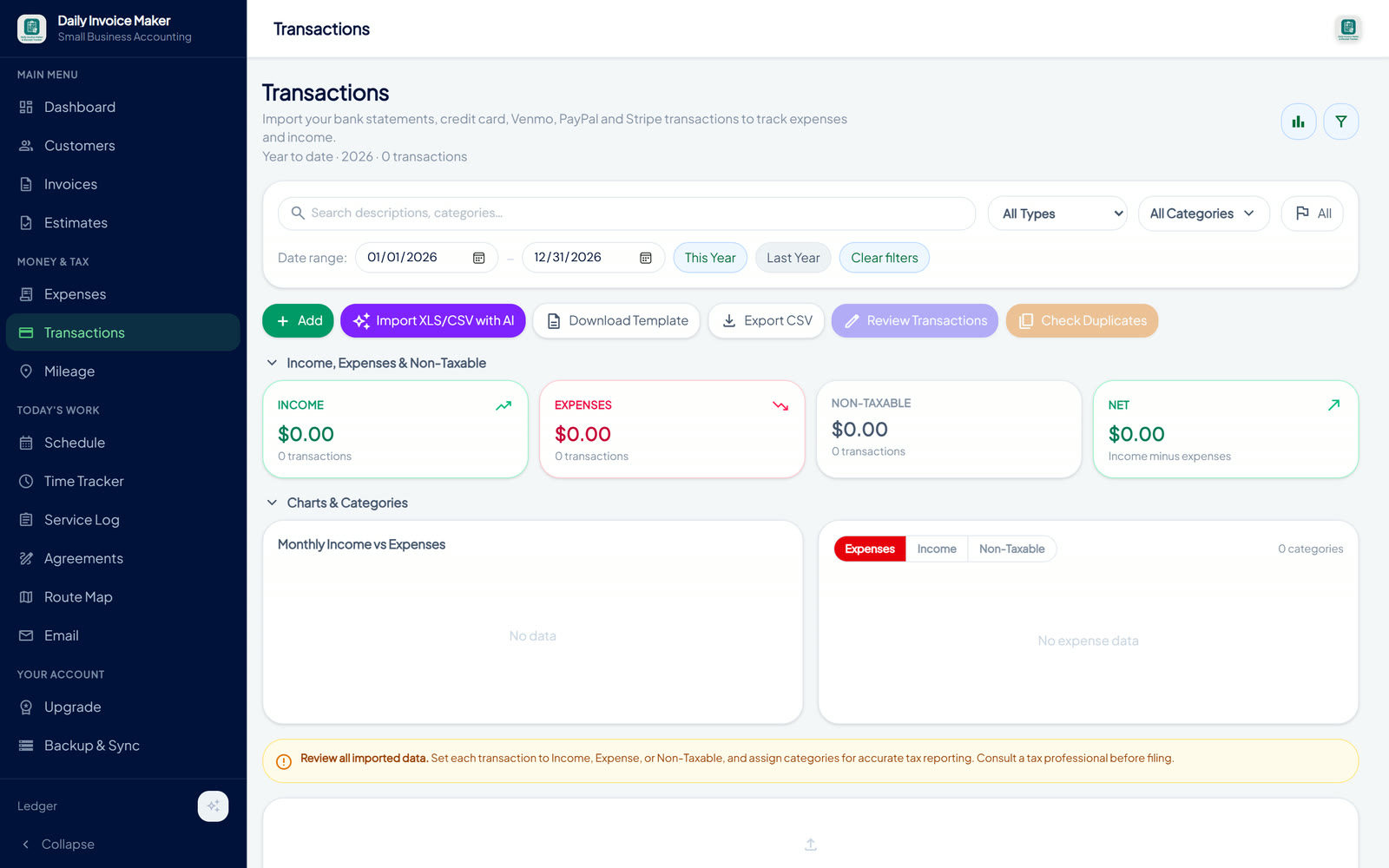
From the left menu, choose Transactions. This is your income-and-expense ledger. On a fresh account it’s empty and ready for your first import.
Step 2 — Import your Venmo statement
Click Import XLS/CSV and choose your Venmo CSV. The app detects the Venmo format instantly and opens the Review Imported Transactions screen so you can confirm everything before it’s saved.
Notice how much it figured out on its own: 157 payments were tagged as Income and 12 “Standard Transfer” cash-outs to the bank were correctly marked Non-Taxable — so a transfer of your own money to your checking account never gets counted as taxable income. Similar payments are grouped (here, “Tile & skimmer cleaning” ×21) so you can categorize a whole batch in one tap.
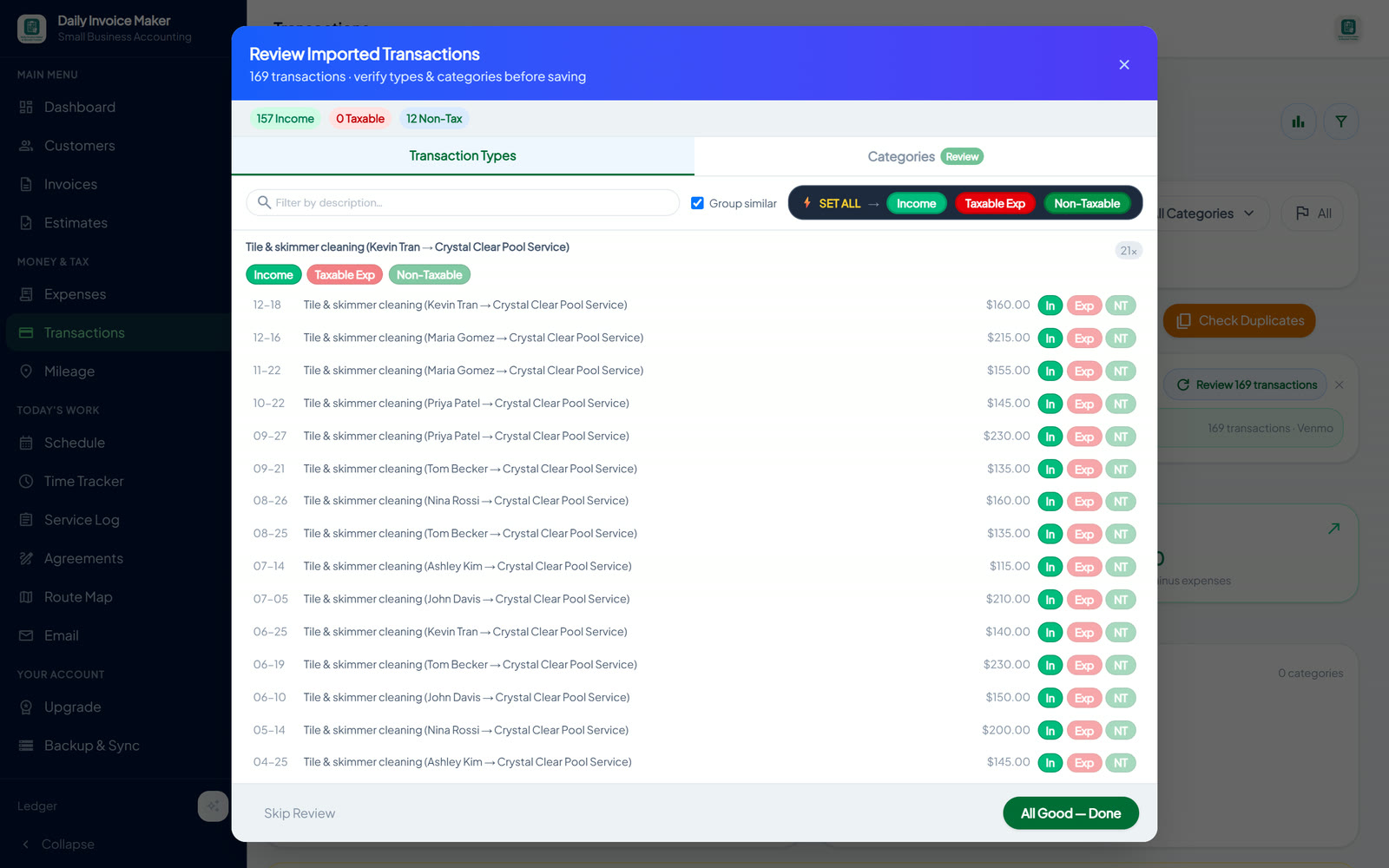
Review the Transaction Types and Categories tabs, then tap All Good — Done to save.
Step 3 — Import your Cash App export
Repeat the import for your Cash App CSV. The app recognizes Cash App’s columns and pulls in every payment with its note and the sender’s name, ready to review the same way.

Step 4 — Import Zelle payments from your bank statement
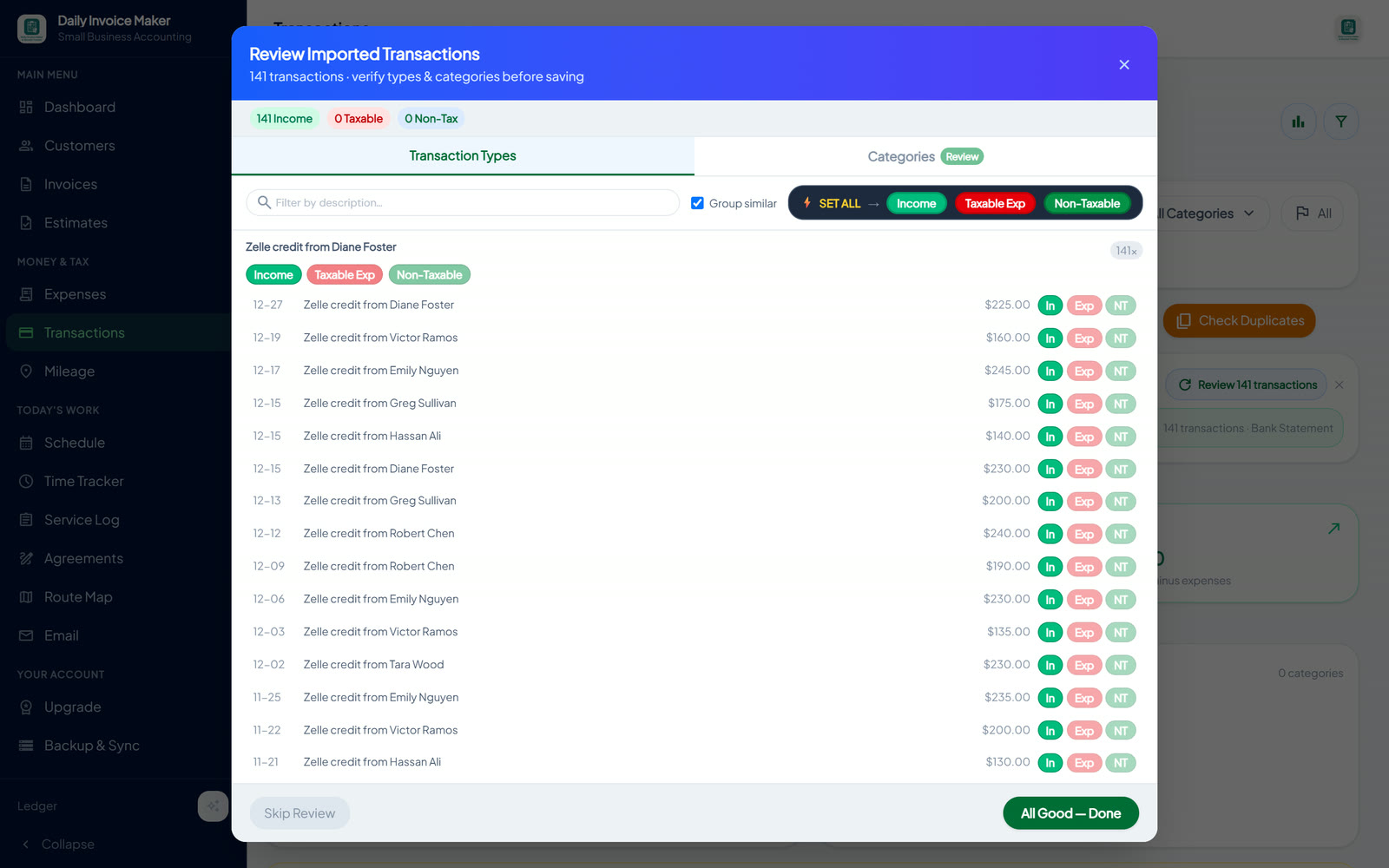
Because Zelle rides on your bank account, you import your bank’s CSV statement. Daily Invoice Maker scans the descriptions, picks out the “Zelle credit from …” deposits, marks them as income, and even files them under a tidy Zelle category.
Step 5 — Review a full year of income at a glance
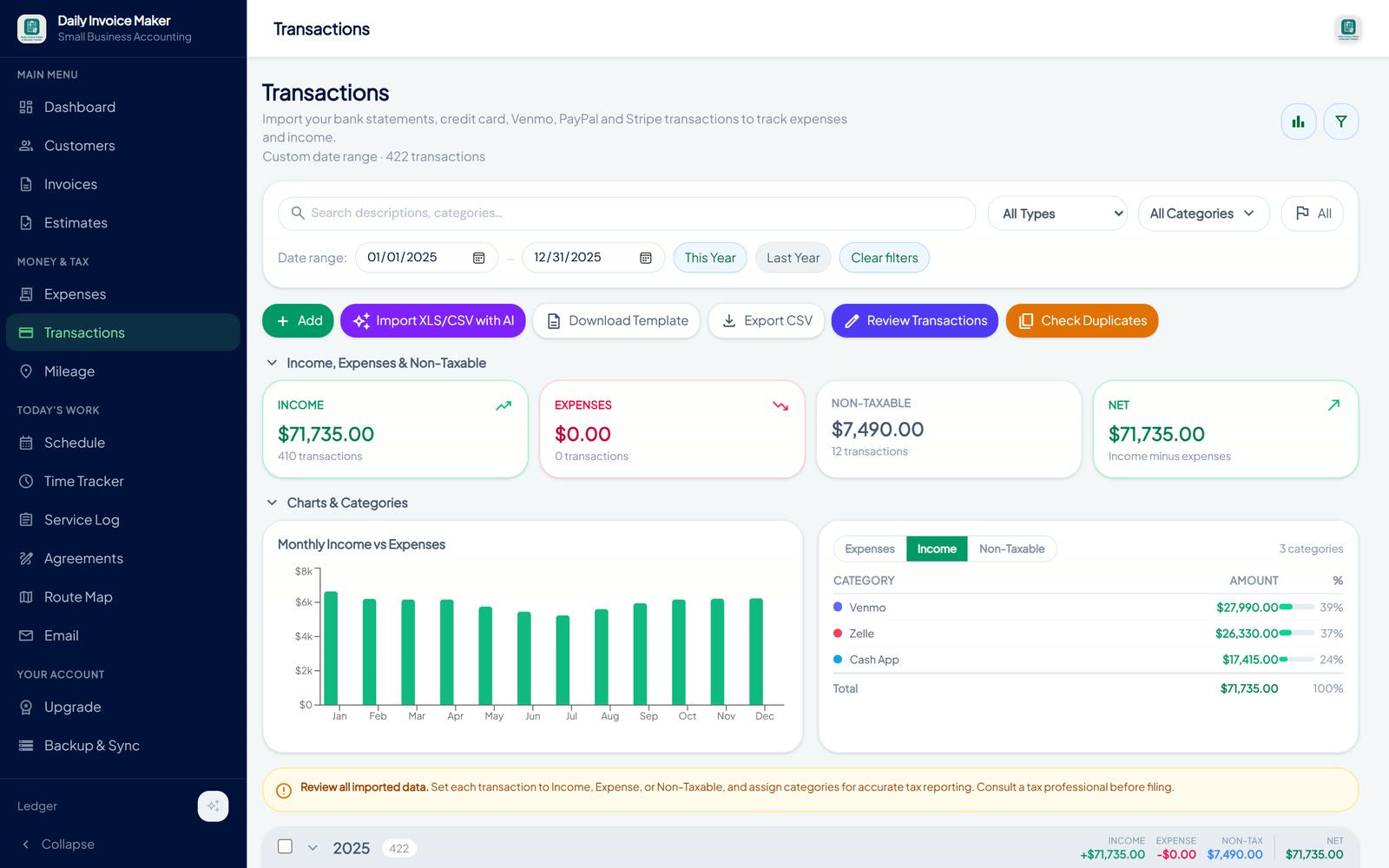
With all three sources imported, set the date range to the tax year (here, 2025) and the ledger shows the whole picture: $71,735 in income across 410 payments, plus the $7,490 of non-taxable transfers kept safely separate. The monthly chart makes seasonality obvious at a glance.
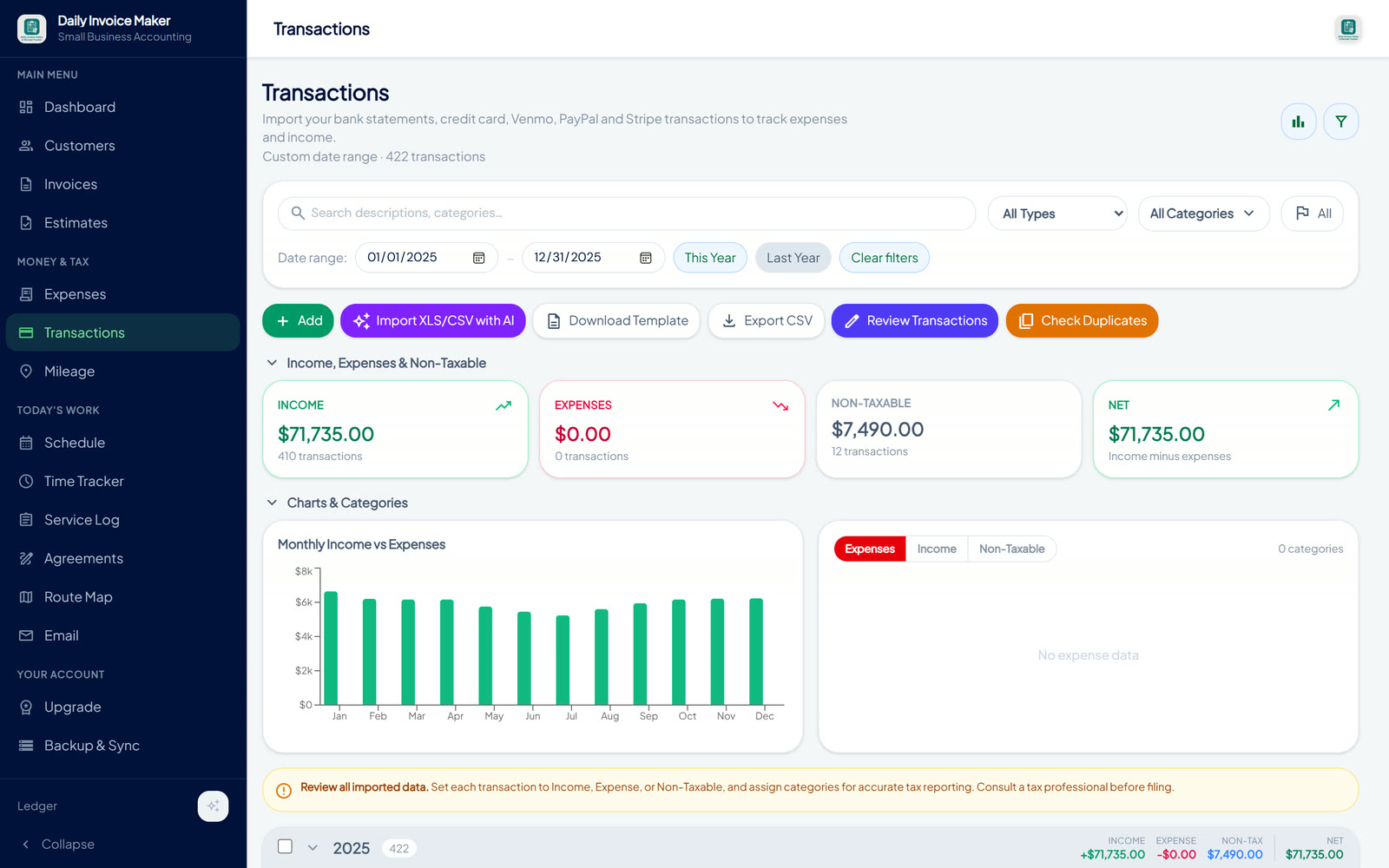
Flip the category panel to Income and you get an instant breakdown by payment app — exactly what you want when reconciling against each platform’s 1099-K:
- Venmo — $27,990 (39%)
- Zelle — $26,330 (37%)
- Cash App — $17,415 (24%)
Step 6 — Generate your tax report
Open the Dashboard and launch the Tax Summary. Pick the tax year and you’ll see gross income, expenses, net income, and non-taxable transfers up top.

Because all of this income came from imported payments (not from invoices inside the app), set the income source to “Bank transactions only.” That tells the report to count your imported P2P income and avoids any double-counting.
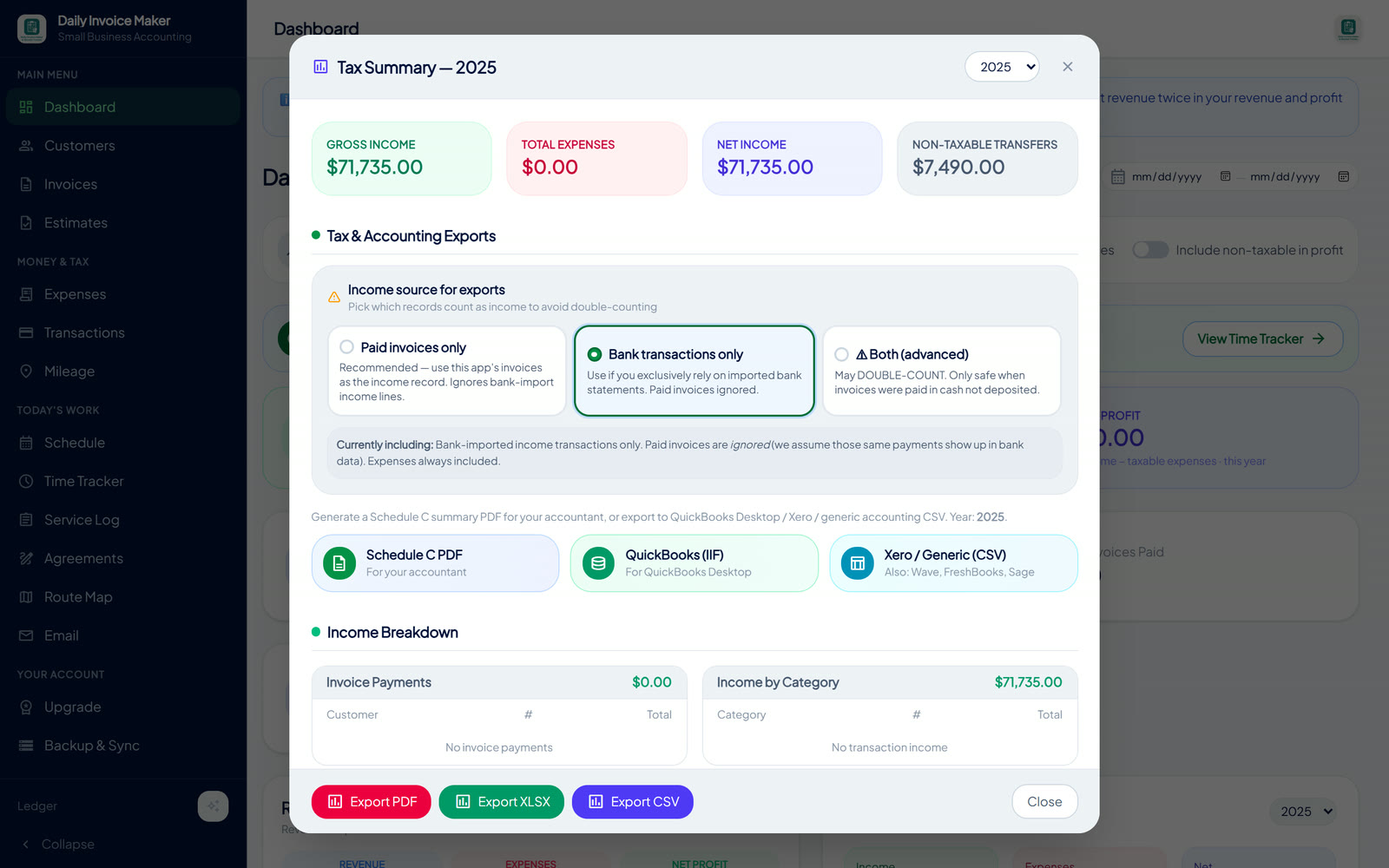
Now export. Daily Invoice Maker gives you a Schedule C summary PDF for your accountant, plus one-click QuickBooks (IIF) and Xero / generic CSV files that also work with Wave, FreshBooks, and Sage.

📄 See the actual Schedule C summary PDF this produced (sample) — it lists gross receipts on Line 1, total expenses on Line 28, and net profit on Line 31, exactly how a tax preparer expects it.
Watch the whole workflow (video)
Here’s every step above — importing all three statements and exporting the tax report — screen-recorded in the real app, with on-screen captions for each step:
Tips for accurate P2P bookkeeping
- Separate business from personal. If you use one Venmo account for both, mark personal payments as Non-Taxable during review so they don’t inflate your income.
- Don’t double-count transfers. Moving money from Venmo/Cash App to your bank is not new income — the app tags these automatically, but always spot-check.
- Import monthly. A quick monthly import keeps the year’s total accurate and turns tax season into a five-minute export.
- Keep the source files. Save each CSV alongside your records; the app stamps every transaction with the file it came from.
- Reconcile against your 1099-Ks. The income-by-app breakdown makes it easy to match each platform’s form to your books.
Frequently Asked Questions
Do I have to pay taxes on Venmo, Cash App, and Zelle payments?
Yes — money received for goods or services is taxable income regardless of how it’s paid. Whether you receive a 1099-K depends on the platform and the year’s reporting threshold, but the income is reportable either way. Confirm current rules with the IRS or a tax professional.
Does Zelle report to the IRS?
Zelle itself does not issue a 1099-K because it moves money directly between banks. That does not make the income tax-free — you still report it. Importing your bank statement into Daily Invoice Maker captures those Zelle deposits automatically.
How do I get a Venmo or Cash App statement?
On the Venmo website, go to Settings → Statement and download a CSV. In Cash App, open Activity on the web and export to CSV. For Zelle, download the CSV statement from the bank account that receives the payments.
Will personal payments get counted as income?
Only if you leave them marked as income. During the Review step you can flip any personal payment or transfer to Non-Taxable so it’s excluded from your taxable total.
Can I export the totals to my accountant or QuickBooks?
Yes. The Tax Summary produces a Schedule C summary PDF for your accountant and one-click exports for QuickBooks (IIF) and Xero / generic CSV (also compatible with Wave, FreshBooks, and Sage).
Do I need the AI feature or a subscription to import these files?
No. Venmo, Cash App, and bank CSV statements are read directly by the built-in parser — no AI key and no subscription needed. The optional AI parser only helps with unusual formats, scanned PDFs, or photos.
Start tracking your P2P income the easy way
A year of scattered payments across three apps became one clean tax report in about five minutes. Download Daily Invoice Maker for desktop or mobile, import your Venmo, Cash App, and Zelle history, and walk into tax season with your numbers already done.
We hit this from the software side building bank-statement import, and the awkward part is that P2P payments do not arrive labelled. A bank export describes one as VENMO CASHOUT MARCUS WHITFIELD, indistinguishable from a personal transfer unless you already know which is which. We ended up writing separate parsers for the Cash App and Venmo exports because their own CSVs are the only place that distinction is reliable.
One caution on the numbers: the threshold for a payment app to issue a 1099-K has moved repeatedly, so verify it against the IRS 1099-K page rather than any blog post, ours included. What does not move is the underlying rule — business income is reportable whether or not a form arrives.
Daily Invoice Maker keeps all your data on your device. This article is for general information only and is not tax or legal advice.
Run a service business?
Daily Invoice Maker handles invoices, estimates, expenses, route maps, agreements, and tax reports — offline, on Windows, Mac, Linux + Android. Free demo, lifetime license available.
Download free →