Guides · Invoicing and billing
Billing software for service businesses: recurring, bulk and tracked
Invoicing is writing one bill. Billing is the system around it: who gets billed when, for how much, whether they paid, and what to do when they did not. A pool route with forty monthly customers, a cleaning company, a lawn crew, an HVAC maintenance plan: for these the hard part was never the invoice, it was doing forty of them on the first of the month and knowing on the fifteenth who still owes.
This guide is about that system: recurring billing, bulk billing, invoice tracking and collections, and how Daily Invoice Maker handles each.

Invoicing is a document; billing is a process
A billing process answers five questions on a schedule:
- Who is due to be billed? Every active customer with a monthly rate, plus any one-off jobs done since the last run.
- For what? The standing service line, plus extras: a repair, a chemical treatment, a late fee.
- Did it go out? Every invoice in the run marked Sent, with a date.
- Did it come in? Paid, part-paid, or nothing yet.
- Who needs a nudge? Overdue balances, sorted by age and size.
Billing software is anything that answers those five questions without you rebuilding the list each month. A spreadsheet can answer the first two. It cannot answer the last three, because the answers change every day and nobody types them in.
Recurring billing for standing customers
A customer on a monthly service should have a monthly rate stored once, on their record. The billing software then generates their invoice on the schedule you set, with the standing line item already filled in, so the monthly run starts with every regular customer already done. Add the extras, review, send.
The details that separate good recurring billing from a nuisance:
- The rate lives on the customer, so a price change is one edit, not forty.
- Paused customers are skipped. A seasonal customer, or one who has not paid for two months, should be pauseable without being deleted.
- Generated invoices are drafts until you say otherwise, so you can add the extras before anything goes out.
- Each generated invoice is a real, numbered invoice with its own status, not a line on a statement.
Bulk billing: the same line to many customers
Bulk billing is the other half of the monthly run: pick the customers, set the line items once, and create an invoice for each. It is how a route with the same service on every stop gets billed in minutes. The tool should let you pick customers by name or select all active ones, preview what will be created, and then send the whole batch by email in one action, with each customer receiving only their own invoice.
Bulk sending is where email errors multiply, so a bulk billing tool should confirm the count before it sends, flip every invoice to Sent afterwards, and leave a record of when each one went. A run that produced forty PDFs but did not record which ones were emailed has created a problem rather than solved one.
Invoice tracking: the three statuses that matter
Billing software lives or dies on status. Every invoice should be in exactly one state, and the state should change from the action itself, not from someone remembering to update a column:
| Status | Set by | What it tells you |
|---|---|---|
| Draft | Creating the invoice | Not yet a bill; the customer has not seen it |
| Sent | Emailing, texting or printing it | The clock to the due date is running |
| Paid / Partial | Recording a payment | Done, or a balance remains |
| Overdue | The due date passing | Needs a reminder; this is the collections list |
Two refinements make tracking useful rather than merely accurate. Partial payments should record the amount and show the balance, because "paid $150 of $430" is a different conversation from "unpaid". And the customer view should total everything: what this customer has paid this year, what they owe now, and how much of that is late.
Chasing overdue balances without losing customers
The collections list is the overdue filter, sorted by days late. A gentle reminder at seven days past due, resending the invoice with a short note, recovers most of it; a stated late fee, printed on the invoice from the start, recovers more. The tone matters: the reminder should read as a resend, not an accusation, because the most common reason a residential customer has not paid is that the email is buried.
What billing software adds here is the ability to resend from the row, see the customer's whole history before you call, and keep a note of what was said. A dashboard figure for total outstanding tells you whether collections are a problem this month or just a customer or two.
Payment methods and getting the money in
Print the ways to pay on every invoice: Zelle details or QR code, a PayPal or card link, cheque instructions with a remittance slip, Venmo or Cash App for customers who prefer them. Then record the payment against the invoice when it arrives, whichever way it came. If the payments land in a bank or payment-app account, importing that statement monthly and reconciling it against the invoices is how you catch the customer who paid and was still chased, and the one who was marked paid and never was.
The billing record at tax time
A billing system that tracked every invoice all year has a second payoff in April: the paid invoices are the business's gross receipts, and the sales tax it collected is a separate total by state and rate. Neither number has to be rebuilt from bank statements. If the software also holds receipts, expenses and mileage, the whole Schedule C is a report rather than a project.
Step by step
How Daily Invoice Maker handles it
Daily Invoice Maker is billing software for small service businesses: recurring invoices from a rate on the customer, bulk invoice creation and sending, status tracked on every invoice, and a customer view of what is owed. Here is a monthly billing run with a fictional pool-service route.
-
Put the monthly rate on the customer
Each customer record holds a monthly rate and an active or paused status. The Customers screen totals active customers and the monthly and yearly income they represent, and the history view shows, per customer, what has been paid, what is owed and what is overdue, with a coloured status so the ones to chase stand out.
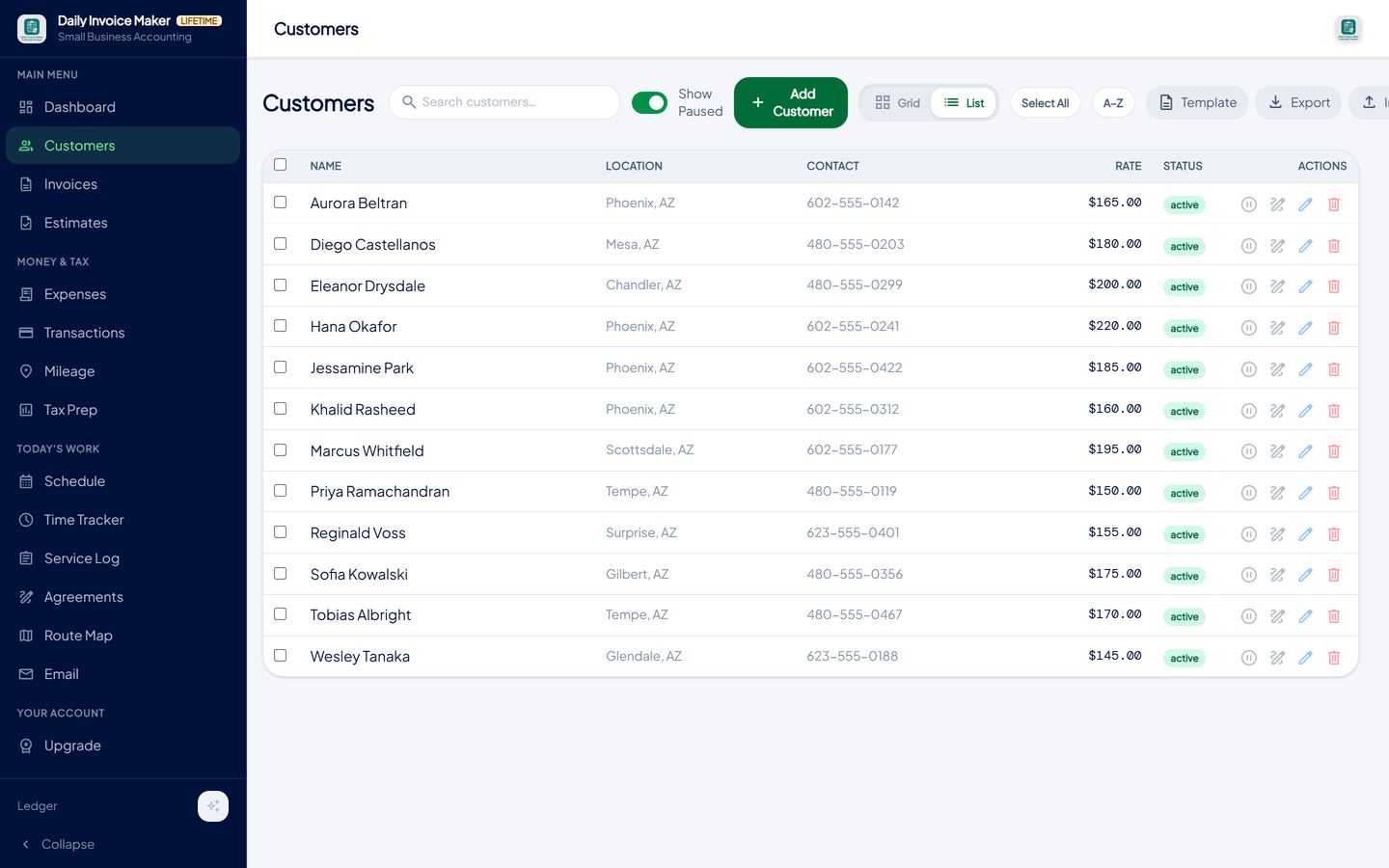
Each customer's record carries a monthly rate and status; the history view totals what they paid, owe and have overdue. -
Create the month's invoices in one go
Choose Multiple invoices at once, pick the customers (or select all active), and set the service line once. One invoice per customer is created, each with its own number, ready to review. Customers with a recurring schedule are generated automatically on their date without this step at all.
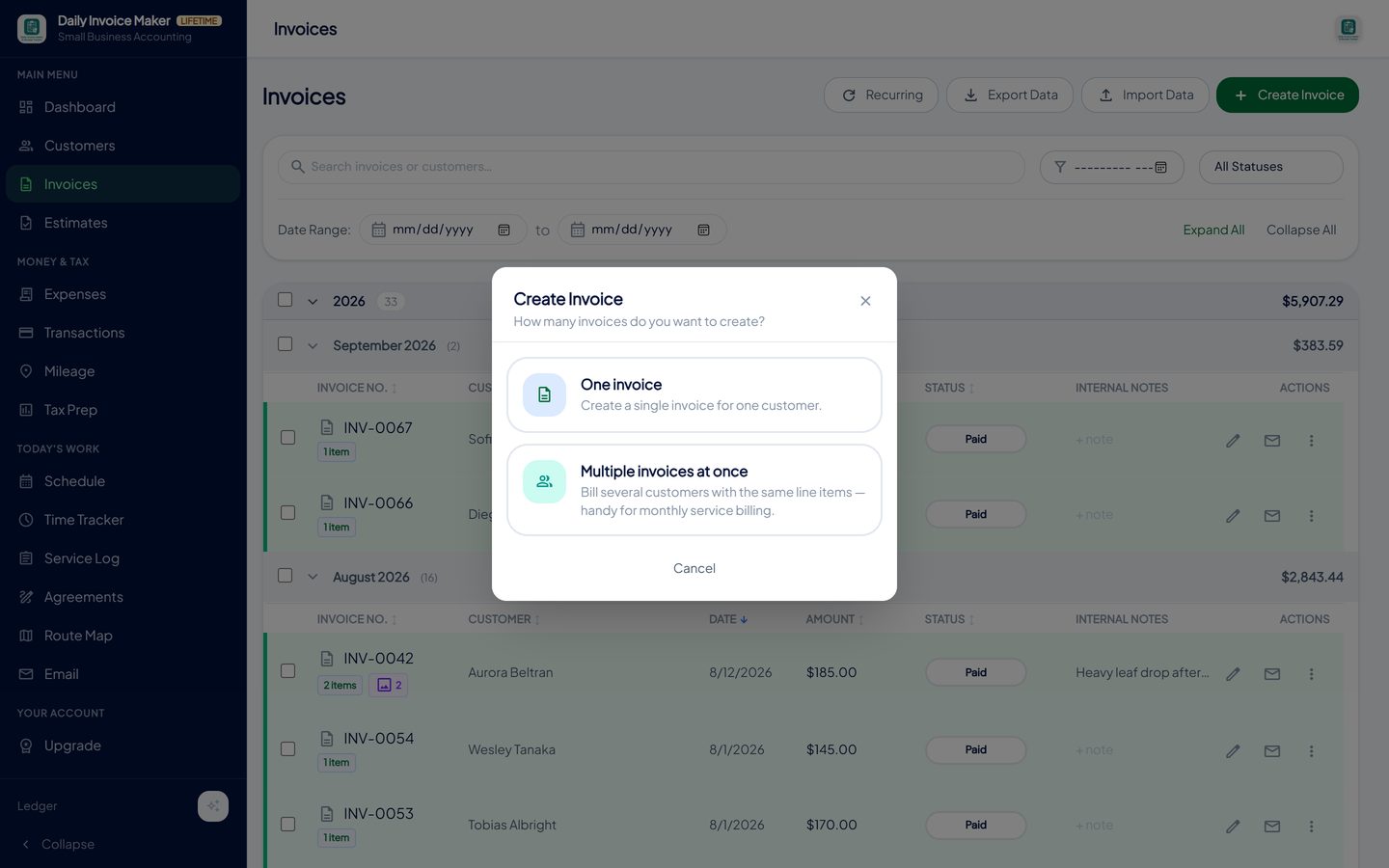
Multiple invoices at once: the same line items to a chosen set of customers, for monthly service billing. -
Pick the customers and review before anything goes out
The run starts with the standing service on every selected customer. Add extras where they apply: a repair on one stop, a chemical treatment on another. Every invoice in the batch remains a normal invoice you can open and edit before sending.
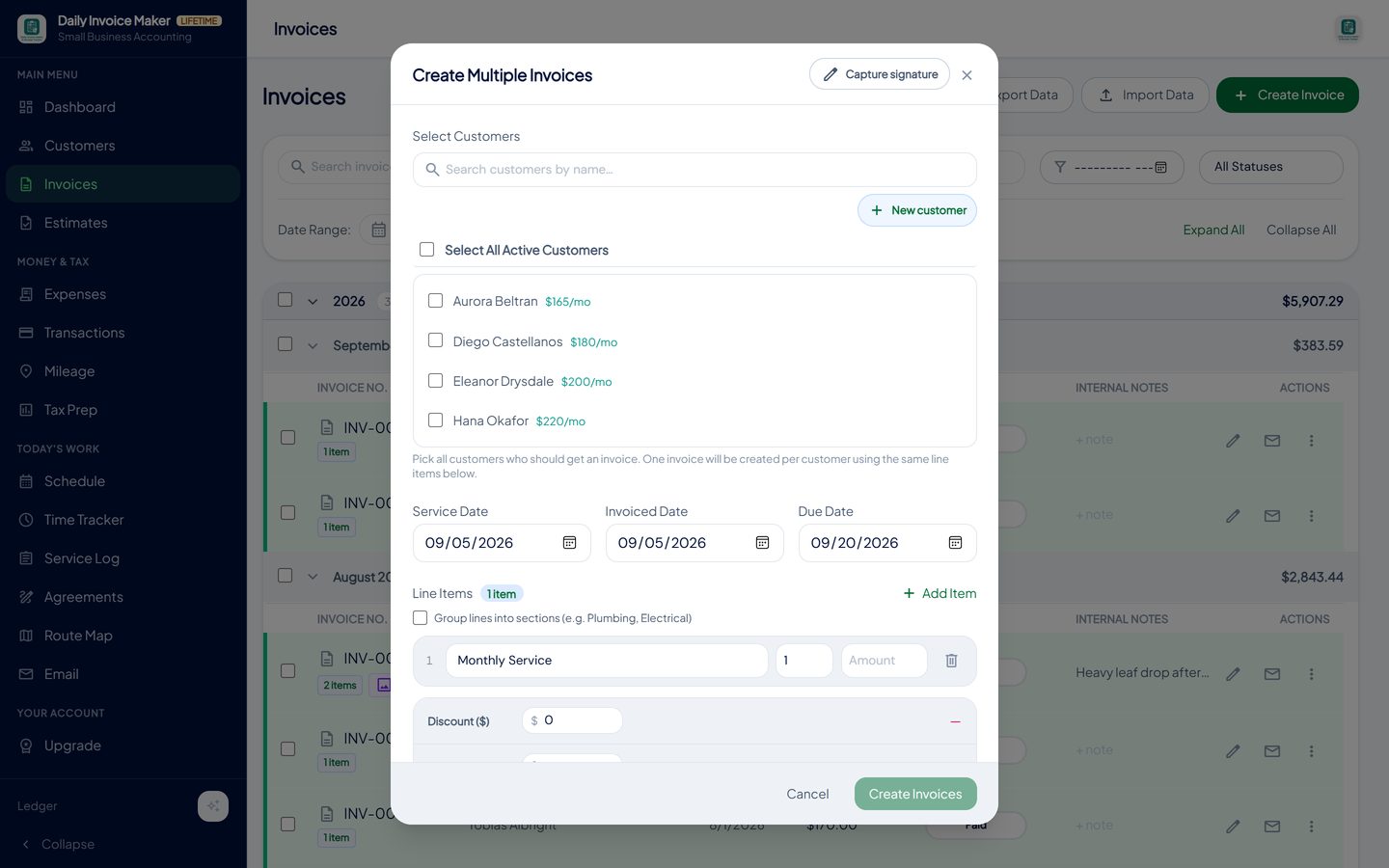
Select the customers for this run. Each gets an individual invoice with the standing line and any extras you add. -
Send the whole batch by email
Select the batch and email it. The app confirms how many will be sent, delivers each customer only their own PDF, and marks every invoice Sent. Customers who prefer a text or WhatsApp can be sent individually from a phone.
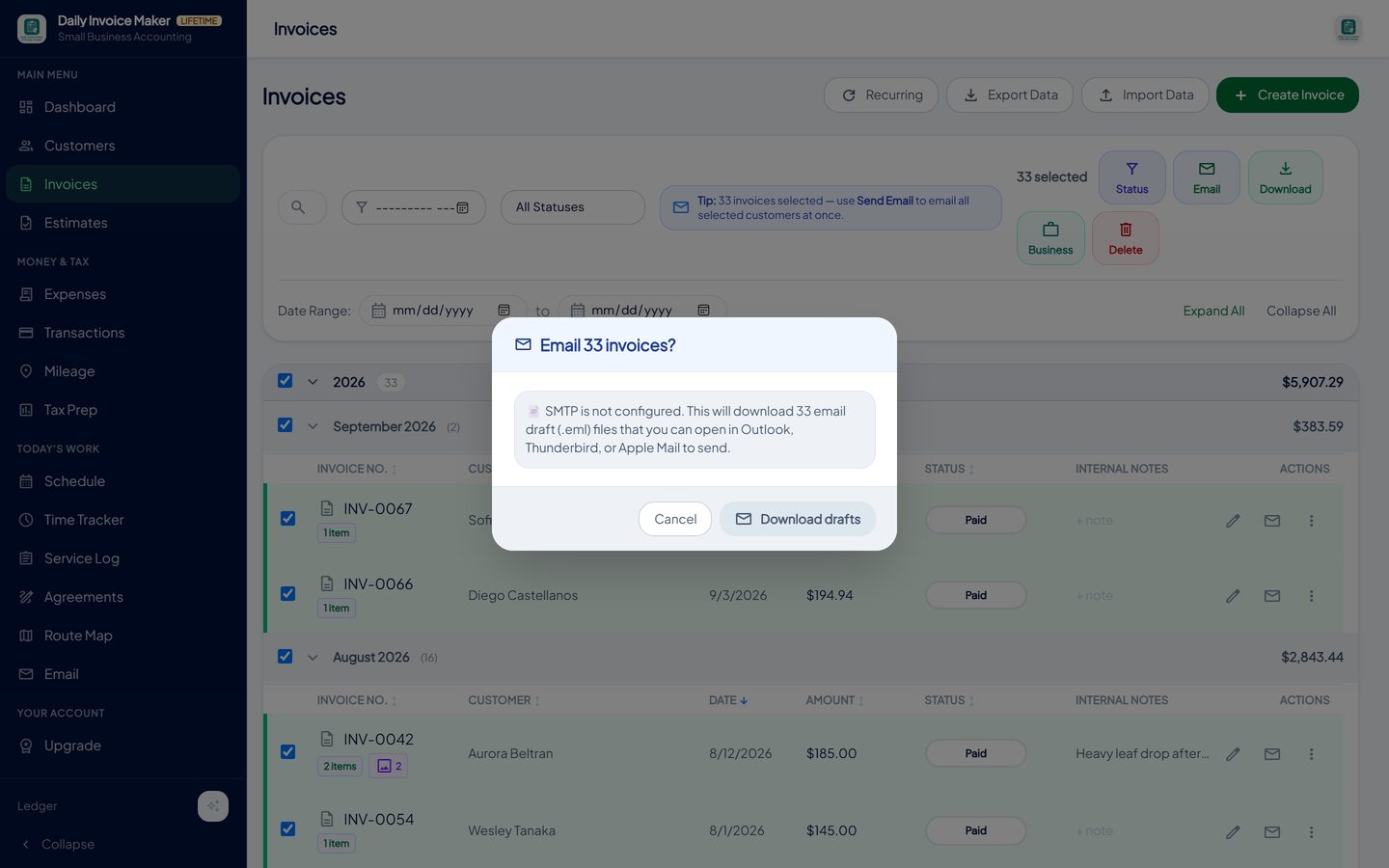
Confirm the count, send the batch, and every invoice flips to Sent with the date recorded. -
Track paid, partial and overdue as the month runs
As payments arrive, mark invoices paid or record a partial amount; the balance stays visible. Invoices past their due date turn Overdue on their own. The month header keeps a running total so you know how much of the run has come in.
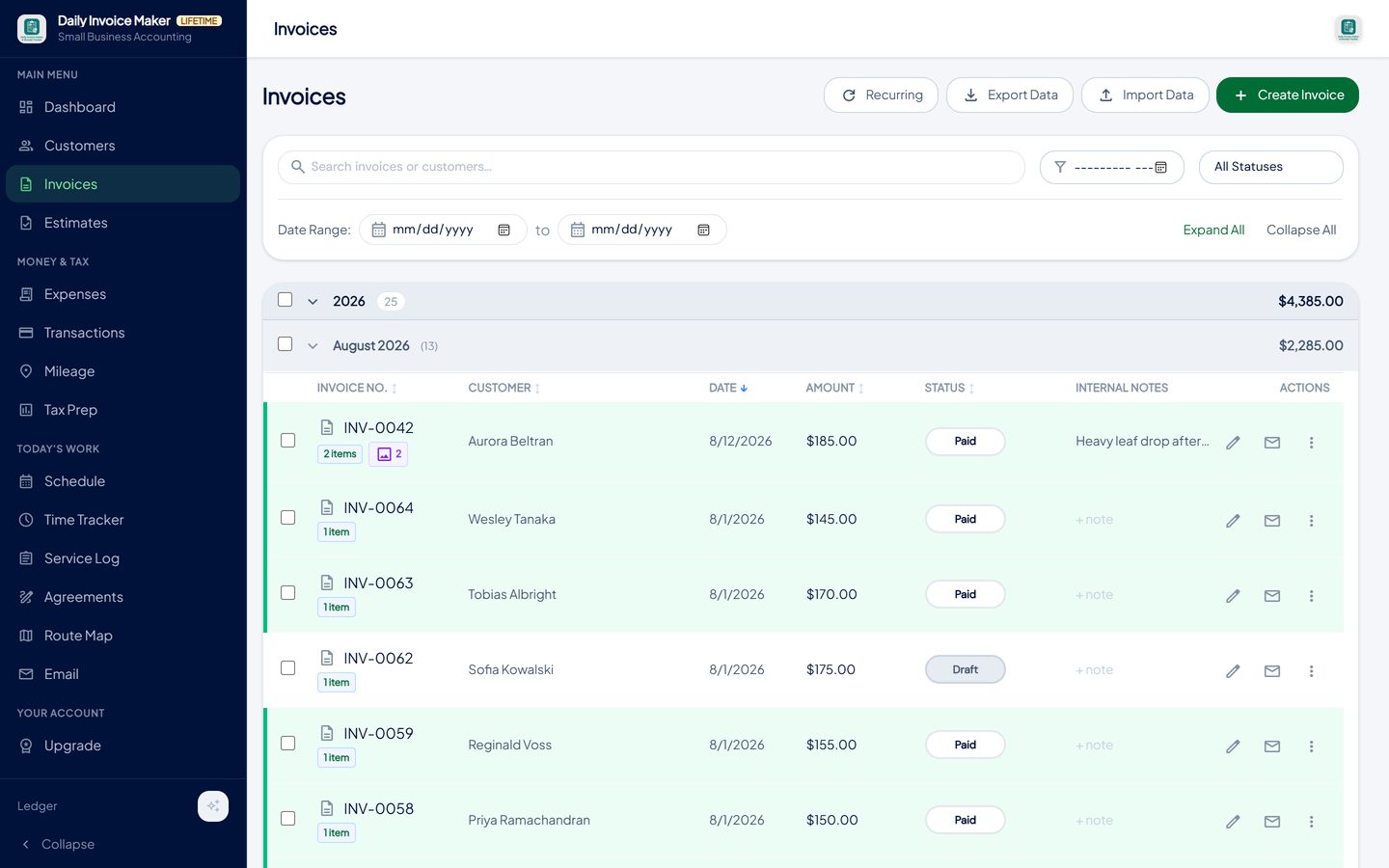
Every invoice shows its status; the month header shows the total. Record full or partial payments from the row. -
Work the overdue list from the dashboard
The dashboard opens with what needs attention: the overdue total and customer count, unpaid invoices not yet due, and a "needs a nudge" list with resend on each row. Filter the invoice list to Overdue for the full collections view. Nothing has to be rebuilt from a spreadsheet, because the statuses were set by the actions themselves.
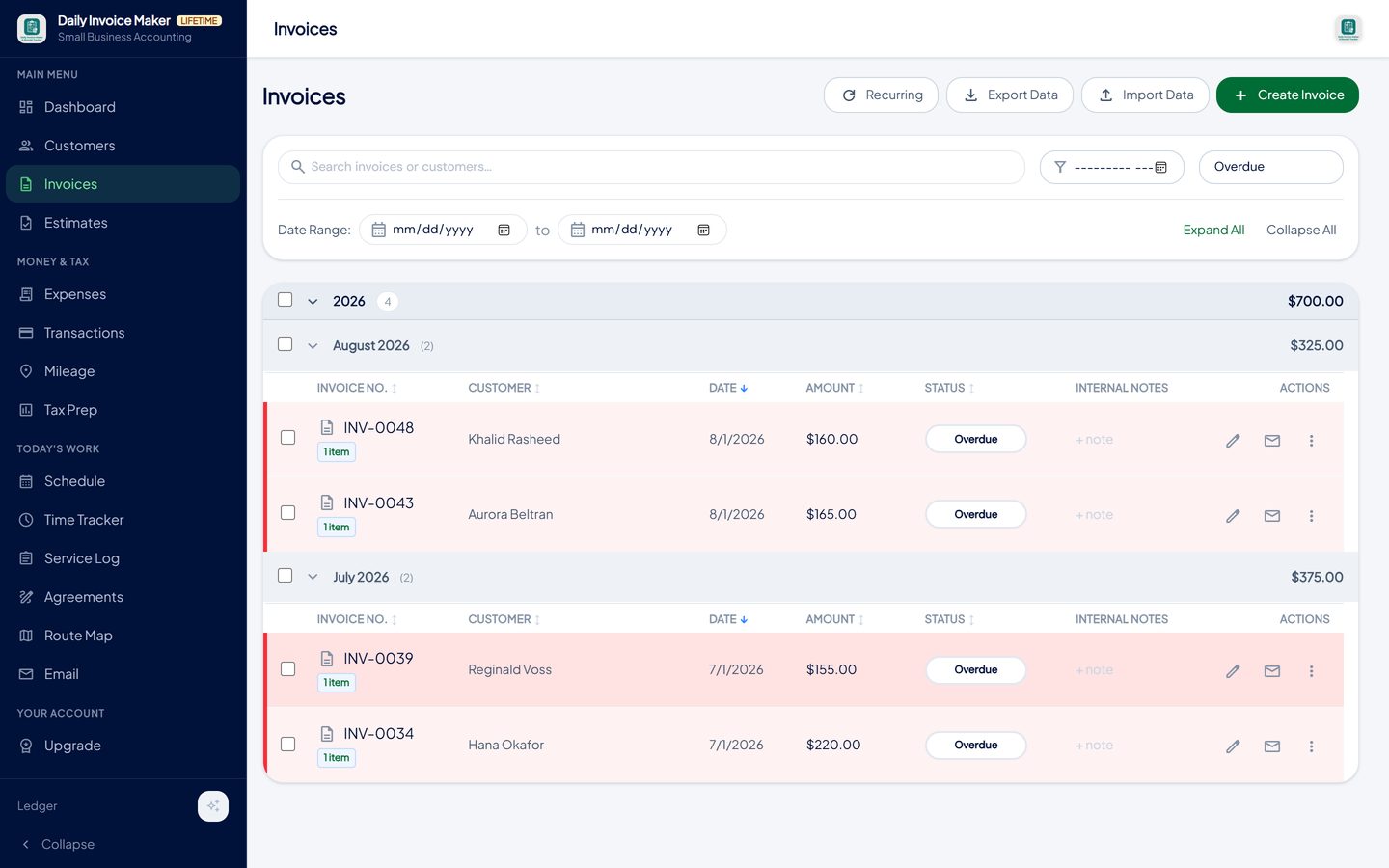
The overdue filter is the collections list. Resend from the row; the dashboard shows the outstanding total.
What else is in the app
Recurring invoices
A rate on the customer generates the invoice on schedule; pause a customer without deleting them.
Bulk create and bulk email
The same line items to many customers, sent as a batch, each marked Sent.
Partial payments and payment links
Record part-payments; print Zelle, PayPal, card and cheque details on every invoice.
Estimates and agreements
Quote first, convert to an invoice; service agreements with e-signature for maintenance plans.
Receipts, statements and tax
Receipt scanner, statement import and a Schedule C export, so billing and bookkeeping share one record.
Desktop and mobile, offline
Windows, Mac, Linux and Android. Data on your devices; Google Drive sync included.
Try it on your own books
The free demo is the full app for your first 7 invoices, 7 customers and 7 expenses — no account, no card. It runs 100% offline on Windows, Mac and Linux: $149.99 once, or $5.99 a month if you would rather not commit. The Android app is a separate Google Play purchase.
Questions
Can it bill all my customers on the first of the month automatically?
Yes. Set a monthly rate and a schedule on each customer and the invoices are generated for you; or use bulk creation to bill a chosen set of customers with the same line items in one action. Either way each invoice is individually numbered and tracked.
Does it send payment reminders?
Overdue invoices are flagged automatically and can be resent from the list or the dashboard with a note. The app does not send reminders on its own, so a customer is never chased by a machine before you have looked at their history.
Can customers pay online?
Your PayPal, Stripe card link, Zelle, Venmo or Cash App details print on every invoice, so customers pay through whichever they already use. Payments are recorded against the invoice when they arrive; there is no processing fee taken by the app.
How do I see what one customer owes?
The customer history shows every invoice for that customer with paid, owed and overdue totals and a status pill, and the dashboard's Customers tab lists everyone the same way.
Is it a subscription?
Either $5.99 a month or $149.99 once for a lifetime licence; both include Google Drive sync between your devices. The free demo is the full app limited to seven invoices with a sample watermark.
Does billing data feed my taxes?
Yes. Paid invoices are the income record in Tax Prep, sales tax collected is totalled separately by state and rate, and the year exports as a Schedule C summary or a TurboTax import file.
The short version
Billing is a monthly loop: generate, send, record, chase. Software earns its place when each step sets the next one up automatically, so the run takes an hour and the overdue list is always current. Daily Invoice Maker's free demo includes recurring and bulk billing; try it on your own route before paying anything.
Related guides

Invoice Maker Guide
What every invoice must contain, the payment terms that get you paid faster, why a real invoice maker beats a one-off generator, and how paid invoices become your…

Contractor Invoicing Guide
What a contractor's invoicing and field-service software has to do between the first call and the paid invoice: estimates, agreements, scheduling, service records…

Small Business Accounting
The accounting a one-person or family business really needs: a profit and loss you can read monthly, invoices as the income record, categorised expenses, sales tax…
How to create recurring invoices · How to invoice many customers at once · Cleaning business invoice software · All guides · Quick how-to answers · Training guide for the app