Guides · Money and records
Small business expense tracker: income and expenses, logged as they happen
An expense tracker has one job: to make "how is the business doing?" and "what do I owe in tax?" answerable at any moment without a reconstruction. Most fail not because they cannot add, but because entries arrive late, land in the wrong category, or get recorded twice.
This guide covers the structure a small business expense tracker needs, how to automate the logging without losing accuracy, the reconciliation habit that catches errors, and how Daily Invoice Maker does it.

The structure: types, categories and businesses
Every entry in a business expense tracker needs three labels, and a tracker that lacks any of them will need a spreadsheet beside it.
- Type
- Income, taxable expense, or non-taxable. The third is the one most trackers miss, and it is essential: a transfer between your own accounts, a loan drawdown, a personal purchase on the business card, the principal part of a loan payment. None of these is income or expense, and a tracker that forces them into one of the two will overstate both.
- Category
- In the vocabulary of the tax form you will file: supplies, fuel, insurance, repairs, tools, meals, advertising, office, utilities, contract labour. Custom categories for your trade (chemicals, plants, parts) should map to a tax line. Categorising in April means re-reading every entry; categorising on the day means April is a report.
- Business
- If you run more than one activity, a trade and a rental, say, each entry belongs to one of them, because they file on different forms.
Two sources, and why you need both
Expenses reach the tracker two ways. Receipts you capture at the point of purchase carry the image and the purpose, but you will not photograph everything: the online subscription, the processor fee, the licence renewal paid by card. Statements you import from the bank, the card and the payment apps catch all of those, but carry no image and only the bank's description.
Use both. The receipts are the evidence; the statements are the completeness check. The cost of using both is that a photographed purchase now exists twice, once as a receipt and once as a statement line, and the tracker must find and remove those pairs or every one of them is deducted twice.
Automating the logging without losing accuracy
"Automated expense logger" usually means one of three things, and they are not equal:
- Receipt reading. A photo is read for merchant, date and total, and a category is suggested. Good automation: the entry is created for you; you confirm it.
- Statement import with review. A downloaded statement is parsed into entries, similar lines are grouped, and the ones that need a decision are shown first. Good automation: forty lines become five decisions.
- Live bank feeds with auto-categorisation. Transactions arrive by themselves and are categorised by rules. Convenient, but the rules are wrong often enough that an unreviewed feed produces confident, incorrect books, and the feed requires giving a third party your banking credentials.
The principle is that automation should do the typing and leave the judgement. An entry nobody looked at is not a record, it is a guess with a timestamp.
Tracking income alongside expenses
An income and expense tracker only tells you how the business is doing if income is as well recorded as spending. For a service business the income record should be paid invoices, because the invoice says who paid, for what, and whether sales tax was included. Deposits on imported statements are the check: every deposit should match a paid invoice or be marked as a transfer.
The rule that keeps this honest is one source of income. Count paid invoices, or count bank deposits, but not both, or every job is income twice. Choose the rule once and apply it to the whole year.
The monthly reconciliation
Once a month, with the previous month's statements imported:
- Every deposit is a paid invoice or a marked transfer. A deposit with no invoice is a job that was never billed properly.
- Every receipt from the month has been matched to its statement line, and the duplicate dropped.
- Every statement line has a type and a category; personal lines are marked non-taxable.
- Loan and mortgage payments are split into interest and principal.
- The month's income, expenses and net are read, and the tax set-aside is checked against them.
Done monthly this is an hour. Done annually it is the weekend that gives expense trackers their bad name.
The reports worth having
Three views cover nearly everything: income versus expenses by month, to see the shape of the year; expenses by category, with a percentage, to see where the money goes and to sanity-check the tax lines; and net profit year to date, per business, which is the base for quarterly estimated tax. A tracker that can show categories per business, rather than merged, is the one that will not need untangling in April when the trade and the rental file on different forms.
Step by step
How Daily Invoice Maker handles it
Daily Invoice Maker tracks income and expenses with the structure above: three types, Schedule C categories, one or more businesses, receipts captured with a scanner, statements imported and reviewed, and a duplicate check. Here is the flow with a fictional pool-service business.
-
Capture expenses with the receipt attached
Add an expense from a receipt photo (the AI scanner reads the merchant, date and total and suggests a category) or type it in. Each entry carries a category, a business and, wherever possible, the receipt image. The screen shows totals for the week, month and year and a spending chart.
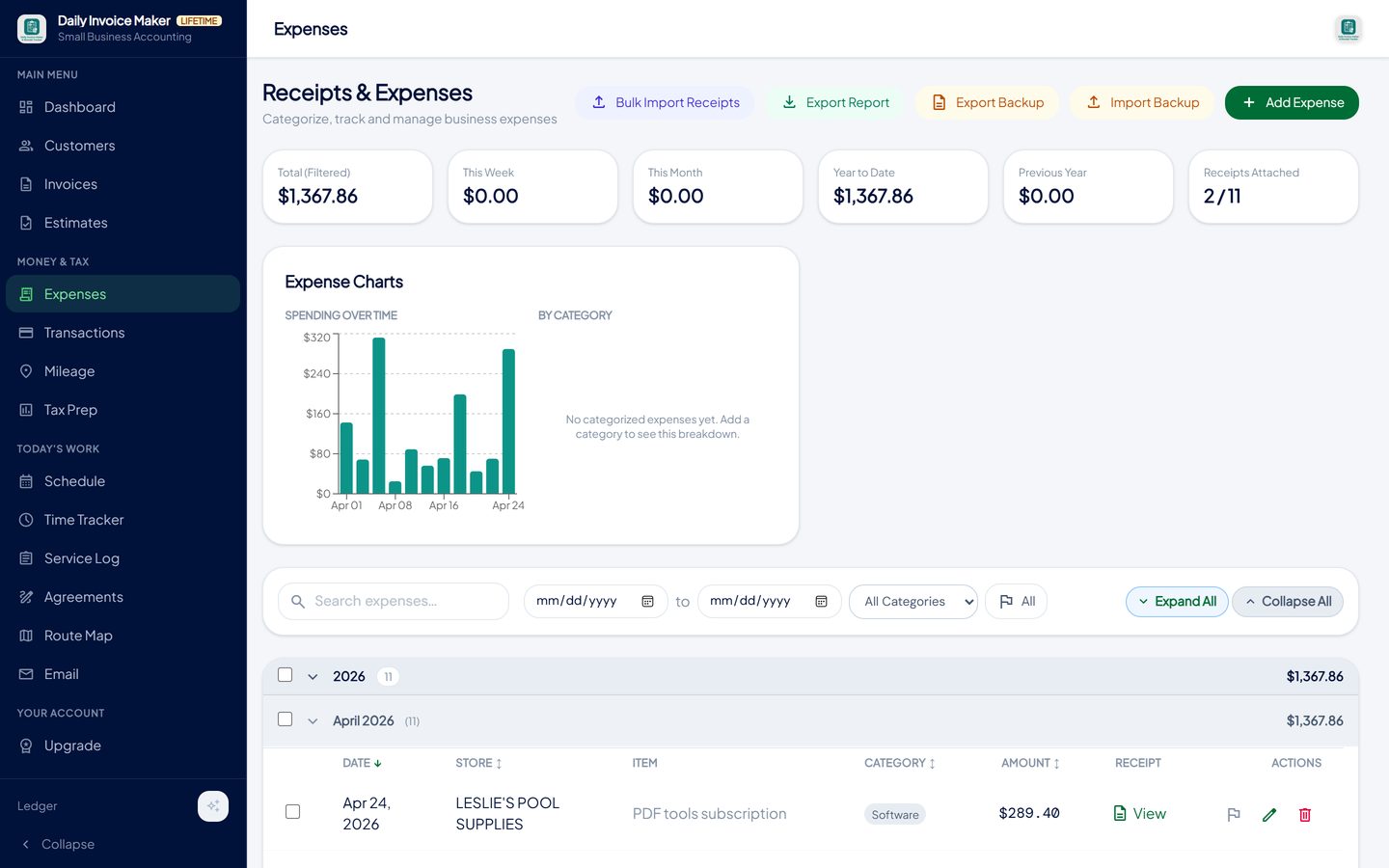
Expenses with a category and a receipt on each row; the tiles show this week, this month and year to date. -
Import the bank, card and payment-app statements
Download the statement from the bank or the payment app and import it. The app reads Chase, Bank of America, Wells Fargo, Amex, Capital One, Discover, US Bank, Citi, PayPal, Venmo, Cash App, Stripe, Square, OFX files and PayPal PDF statements directly, with an AI fallback for anything else.
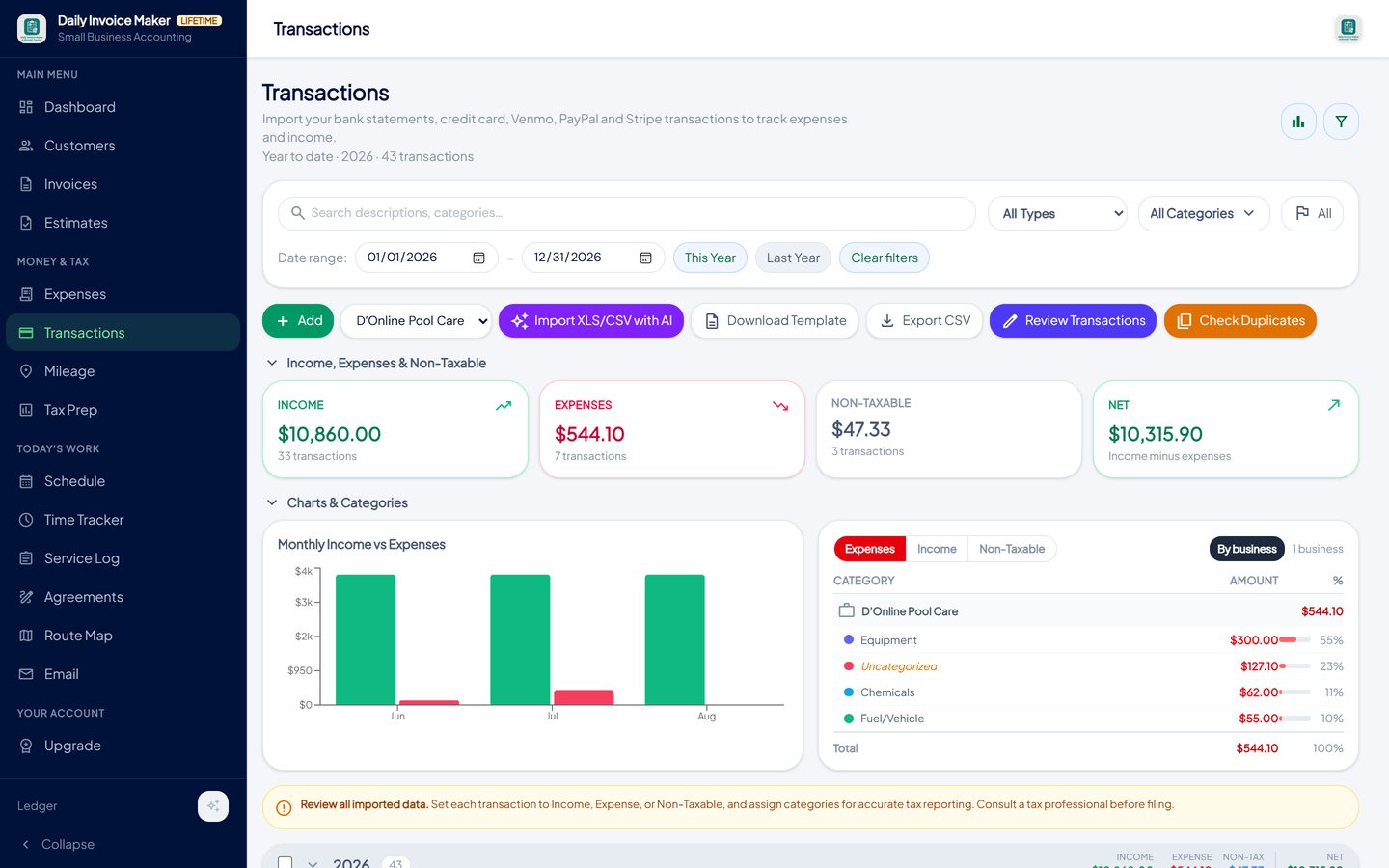
Transactions: income, expenses and non-taxable totals, a monthly income-versus-expenses chart, and categories per business. -
Review the import in one pass
The review screen groups similar lines, shows the ones that need a decision first, and reports how many were read cleanly. Each line gets a type (income, taxable expense, non-taxable), a category and a business. Set-all buttons handle a whole group at once, and the whole import can be undone with one click if the file was wrong.
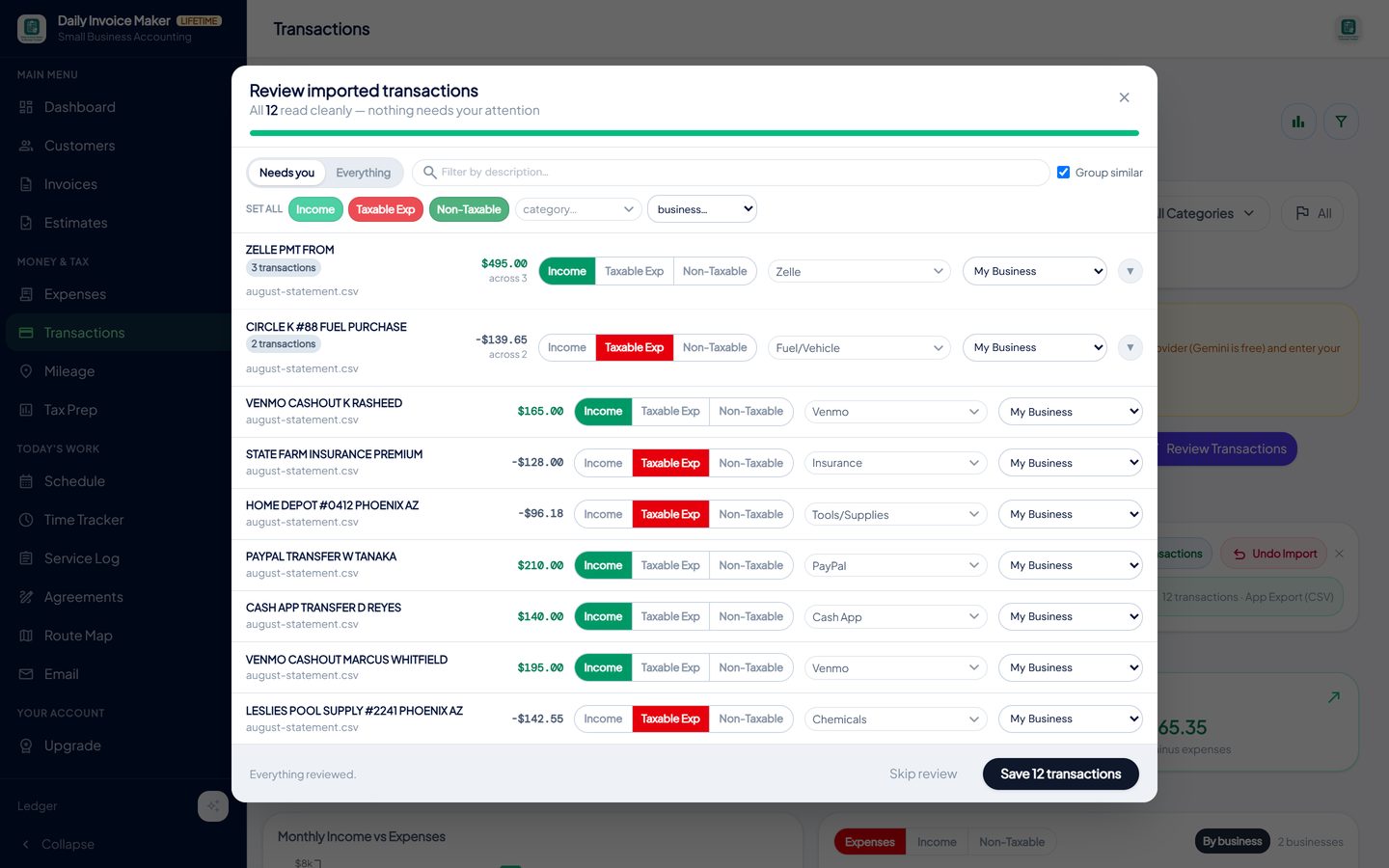
Lines that need a decision come first; similar lines are grouped; each gets a type, a category and a business. -
Match receipts to statement lines and drop the duplicates
Tax Prep pairs each receipt with the statement line that describes the same purchase, within a few days and at the same amount, shows how much would be double counted, and excludes the imported copies with one checkbox. The receipt stays because it carries the image and your category.
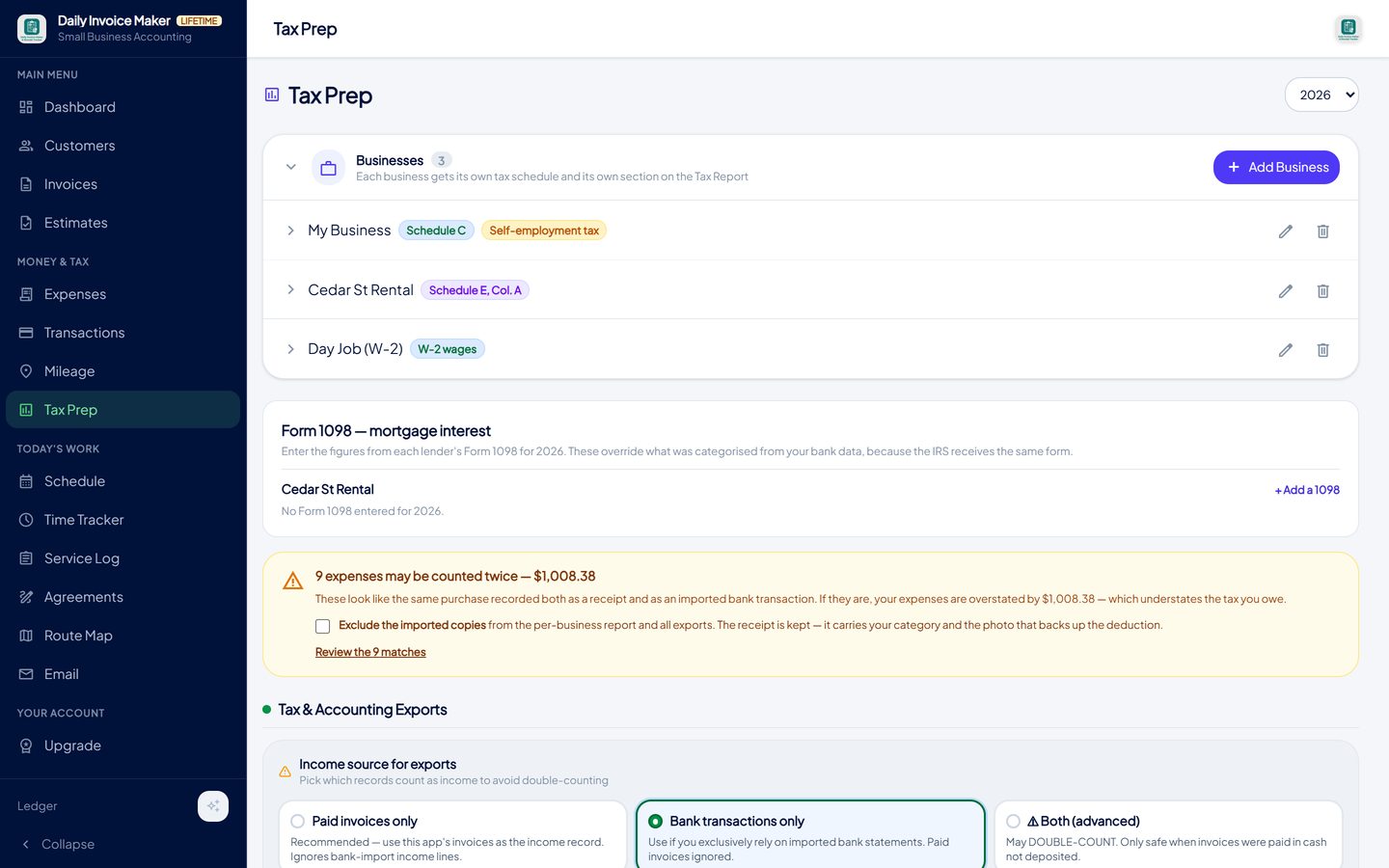
Receipts that match imported lines are listed with the amount at stake; one checkbox excludes the copies and keeps the receipts. -
Read income, expenses and net per business
The by-business view shows income, expenses and net for each activity separately, with the categories underneath. This is the figure to set tax aside against each quarter, and it is what your preparer needs per schedule.
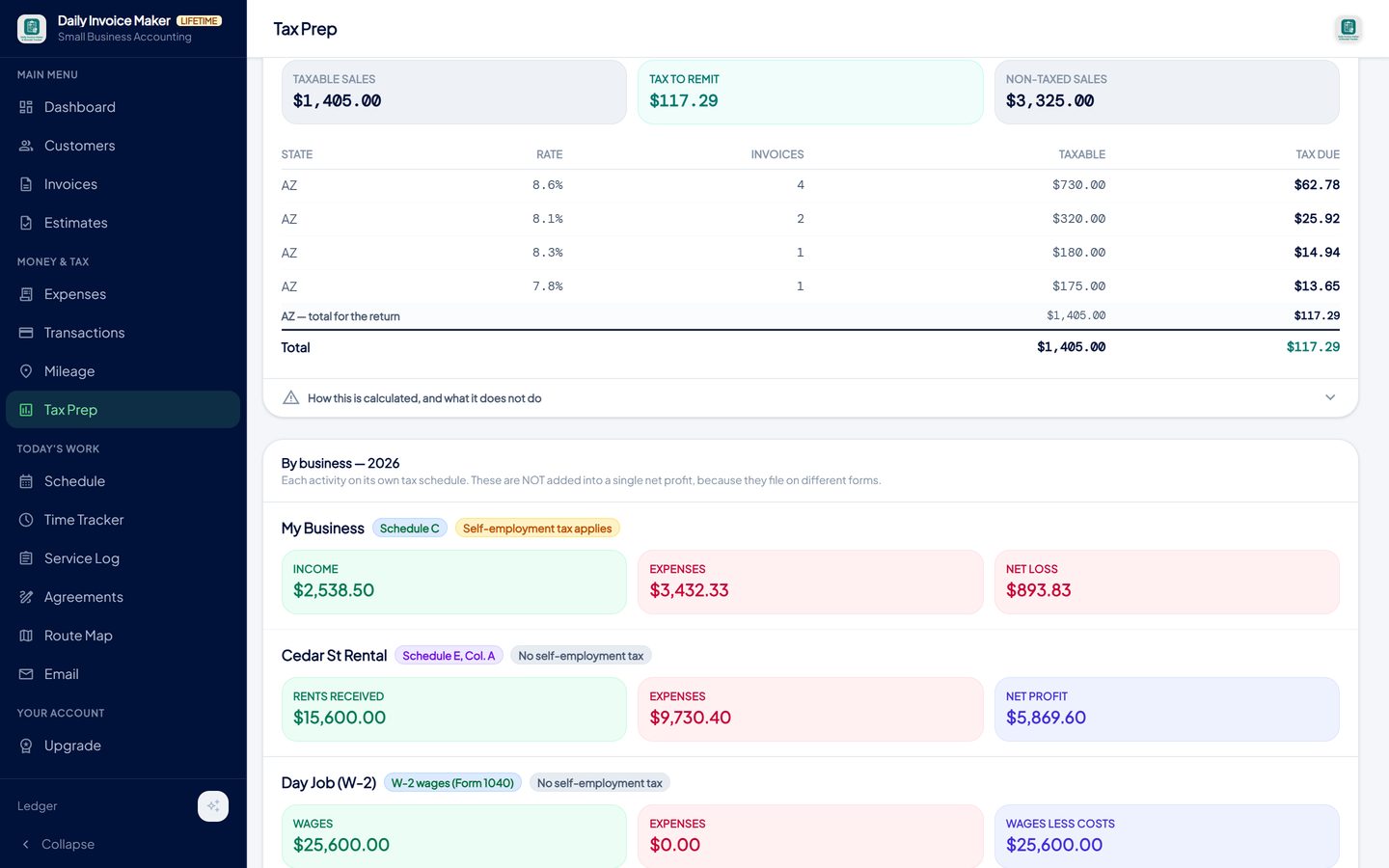
Each business reported on its own: income, expenses and net, never merged, because they file on different forms. -
Export the year
When the year closes, export a Schedule C summary PDF for an accountant, a TurboTax Desktop import file, or QuickBooks and generic CSV files. Nothing has to be re-categorised, because the categorising happened when the entries arrived.
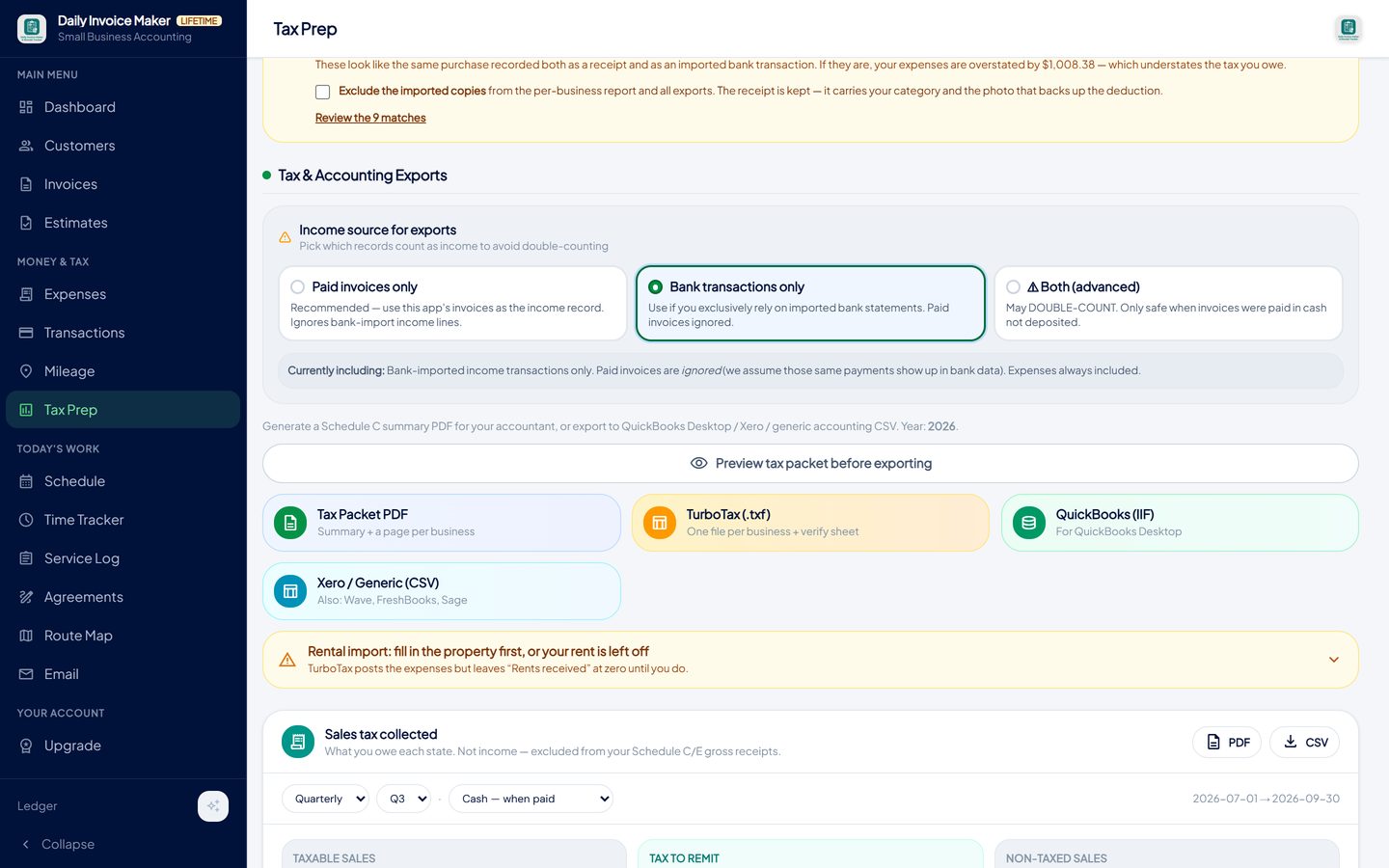
The categorised year exports as a Schedule C summary, a TurboTax file, or QuickBooks and CSV.
What else is in the app
AI receipt scanner
Merchant, date and total from a photo; the image stays with the entry.
Statement import, 16 formats
Banks, cards, PayPal, Venmo, Cash App, Stripe, Square, OFX and PayPal PDF.
Duplicate finder
Receipts matched to statement lines so nothing is deducted twice; a separate check for double-imported statements.
Books per business
Schedule C, Schedule E and W-2 activities tracked and reported separately.
Mileage tracker
Odometer-photo trips at the IRS rate, in the same records.
Local and offline
Windows, Mac, Linux and Android. Data on your devices; Google Drive sync included.
Try it on your own books
The free demo is the full app for your first 7 invoices, 7 customers and 7 expenses — no account, no card. It runs 100% offline on Windows, Mac and Linux: $149.99 once, or $5.99 a month if you would rather not commit. The Android app is a separate Google Play purchase.
Questions
Does it connect to my bank automatically?
No, by design. You download the statement from your bank or payment app and import it; the app reads sixteen common formats directly. That keeps your banking credentials out of a third party's hands and keeps the app working offline. Importing a month takes about a minute.
How does it stop the same expense being counted twice?
Two checks. The duplicate-statement check catches a file imported twice. The receipt-versus-statement check in Tax Prep pairs a photographed receipt with the card line for the same purchase and excludes the copy, keeping the receipt.
Can I track income as well as expenses?
Yes. Paid invoices are the income record, and imported deposits are marked as income or as non-taxable transfers. Tax Prep's income-source rule stops invoices and deposits both counting.
Can I add my own categories?
Yes. Custom categories are added from any category picker and appear everywhere; the built-in ones map to Schedule C lines.
Does it handle two businesses?
Yes. Each entry is assigned to a business, and each business is reported on its own schedule: Schedule C for a trade, Schedule E for a rental, W-2 for a day job.
Is there a free version?
The free demo is the full app, including expense and income tracking, with a seven-invoice limit and a sample watermark on invoice PDFs. Paid plans are $5.99 a month or $149.99 once.
The short version
An expense tracker is a structure (type, category, business), two sources (receipts and statements), one duplicate check and a monthly hour of reconciliation. Keep to that and the books are always current and the tax return is a report. Daily Invoice Maker's free demo lets you import last month's statement and see it in practice.
Related guides

Receipt Scanner Guide
How a receipt scanner should work for a small business: capture at the counter, read the merchant, date and total automatically, categorise for Schedule C, keep the…

Simple Ledger Guide
What a small business ledger actually needs to record, why a cash book beats double entry for a sole proprietor, how to keep it reconciled, and how a bookkeeping app…

Write-Off Tracker Guide
The small business tax deductions most self-employed people miss, the records the IRS expects for each one, and how a tax write-off tracker captures them during the year.
How to track mileage between jobs for taxes · All guides · Quick how-to answers · Training guide for the app