Guides · Money and records
Receipt scanner and organizer: turn the shoebox into tax-ready records
The shoebox is not a filing system; it is a decision deferred. Every receipt in it will be read once, in April, by someone trying to remember what a $47.12 purchase at Home Depot was for, and whether it was for the business at all.
A receipt scanner moves that decision to the counter, when you still know. This guide covers what the scanner has to read, how to organise receipts so they survive an audit, the double-counting trap that catches most people who also import bank statements, and how Daily Invoice Maker does it.
Why the receipt has to be captured at the counter
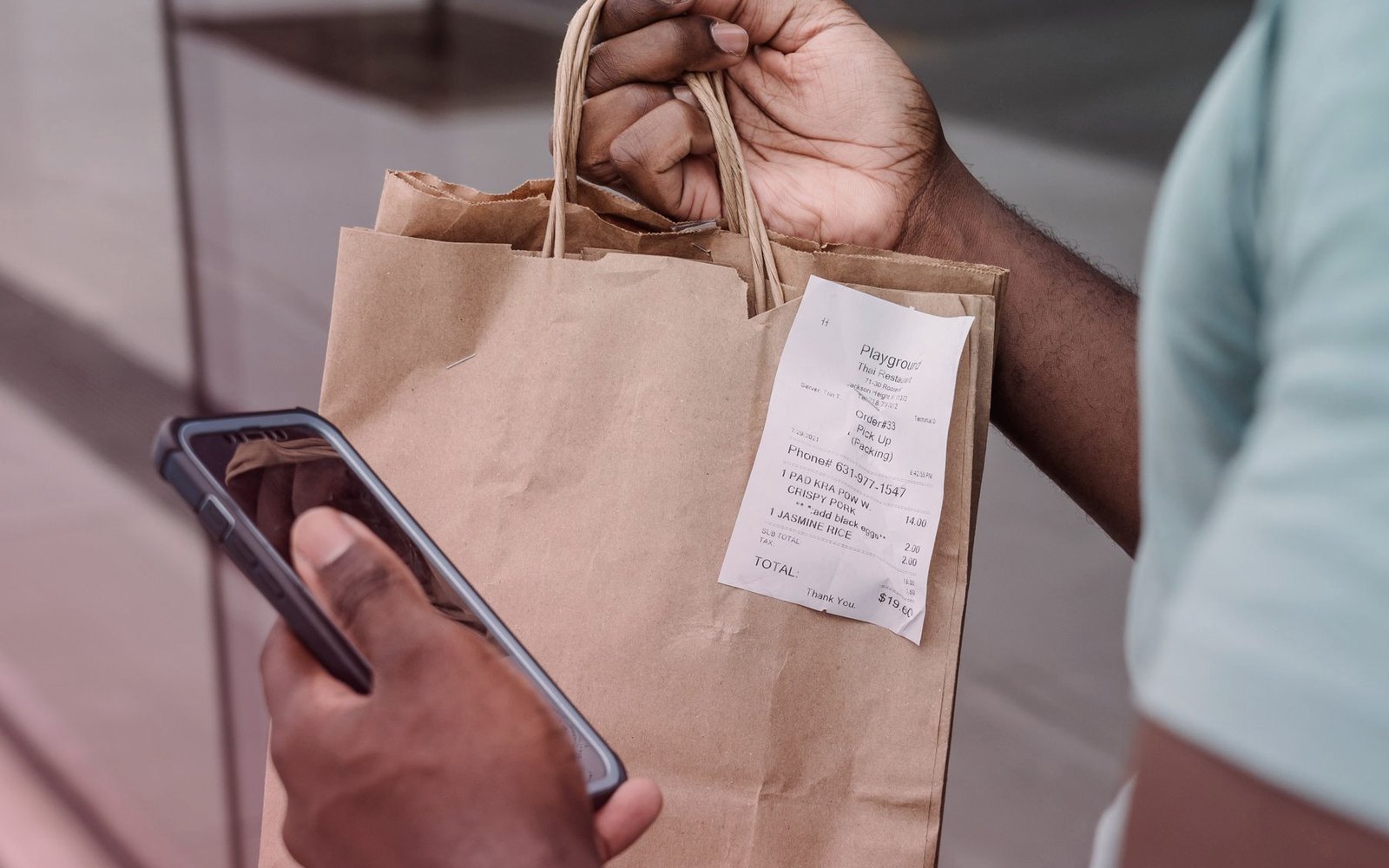
Two things happen to a paper receipt between the store and tax season. The thermal print fades, often to nothing, after a few months of heat in a vehicle. And the memory of what it was for fades faster: by the time you look at it, "HD #0412 $96.18" could be a business repair or a personal shelf.
A photo taken at the counter fixes both. The image does not fade, and the category is applied while the purchase is fresh. That is the whole case for a receipt scanner: not the reading, which is convenient, but the timing, which is what makes the record defensible.
The IRS accepts digital copies of receipts. What it wants to see is the amount, date, place and business purpose. A clear photo stored with a categorised expense entry satisfies all four; a faded slip in a shoebox satisfies none.
What a receipt scanner has to read, and what it cannot
An automatic receipt reader should extract the merchant, the date and the total from the image and propose a category. Those four fields, confirmed by you, are the expense record. Good scanners also read the tax line and the individual items, which helps when one receipt covers business and personal purchases and only some lines are deductible.
What no scanner can know is the business purpose. Was the lumber for a customer's deck or your own? Did the meal include a client? That is why the flow should be scan, confirm, categorise, rather than scan and forget. A scanner that files receipts without a confirmation step produces a well-organised pile of unverified data.
The reading itself now uses AI models, which handle crumpled, faded and unusual receipts far better than the template-matching of a few years ago. The practical difference is that a photo taken in the truck, at an angle, in poor light, still yields the right total.
Organising receipts so they are useful, not just stored
A digital shoebox is still a shoebox. Organisation means three things:
- The image is attached to the expense entry, not stored in a separate folder that has to be matched up later. Open the expense, see the receipt.
- Every entry has a category in the tax form's own vocabulary: supplies, repairs, fuel, tools, insurance, meals. Categorising in Schedule C terms during the year is what turns April into a report.
- Entries are searchable and filterable by date, store, category and amount, and the list shows which entries are missing a receipt, so the gaps are visible now rather than discovered later.
Two smaller habits pay off. Photograph the receipt and note the purpose in the entry when it is not obvious from the store name. And for a receipt with mixed business and personal lines, record only the business amount and keep the whole image; the image shows why the recorded total is less than the printed one.
The double-counting trap
Most businesses with a receipt scanner also import bank or card statements, because the statement catches what was never photographed. The moment you do both, every photographed purchase exists twice: once as a receipt entry, once as a statement line. Add both and the expense is deducted twice, which overstates your deductions and understates the tax you owe. It is one of the most common errors in small-business books and one of the easiest to miss, because both records are legitimate.
A receipt organiser that also imports statements has to find these pairs: same amount, a date within a few days (the card posts after the purchase), a merchant that matches. Then it should keep the receipt entry, because the receipt carries the image and your category, and drop the statement copy.
Clearing the backlog
If you are starting with a real shoebox, the first job is bulk capture: photograph or scan the pile, import the images in one batch, and let the reader fill in merchant, date and total for each so you only confirm categories. Sort the pile by month before you start, do a month per sitting, and mark receipts that turn out to be personal so they are not recorded. It is tedious once; after that the counter habit keeps it from recurring.
What an auditor wants to see
For any expense they choose to test, an examiner wants the entry and the evidence behind it. A receipt image with a legible merchant, date and total, attached to an expense entry with a category and, where it is not obvious, a purpose, is that evidence. Keep the records at least three years after filing, six if there is any chance income was under-reported by more than a quarter. Digital records are accepted and are far easier to keep for that long than paper.
Step by step
How Daily Invoice Maker handles it
Daily Invoice Maker's receipt scanner is built into its Expenses screen. The reading uses an AI model with a key you provide, the image stays attached to the expense, the categories are Schedule C categories, and the Tax Prep section finds duplicates against imported statements. Here it is with a fictional pool-service business.
-
Photograph the receipt and let the scanner fill in the record
On the phone, tap Add Expense and photograph the receipt; on the desktop, drop the image on the form. The AI scanner reads the store, date and total, proposes a category, and you confirm or correct it. The image is stored with the expense record, so opening the entry later shows the receipt.
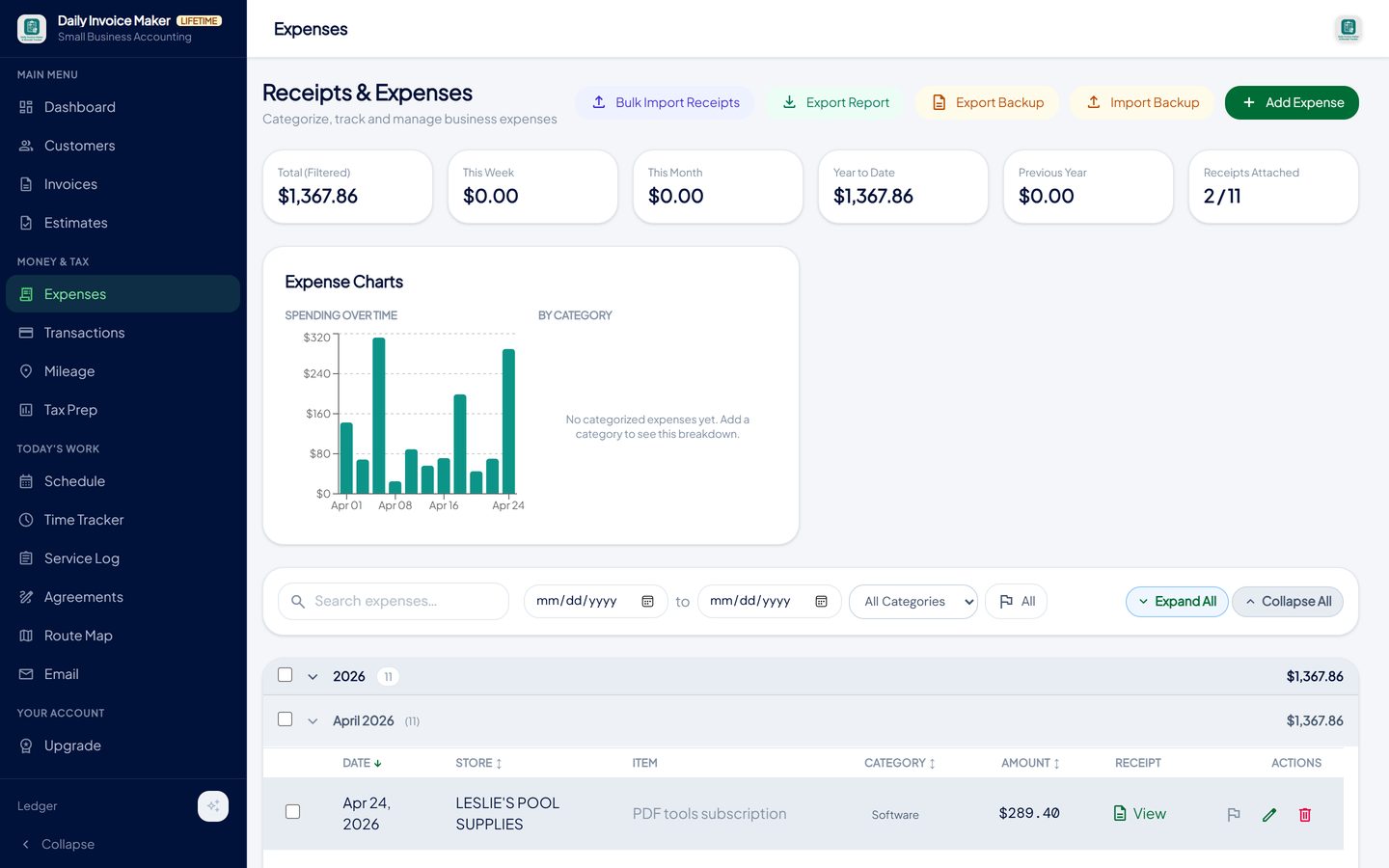
The scanner reads the merchant, date and total and proposes a category; you confirm, and the photo is stored with the entry. -
See the receipt any time, zoomed and readable
Click View on any expense to open the receipt viewer, zoom into the line items, and confirm what was bought. A receipt with both business and personal lines can be recorded at the business amount while the image shows the full slip. Photos are compressed on the way in so a year of receipts stays small.
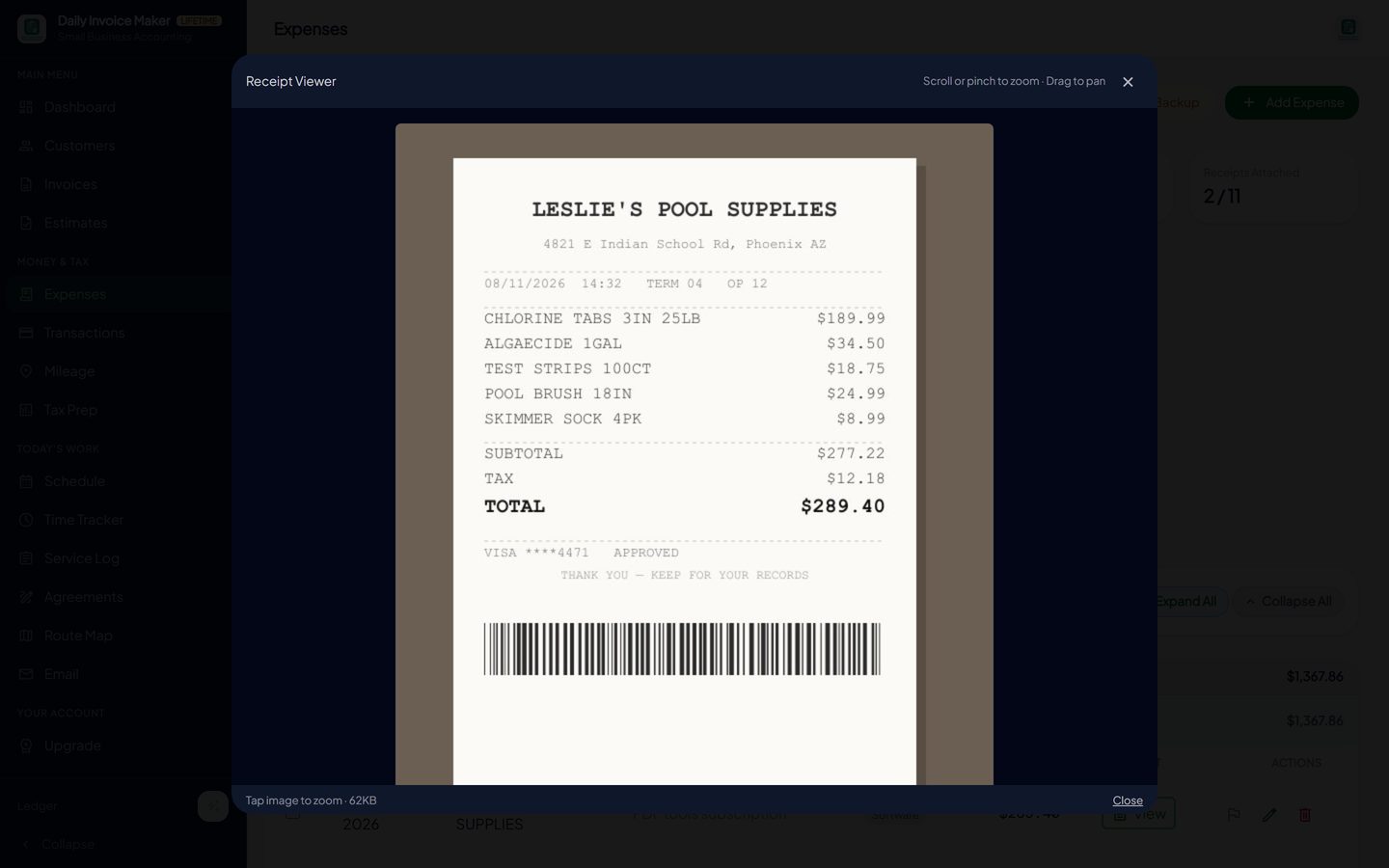
The receipt viewer: the original image, zoomable, attached to the expense it documents. -
Keep the list organised and spot what is missing
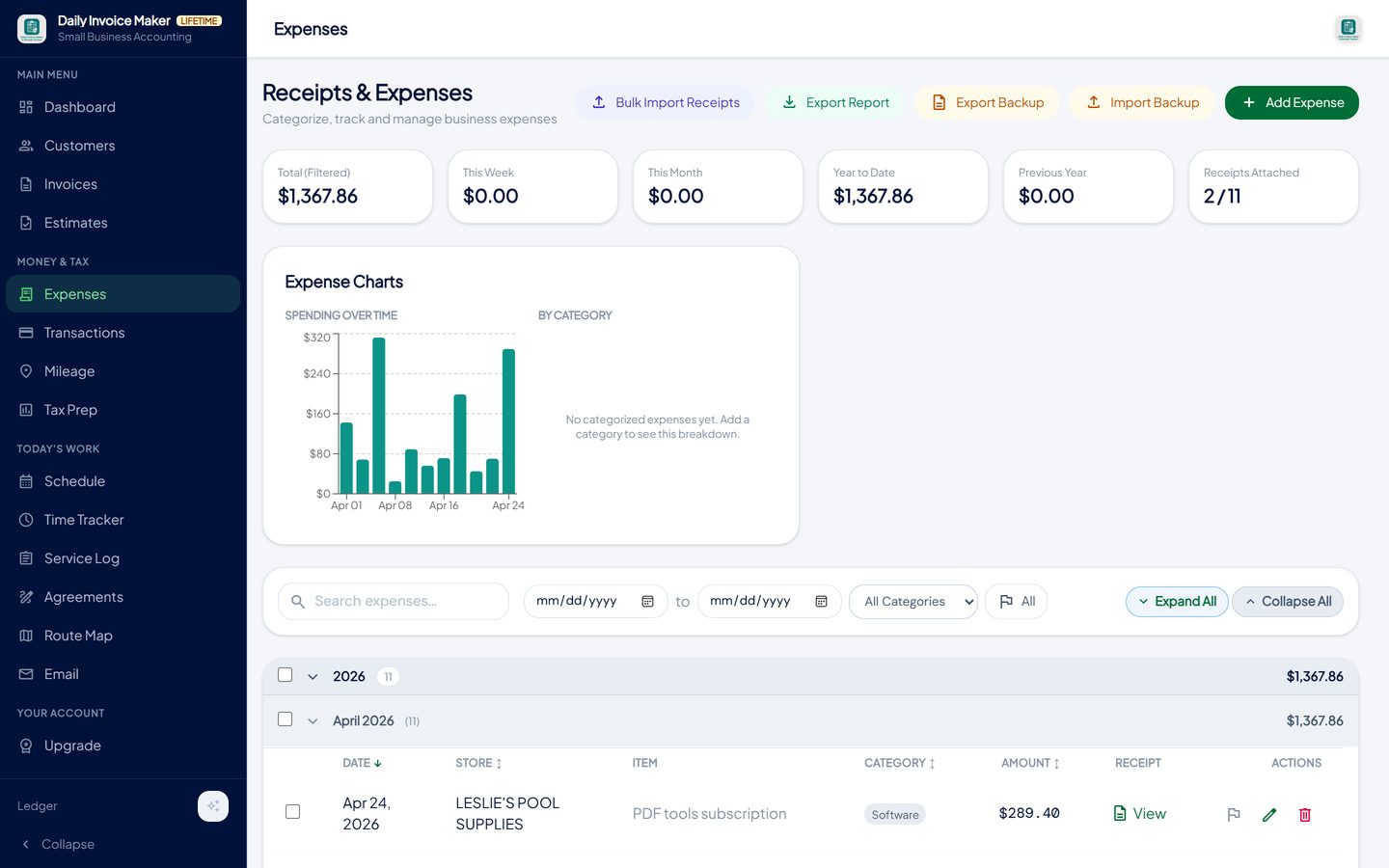
The Expenses screen shows this week, this month, year to date and how many entries have a receipt attached. Filter by date range or category, search by store, and flag entries that need a second look. An entry without a receipt is visible now, which is when it can still be found.
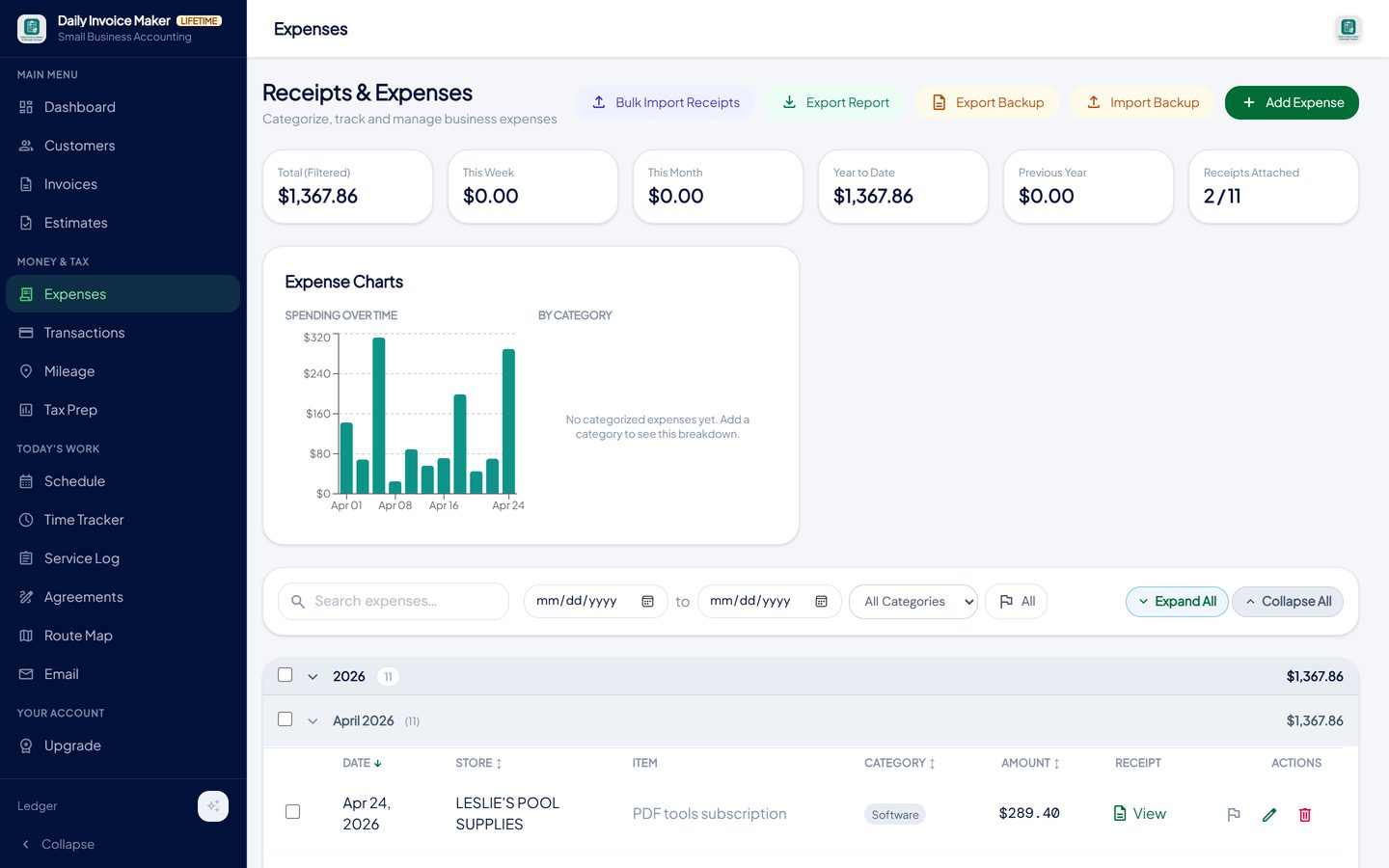
Totals, a spending chart, and every expense with its category and whether a receipt is attached; filter by date, category or flag. -
Import a backlog in bulk
For the shoebox, use Bulk Import Receipts: select a batch of images and each becomes an expense entry with the scanner's reading of merchant, date and total. You confirm categories in one pass. Doing a month per sitting keeps it manageable.
Bulk Import Receipts takes a batch of receipt images and creates an expense for each, read by the scanner, for you to confirm. -
Let Tax Prep find receipts that match imported statement lines
If you also import bank or card statements, Tax Prep pairs receipts with the statement lines that describe the same purchase, shows the amount at stake, and offers to exclude the imported copies from the report and every export. The receipt wins because it carries the image and your category.
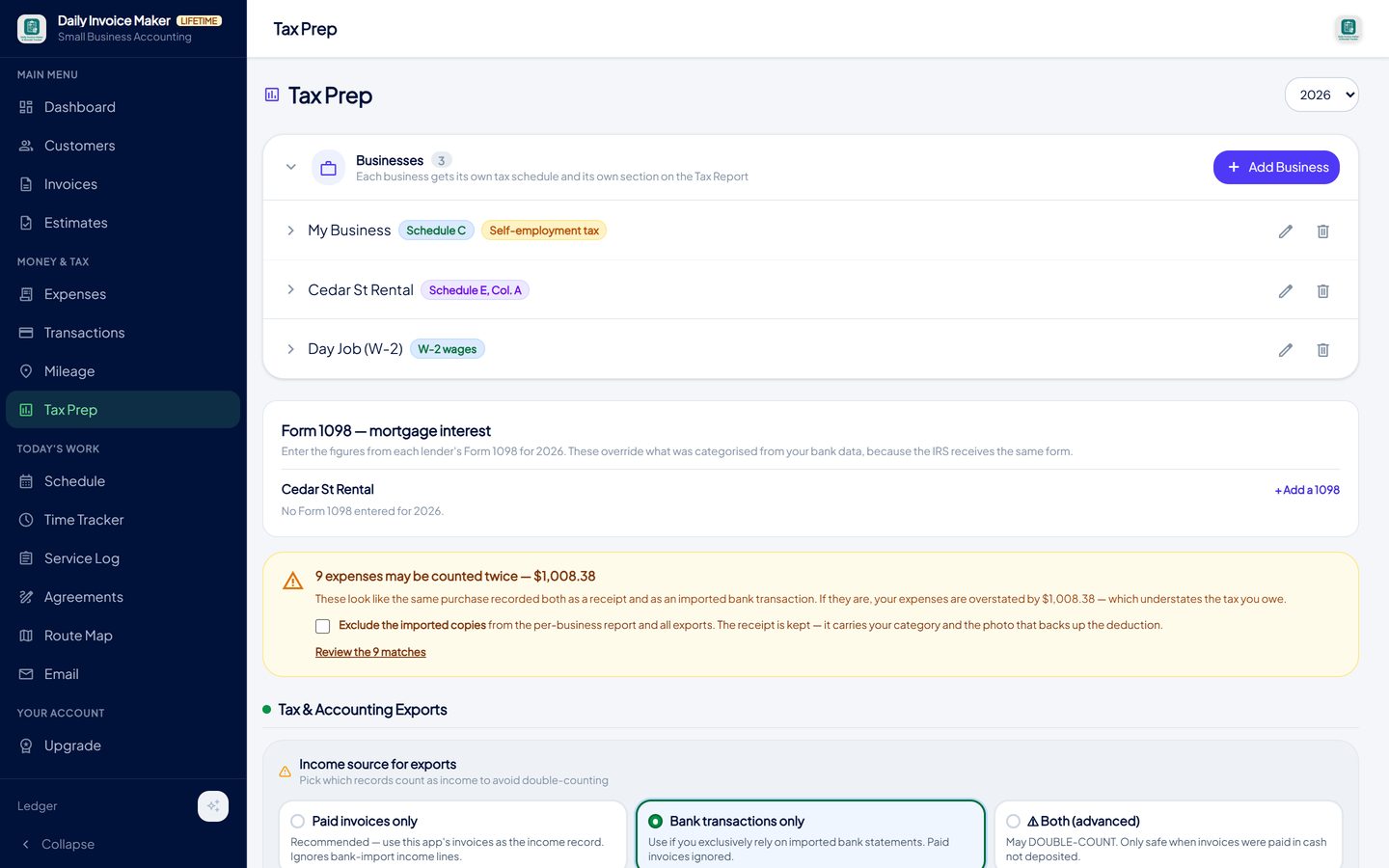
Nine receipts matched nine imported bank lines. One checkbox excludes the copies; the receipts and their photos are kept. -
Hand the year over in tax categories
Because every receipt was categorised on the day, the year's expenses are already in Schedule C lines. Export a summary PDF for your accountant, a TurboTax Desktop import file, or QuickBooks and CSV files, with the receipt images still attached to the entries if anyone ever asks.
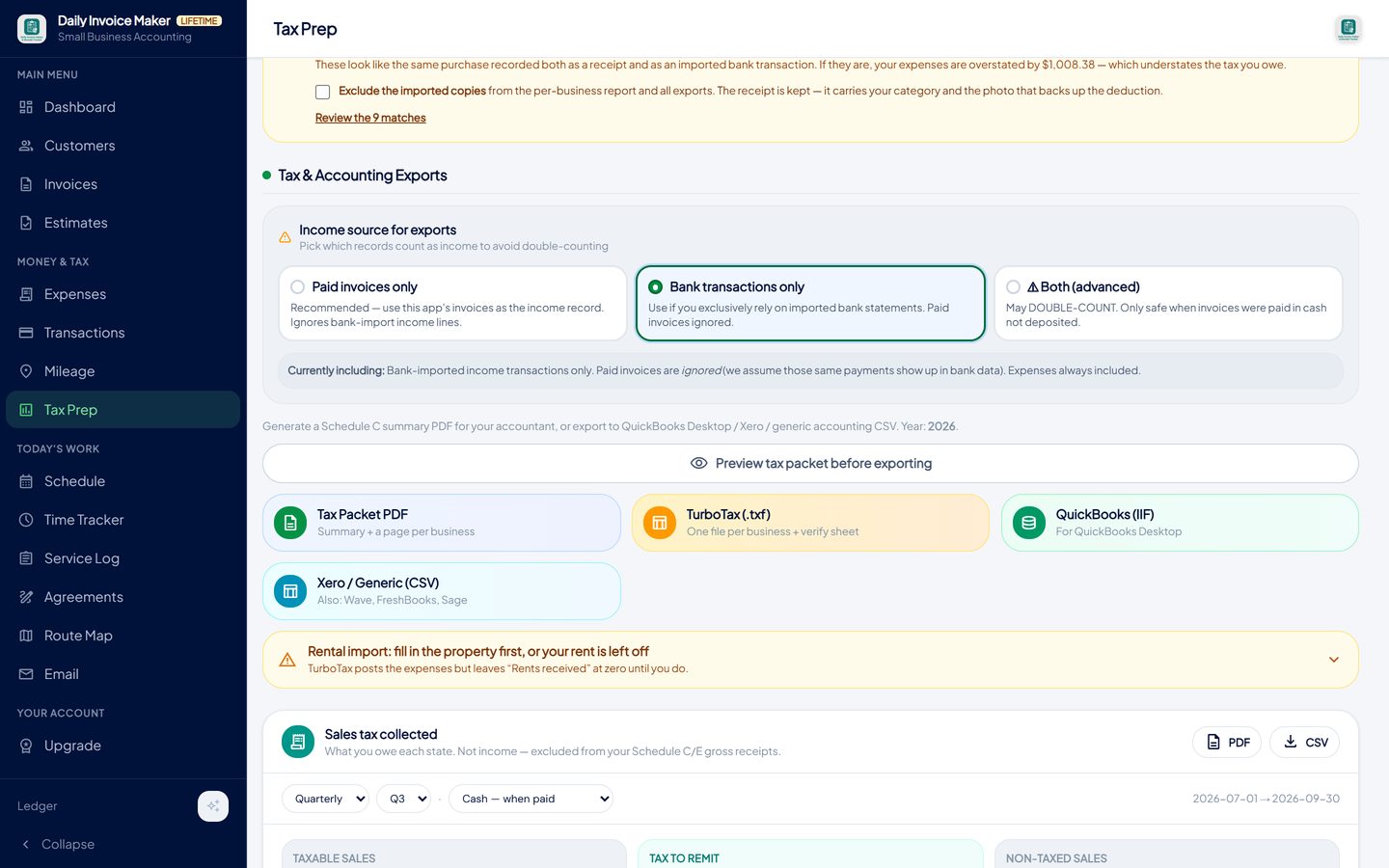
Categorised expenses total into Schedule C lines and export as a PDF summary, a TurboTax file, or QuickBooks and CSV.
What else is in the app
AI receipt reader
Merchant, date and total from a photo, even a crumpled or angled one; you confirm the category.
Schedule C categories
Supplies, repairs, fuel, tools, insurance, meals and the rest, plus your own custom categories.
Statement import and duplicate check
Import bank and card statements to catch what was not photographed; pairs are found and excluded.
Mileage tracker
Odometer-photo trips at the IRS rate, alongside the receipts.
Invoices and estimates
The other half of the books: paid invoices are the income record.
Local data, every platform
Windows, Mac, Linux and Android. Receipts stay on your devices; Google Drive sync included.
Try it on your own books
The free demo is the full app for your first 7 invoices, 7 customers and 7 expenses — no account, no card. It runs 100% offline on Windows, Mac and Linux: $149.99 once, or $5.99 a month if you would rather not commit. The Android app is a separate Google Play purchase.
Questions
Does the scanner need an internet connection?
Reading a receipt uses an AI model, which needs a connection at the moment of the scan. Everything else, including adding an expense by hand and viewing stored receipts, works offline. You supply the AI key in Settings; a free Gemini key is enough for ordinary use.
Where are my receipt images stored?
In the app's database on your own computer or phone, attached to each expense. Nothing is uploaded to our servers. Google Drive sync, included with the paid plans, copies them to your own Drive for your other devices.
Can it read faded or crumpled receipts?
Usually. The AI reader handles poor light, angles and partial fading far better than older scanners. When it cannot read a field, you type it; the image is still stored as evidence.
What about receipts I get by email?
Save the PDF or screenshot and import it like a photo, or use Bulk Import Receipts for a batch. The scanner reads a PDF receipt the same way.
Will the IRS accept photos instead of paper?
Yes. Digital copies are accepted as long as they are legible and show the amount, date, place and nature of the expense. Keep them for at least three years after filing.
Is there a free version?
The free demo is the full app with a seven-invoice limit and a sample watermark on invoice PDFs; the receipt scanner and expense tracking are included. Paid plans are $5.99 a month or $149.99 once.
The short version
A receipt scanner's value is timing: the image and the category captured at the counter, stored together, in the tax form's own words. Add the duplicate check against imported statements and the year's expenses are a report rather than a reconstruction. Daily Invoice Maker's free demo includes the scanner, so you can empty the shoebox with it before deciding.
Related guides

Expense Tracker Guide
How to track business income and expenses so the numbers are right all year: categories that match the tax form, receipts attached, statements imported and…

Write-Off Tracker Guide
The small business tax deductions most self-employed people miss, the records the IRS expects for each one, and how a tax write-off tracker captures them during the year.
Tax Prep Guide
How to prepare self-employed taxes without a lost weekend: what your preparer or TurboTax needs, how a TXF export works, and the checks that stop double counting.
How to attach job photos to an invoice · All guides · Quick how-to answers · Training guide for the app