Guides · Tax season
Tax prep for the self-employed: from a year of receipts to a file TurboTax can import
For an employee, tax prep is typing in a W-2. For a sole proprietor it is reconstructing a year: every payment received, every expense by category, the miles driven, the interest on the truck loan, and the rule that decides whether a deposit was income or a transfer.
This guide covers what a preparer or tax program actually needs from you, how the TurboTax import format works and where it bites, and the handful of checks that separate a clean return from an over-stated one. Then it shows the whole path in Daily Invoice Maker, ending in a file TurboTax Desktop reads directly.

What your preparer, or your tax software, needs from you
Whether you hand the year to an accountant or type it into TurboTax yourself, the list is the same. What differs is how much of it you have to produce by hand.
- Gross receipts for each business: the total you were paid, with a way to show where it came from (paid invoices, deposits, platform payouts).
- Expenses by Schedule C line: supplies, vehicle, insurance, contract labour, office, utilities and the rest, each as a total with the entries behind it.
- The mileage log, or the actual vehicle costs plus business-use percentage.
- Forms other people sent you: 1099-NEC and 1099-K from clients and platforms, 1098 from any lender, 1095-A if you bought marketplace health cover.
- Estimated payments already made, with dates, so they are credited.
- Last year's return, for depreciation carry-forwards, the safe-harbour calculation and anything that carries over.
- For a rental: rents received, expenses by Schedule E line, the property description, and the Form 1098.
A preparer charges for time. The difference between a folder of statements and a categorised report with receipts attached is usually several hours of it, and it is the same difference that decides whether a self-filer finishes on a Sunday afternoon or gives up and pays someone.
How the TurboTax import file works, and where it bites
TurboTax Desktop imports accounting data through a TXF file (Tax Exchange Format), a plain-text format in which each amount carries a code that tells TurboTax which form and line it belongs on. Codes in the 290s map to Schedule C lines; codes in the 320s and 330s map to Schedule E. A correctly coded file lands your gross receipts on line 1, supplies on line 22, insurance on line 15, and so on, without retyping.
Four things to know before you rely on one:
- Desktop only. TurboTax Online does not import TXF files. In the desktop editions the path is File → Import → From Accounting Software.
- One business per file. The Schedule C and Schedule E code blocks carry no business identifier. Two businesses in one file are added together onto one form, silently. A tool that exports several businesses must produce several files.
- Not every line has a code. Cost of goods sold and depreciation on Schedule C, and management fees and depreciation on Schedule E, have no TXF code. An honest export reports those as skipped rather than inventing a line, and you enter them by hand.
- A rental import posts expenses but not rent until the property is described. TurboTax leaves "rents received" at zero until you fill in the property type and address on the Schedule E worksheet. The expenses import fine, which makes the resulting loss look plausible. Check line 3 before you trust a rental import.
Import into a scratch return first. Open a new, empty return, import the file, and compare the schedule TurboTax produces with the summary you exported. Importing on top of a previous import into the same return produces doubled numbers, and reading figures off the worksheet view rather than the finished schedule can mislead: worksheets show expenses as negatives by convention.
QuickBooks, Xero and the accountant's PDF
If someone else does your books, they want your year in their tool, not in TurboTax. QuickBooks Desktop imports an IIF file, a journal of every income and expense entry mapped to QuickBooks accounts. Xero, Wave, FreshBooks and Sage take a generic CSV: date, description, amount, category, like a bank statement. And a plain PDF summary laid out by Schedule C line, with one page per business, is what most accountants actually ask for, because it is what they will type into their own software.
Whichever route you take, the export is only as good as the categories behind it. That is why the work of tax prep happens during the year, not in April.
The four checks that keep the numbers honest
- 1. One source of income, chosen once
- If you record paid invoices and import the bank statements that show the same deposits, you have every job twice. Decide which record is the income record for the year and apply it everywhere. Counting both is only right when invoices were paid in cash that never hit the bank.
- 2. Expenses recorded twice
- A receipt photographed at the store and the card statement line for the same purchase are one expense. Find the pairs and drop one, keeping the receipt because it carries the category and the image.
- 3. Mortgage and loan payments split
- Only interest is deductible; principal is not. A "Mortgage" category deducted in full overstates the deduction by most of the payment, and the Form 1098 from the lender is the figure the IRS already has, so use it.
- 4. Businesses kept apart
- A Schedule C trade, a Schedule E rental and W-2 wages are three different forms with three different tax treatments. Rental income is not subject to self-employment tax; wages are not business income. Books that merge them produce a net profit that maps to no form.
The tax-year 2026 calendar
| Date | What is due |
|---|---|
| April 15, 2026 | Q1 estimated payment (Form 1040-ES) |
| June 15, 2026 | Q2 estimated payment |
| September 15, 2026 | Q3 estimated payment |
| January 15, 2027 | Q4 estimated payment |
| Late January 2027 | 1099-NEC and 1099-K forms arrive; 1098 from lenders |
| April 15, 2027 | Form 1040 with Schedule C, SE and E; balance due even if you extend |
| October 15, 2027 | Extended filing deadline |
Dates that fall on a weekend or holiday move to the next business day. The estimated-payment safe harbour is 100% of last year's tax (110% above $150,000 AGI) or 90% of this year's, whichever you meet.
A year-end checklist
- Reconcile December: every deposit in the bank has a matching income record, or is marked as a transfer.
- Every expense over a few dollars has a receipt or a statement line, and a category.
- The mileage log is complete through December 31, with purposes.
- Loan and mortgage payments are split into interest and principal, using the lender's statement or Form 1098.
- Duplicates between receipts and imported statements are resolved.
- Each business is in its own set of books with the right schedule.
- Subcontractors paid above the reporting threshold have a W-9 on file and a 1099-NEC issued by the January deadline.
- Export the summary, then import into a scratch return and compare.
This guide is general information about record-keeping and tax forms, not tax or legal advice. Rules change and situations differ; confirm anything that affects your return with a tax professional or the IRS instructions for the form.
Step by step
How Daily Invoice Maker handles it
Daily Invoice Maker is a desktop and mobile app for invoicing and small-business accounting. Its Tax Prep section is the year-end path described above: one income rule, a duplicate check, a Form 1098 panel, a per-business report, and exports for an accountant, QuickBooks, Xero or TurboTax. This is the sequence with a fictional pool-care business and a rental.
-
Set up each activity as its own business
In Tax Prep → Businesses, add the trade as a Schedule C book, the rental as a Schedule E book, and a day job as W-2 wages if you want the full picture in one place. Every expense and imported transaction is assigned to one of them, so the schedules never merge.

Three activities, three schedules. Each gets its own section of the report and its own export file. -
Choose the income rule once
The Income source switch decides what counts as income for the whole year and every export: paid invoices (recommended), imported bank transactions, or both, which the app labels as advanced and warns will double count. A line underneath restates the rule in plain words so there is never any doubt what the report includes.
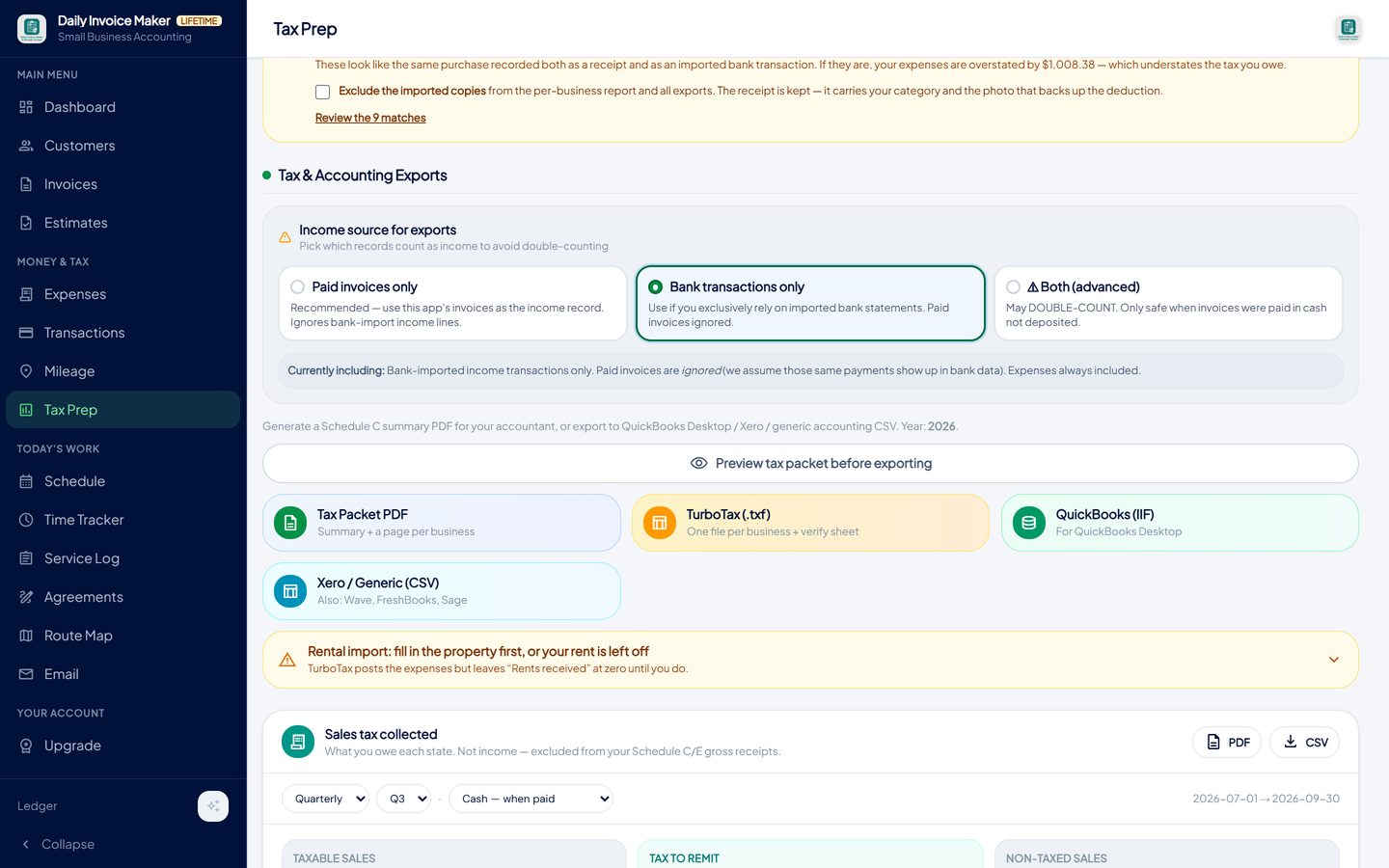
Paid invoices, or bank deposits, but not both unless you know the payments never reached the bank. The banner states what is currently counted. -
Resolve the duplicate check and enter the Form 1098
Type the lender's Form 1098 boxes into the panel for the rental; the interest overrides the estimate from bank data, since the IRS already holds the form. Then review the duplicate list: nine receipts matched nine imported statement lines, and one checkbox excludes the copies from the report and every export while keeping the receipts and their photos.
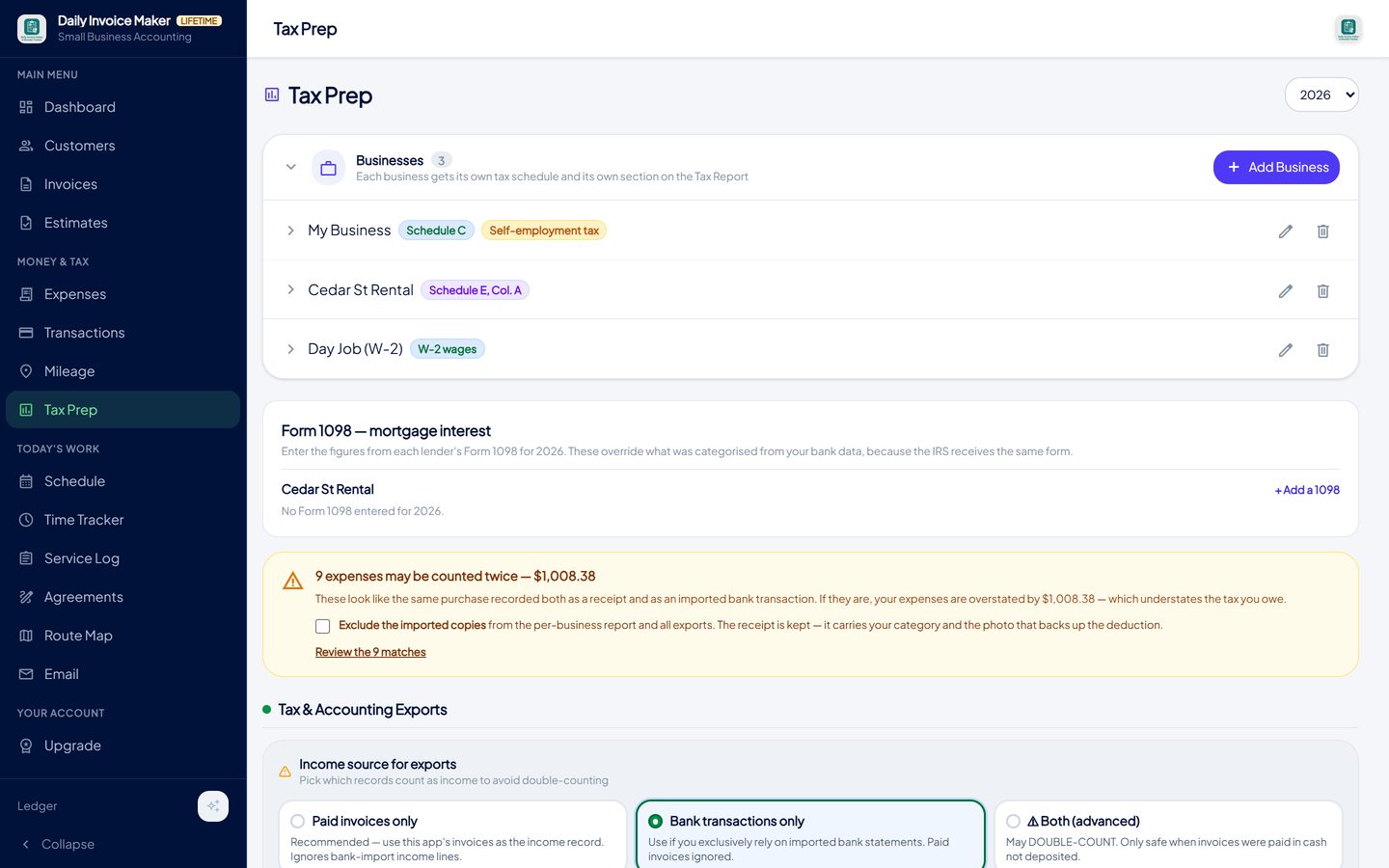
The Form 1098 figures override what was categorised from bank data, because the IRS receives the same form. The duplicate check lists receipts that match imported lines. -
Preview the tax packet before exporting
Preview the packet: net profit by activity, which schedule each files on, the self-employment tax base with rental income and wages correctly excluded, and a notes section explaining the methodology. The preview and the download are built from the same figures under the same settings, so there is no way to check one set of numbers and export another.
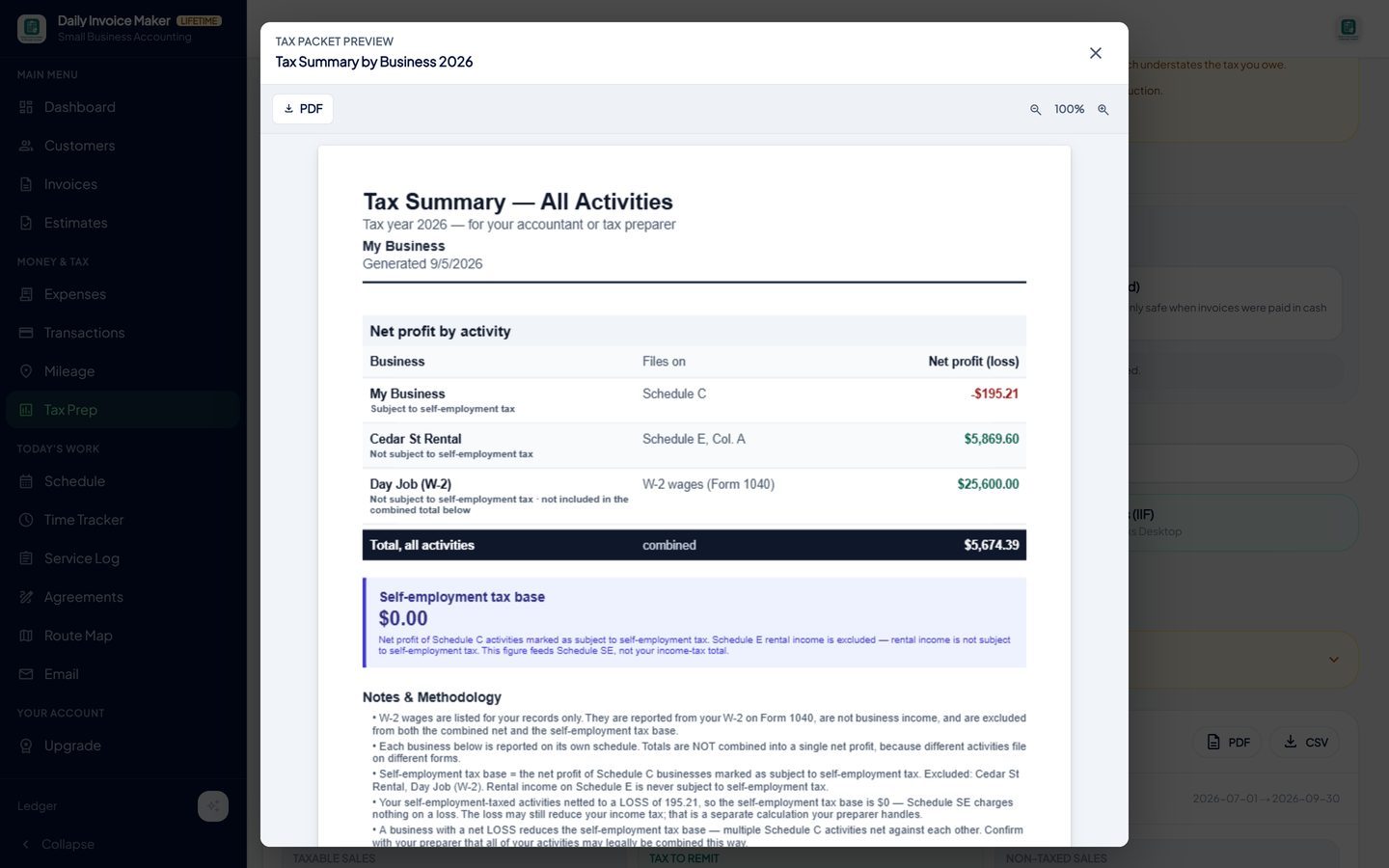
The preview is the same document the export produces, so what you check is what you file from. -
Export for TurboTax, QuickBooks, Xero or your accountant
Four exports sit side by side. Tax Packet PDF: a summary plus a page per business for your preparer. TurboTax (.txf): a ZIP with one file per business, coded to Schedule C or Schedule E, plus a verification sheet that lists any line without a TXF code so you enter it by hand. QuickBooks (IIF) for QuickBooks Desktop. Xero / generic CSV, which Wave, FreshBooks and Sage also read.
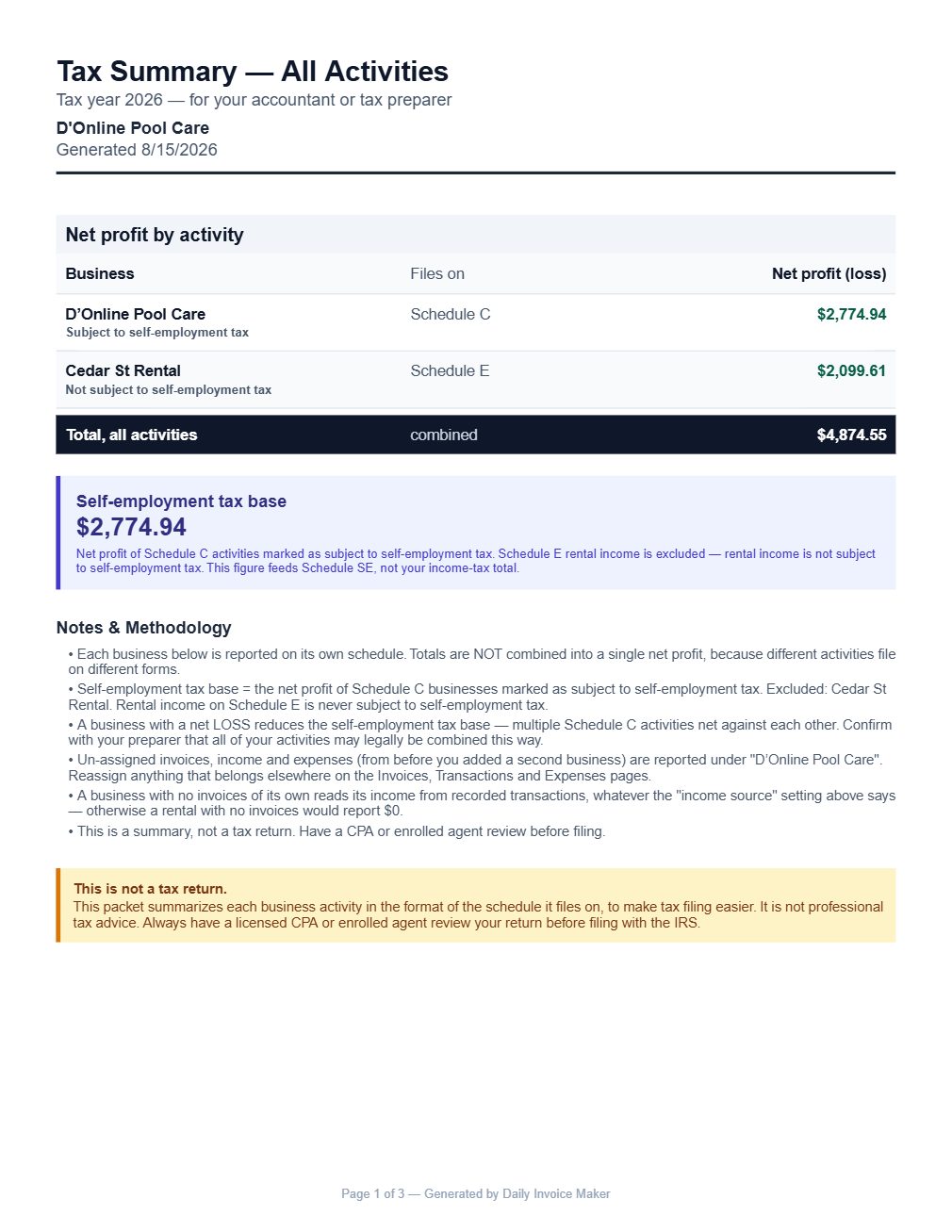
The Tax Packet PDF: a summary page and a page per business, in Schedule C or E line categories, for an accountant. -
Import into TurboTax Desktop and verify
In TurboTax Desktop choose File → Import → From Accounting Software and pick the business's .txf file, starting with a scratch return. Compare the Schedule C it produces with the packet page for that business. For a rental, fill in the property type and address on the Schedule E worksheet before checking line 3, because TurboTax leaves rent at zero until the property is described; the app's export shows that reminder on screen. Nothing here files the return for you; it gets you to the import with the numbers already right.
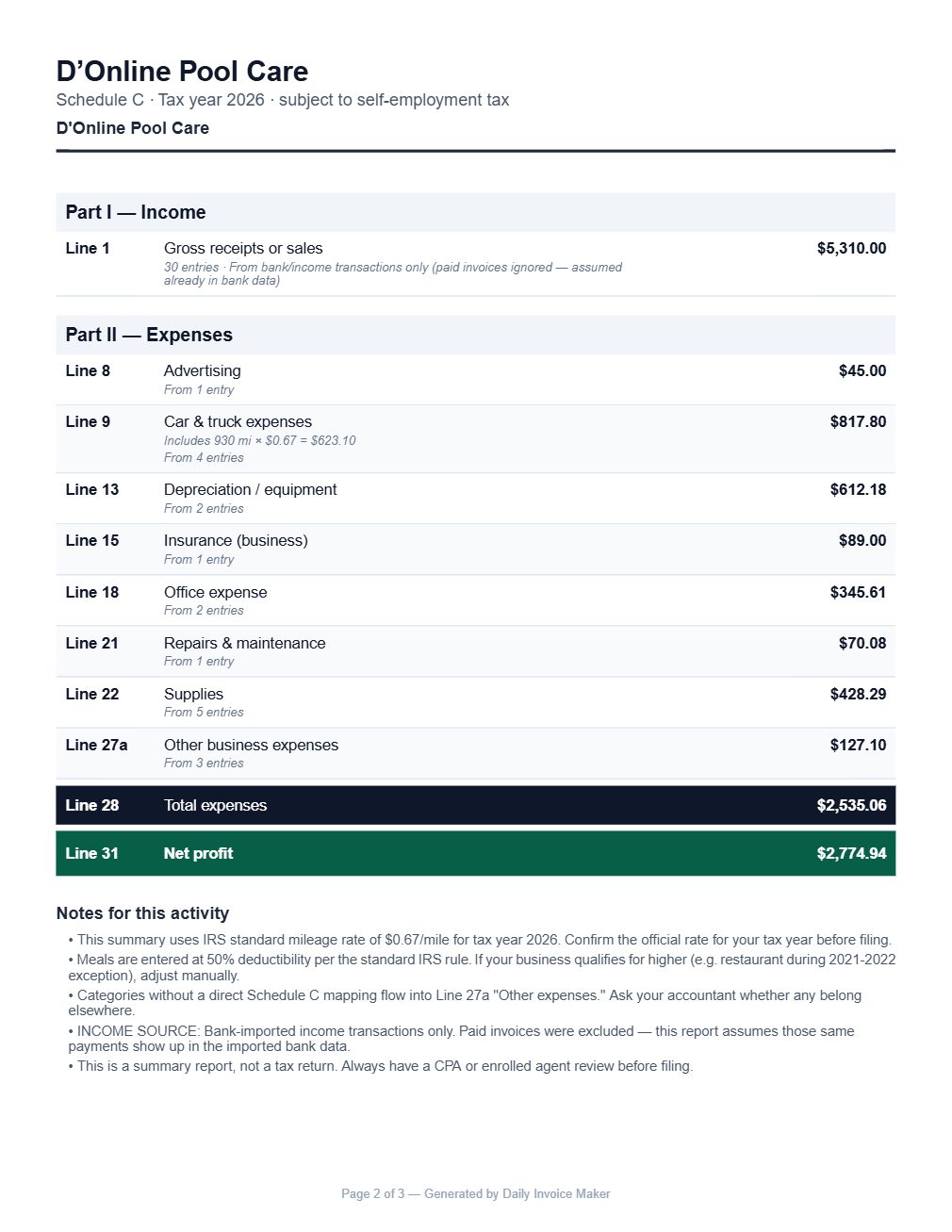
The per-business page mirrors the schedule's lines, which is what you compare against TurboTax after the import.
What else is in the app
Receipt scanner
Reads merchant, date and total from a photo and keeps the image attached to the expense.
Statement import
Sixteen bank, card and payment-platform formats plus PayPal PDF statements, reviewed line by line.
Invoices as the income record
Paid invoices are gross receipts. Sales tax you collected is kept out of income automatically.
Schedule C, E and W-2 books
Each activity reported on its own schedule; the self-employment tax base excludes rentals and wages.
Mileage log
Odometer-photo trips at the IRS standard rate, included in the Schedule C figures.
Desktop and mobile, offline
Windows, Mac and Linux plus Android. Google Drive sync between devices is included.
Try it on your own books
The free demo is the full app for your first 7 invoices, 7 customers and 7 expenses — no account, no card. It runs 100% offline on Windows, Mac and Linux: $149.99 once, or $5.99 a month if you would rather not commit. The Android app is a separate Google Play purchase.
Questions
Does TurboTax Online import the TXF file?
No. TXF import is a feature of the TurboTax Desktop editions (File → Import → From Accounting Software). If you use TurboTax Online, use the PDF summary and type the schedule in; it is laid out in the same line order.
Why one file per business?
Because the TXF codes for Schedule C and Schedule E carry no business name. If two businesses were in one file TurboTax would add them together onto a single schedule, and nothing would warn you. Separate files import onto separate schedules.
What does the verification sheet contain?
Every amount that could not be given a TXF code, such as cost of goods sold or depreciation, so you enter it by hand, plus the totals the import should produce. It is there so the comparison against TurboTax takes a minute rather than a guess.
My rental import shows expenses but no rent. What happened?
TurboTax posts a rental's expenses on import but leaves 'rents received' at zero until the property type and address are entered on the Schedule E worksheet. Describe the property, then confirm line 3 matches the app's figure.
Can I export the whole year to my accountant instead?
Yes. The Tax Packet PDF is written for that: a summary page and a page per business in Schedule C or E line categories, with the methodology stated. Many accountants prefer it to any import file.
Does the app calculate my tax or file the return?
No. It produces the figures each schedule needs and the files that carry them into TurboTax or QuickBooks. Tax calculation and filing happen in your tax software or with your preparer, and the packet says so on its first page.
Where does my data live?
On your own computer or phone. Nothing is uploaded to our servers. Google Drive sync, included with the paid plans, copies your data to your own Google Drive so your other devices can use it.
The short version
Tax prep is a year of small decisions, each easy when made on the day: what this deposit was, what that receipt was for, whether this payment was interest or principal. Make them as they happen and April is an export and an import. Daily Invoice Maker's free demo includes the full Tax Prep section, so you can try the path with your own records before paying anything.
Related guides

Schedule C Tracker
What Schedule C asks for, line by line, and how to keep a running record of income, expenses and mileage all year so the form takes minutes, not a weekend.

Schedule E Tracker
What Schedule E asks a landlord for, line by line: rents, the expense lines, mortgage interest from Form 1098, depreciation and mixed-use allocation.

Expense Tracker Guide
How to track business income and expenses so the numbers are right all year: categories that match the tax form, receipts attached, statements imported and…
QuickBooks alternative that you pay for once · FreshBooks alternative · All guides · Quick how-to answers · Training guide for the app