Guides · Invoicing and billing
Estimate maker: write job quotes that get accepted, then become the invoice
An estimate is a sales document and a contract at the same time. Too vague and the customer cannot compare it with the next quote; too loose on terms and you have agreed to unlimited work for a fixed price. Written well, it wins the job and settles in advance every argument the invoice could start.
This guide covers what a job estimate should contain, the terms that protect you, how to price by section for multi-trade work, and why the invoice should be the estimate converted rather than retyped. Then it shows the flow in Daily Invoice Maker.

Estimate, quote or bid: what you are actually sending
The words get used loosely, and the difference matters when the job runs over.
- An estimate is your best assessment of the cost, with the understanding that the final figure may differ. Use it when you cannot see everything: a repair behind a wall, a pool that may need more than one treatment.
- A quote is a fixed price for a defined scope. If the scope holds, the price holds. Use it for clearly bounded work.
- A bid is a quote submitted in competition, usually on a specification the customer wrote.
Whichever you send, say which it is. A document headed "Estimate" that the customer treated as a fixed quote is the start of most pricing disputes. State the assumptions, and state what happens if they turn out to be wrong: "Price assumes the existing filter is serviceable; a replacement filter is quoted separately."
What a job estimate should contain
| Element | What it does |
|---|---|
| Your business details and a unique estimate number | Identifies the document; the number carries through to the invoice |
| Customer name and the job address | The job address is often not the billing address |
| Job type and a plain description of the scope | What is included, and what is explicitly not |
| Line items with quantities and unit prices | The customer can see how the total was built and compare like for like |
| Labour shown separately from parts or materials | Hours at a rate, so a change in hours is easy to explain later |
| Subtotal, tax and total | Tax stated, not hidden in the price |
| Issue date and validity | "Valid until" protects you against material price changes |
| Terms: deposit, payment schedule, change orders, exclusions | Settles in advance the arguments an invoice would otherwise start |
| Signature line | An accepted, signed estimate is your authorisation to start |
The terms that protect you
Most of the money lost on small jobs is lost to terms that were never written down. Four lines on the estimate cover the majority:
- Deposit
- "50% deposit on acceptance, balance on completion." A deposit funds the materials and confirms the customer is serious.
- Validity
- "Valid 30 days." Material prices move; a quote from March should not bind you in August.
- Change orders
- "Work outside this scope is quoted and approved in writing before it begins." This is the line that turns "while you're here, could you also…" into paid work.
- Exclusions and assumptions
- What is not included (permits, disposal, repairs to hidden damage) and what the price assumes. A short list here prevents a long conversation later.
For repair trades, add re-authorisation: if the actual cost will exceed the estimate by more than a stated amount, you stop and get approval. Auto repair shops are required to do this in many states; everyone else benefits from it.
Pricing by section for multi-trade jobs
A backyard renovation might involve landscaping, a handyman's work and roofing repairs on the shed. One long list of twenty line items is hard to read and impossible to negotiate. Grouping the lines under headings, with a subtotal per section, lets the customer accept the landscaping and defer the roof, and lets you see at a glance which part of the job the margin is in.
Repair trades benefit from a fixed split: parts as quantities at unit prices, labour as hours at an hourly rate. When the invoice later differs from the estimate, the customer can see that the parts held and the hours moved, which is a far easier conversation than a changed total.
Templates and a price list: the speed comes from not retyping
Most of a trade's estimates are variations on a handful of jobs. A filter service, a heater replacement, a resurfacing: the same lines, with quantities that change. An estimate maker earns its keep by letting you start from a job template that already has the lines, and by holding a price list of products and hourly rates you can insert in one click. The estimate takes two minutes at the customer's kitchen table instead of an evening at the desk, and prices are consistent from one customer to the next.
Getting the yes: sending, signing and following up
Send the estimate the same day, in the channel the customer uses: email for businesses, text or WhatsApp for homeowners. A PDF they can open on a phone matters more than a beautiful layout on a desktop. A signature line, or a tap-to-sign on screen, turns the estimate into an acceptance record; date it. Then track the status: draft, sent, accepted, declined. Sent estimates with no answer after a week are the follow-up list, and an estimate maker that shows them as a list is the difference between following up and forgetting.
Why the invoice must be the estimate converted, not retyped
When the job is done, the invoice should be the accepted estimate with the final quantities, plus any approved change orders. Retyping it introduces the errors customers notice: a line item worded differently, a price off by a few dollars, a section missing. Converting keeps the customer, the job description, every line, the section headings and the signature, and it links the invoice to the estimate number so both sides can trace it.
Conversion is also the moment the estimate maker becomes bookkeeping: the converted invoice, once paid, is income in the year's records, and the parts you bought for it are expenses against it.
Step by step
How Daily Invoice Maker handles it
Daily Invoice Maker's estimate maker works exactly this way: job-type templates, a price list of products and labour rates, sections with subtotals, a signature, status tracking, and a one-click conversion to the invoice. Here it is with a fictional pool-service company quoting a resurfacing job.
-
Start from a job type and add the lines
Create a new estimate, pick the customer and a job type. The template's lines appear and you adjust quantities. Saved products and labour rates can be inserted from the price list, and for repair work a line is marked as a part or as labour (hours at a rate), so the PDF prints them in separate tables. Job photos taken on site can be attached.
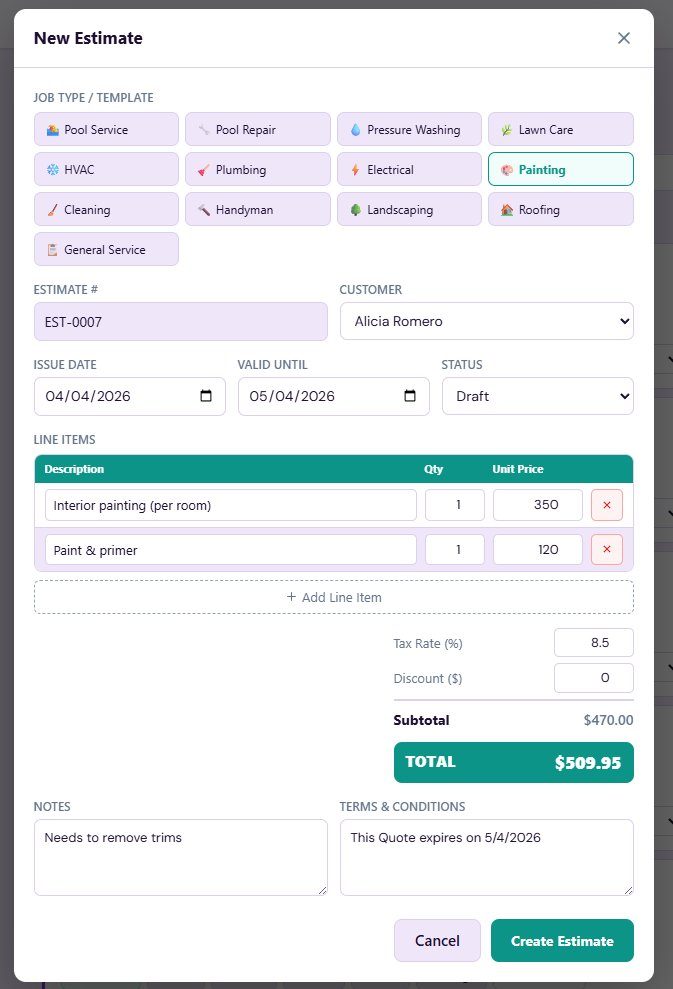
Pick a job type to start from its template lines; insert saved products and hourly rates from the price list. -
Set the terms and validity once
Default terms are stored once in Settings and appear on every new estimate; edit them per job if needed. The validity date is printed with a note telling the customer how to accept. Twelve templates control the look; the content is the same on all of them.
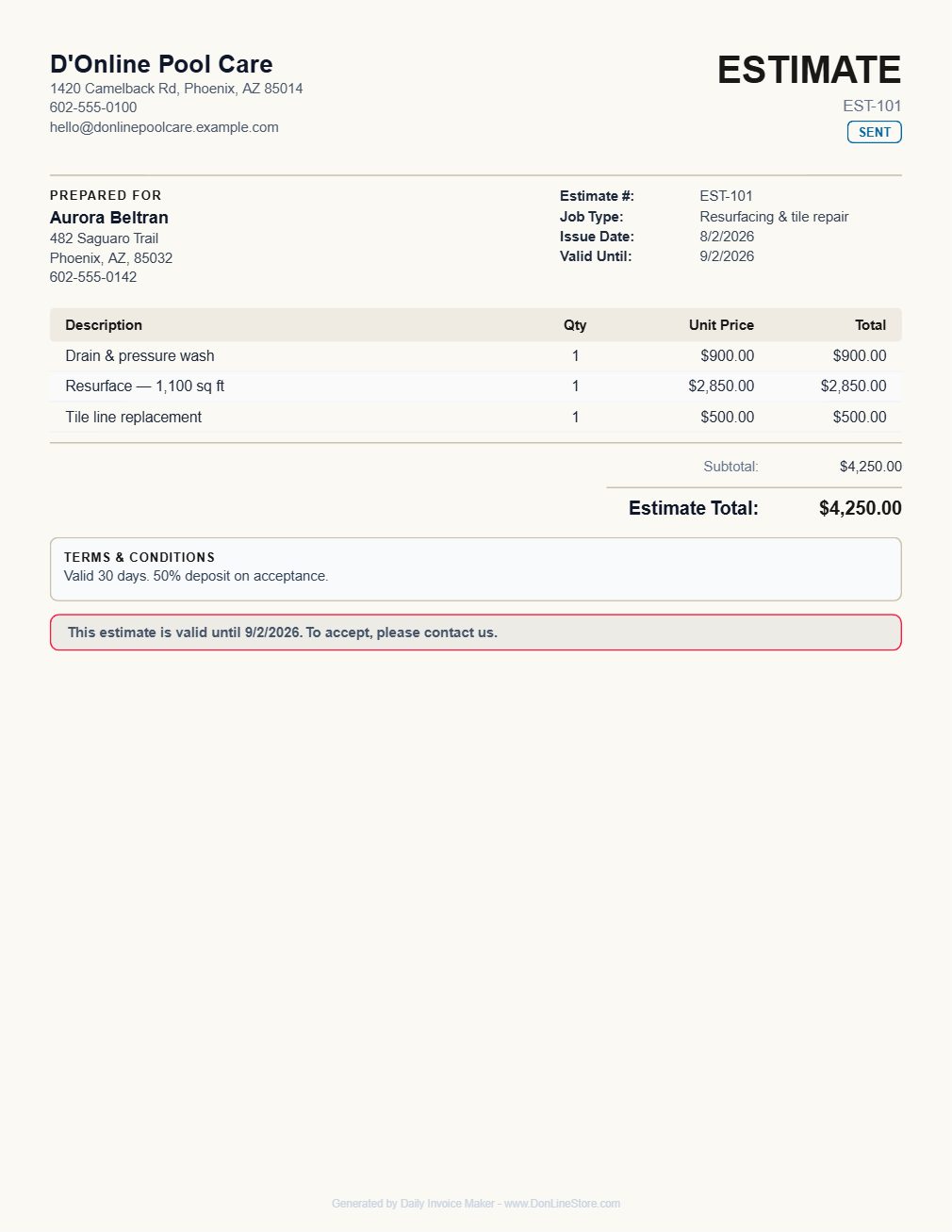
The estimate PDF: scope, line items, total, terms ('Valid 30 days. 50% deposit on acceptance.') and a validity date. -
Send it by email, text or WhatsApp and track the answer
Each estimate has one-click Preview, Email, SMS, WhatsApp, PDF and Image buttons, plus a status you set as the customer responds: Draft, Sent, Accepted, Declined. The list shows the total and how many are accepted, so the sent-but-unanswered ones are visible as the follow-up list.
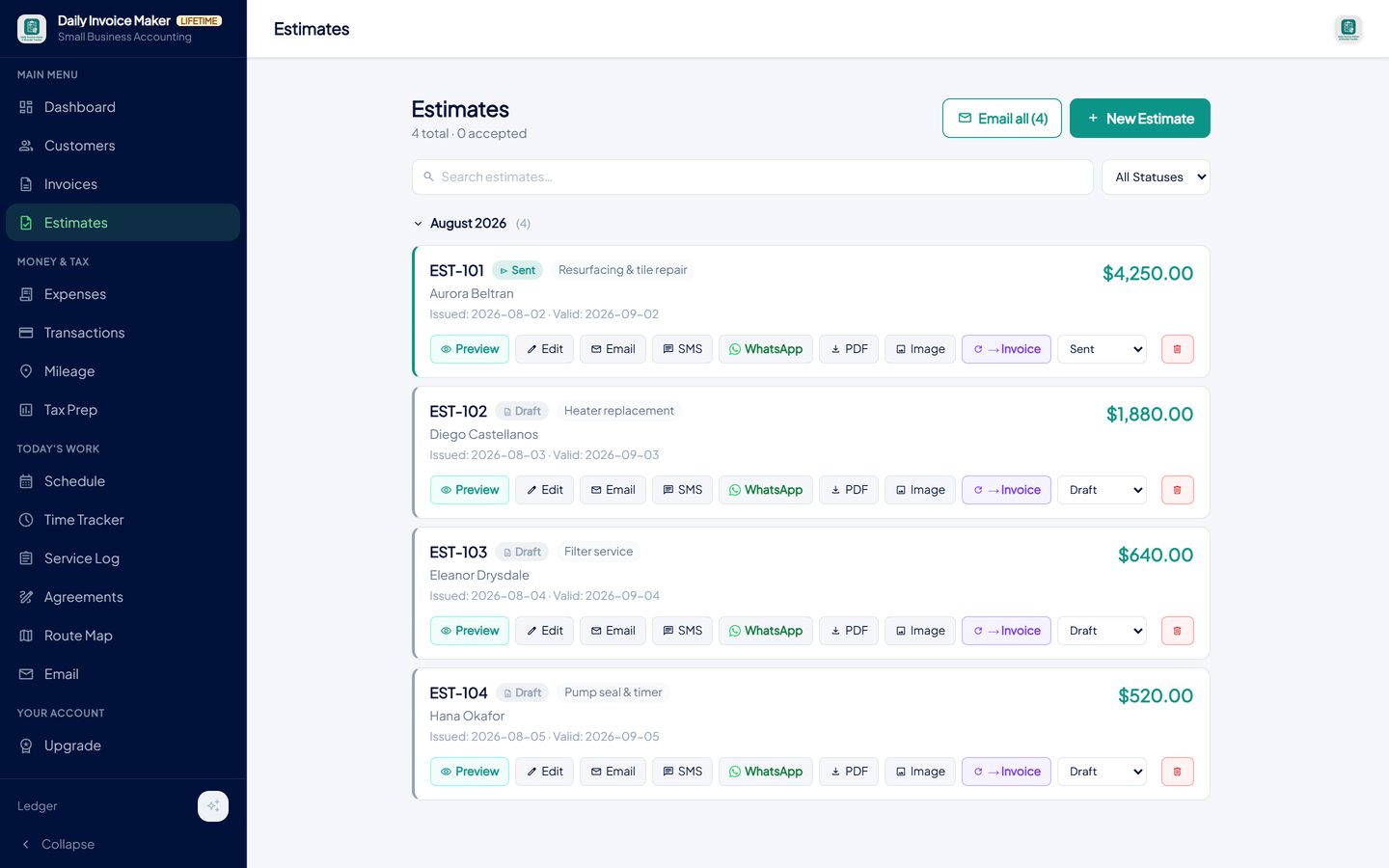
Every estimate shows its status and has one-click Preview, Email, SMS, WhatsApp, PDF and Convert-to-invoice actions. -
Get a signature on acceptance
The customer can sign on the screen of a phone or tablet, or a signature image can be imported. Your own signature and licence line are stored once and printed as "Approved by". The signed, dated estimate is the authorisation to start, and it stays attached to the record.
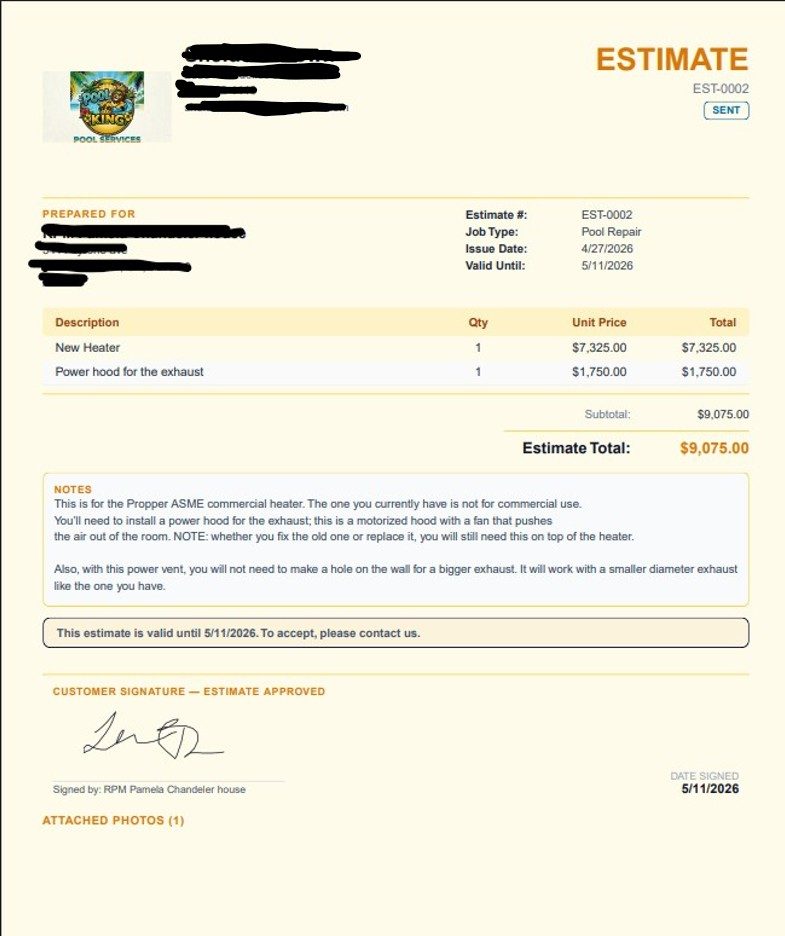
The customer signs on screen or an imported signature image is placed; the accepted estimate carries both parties' signatures and dates. -
Convert to the invoice in one click
Click → Invoice. The customer, job description, every line item with its section heading, the photos and the signature carry over, and the invoice references the estimate number. Adjust final quantities, add an approved change order as a new line, and send. Nothing is retyped, so nothing disagrees with what the customer accepted.
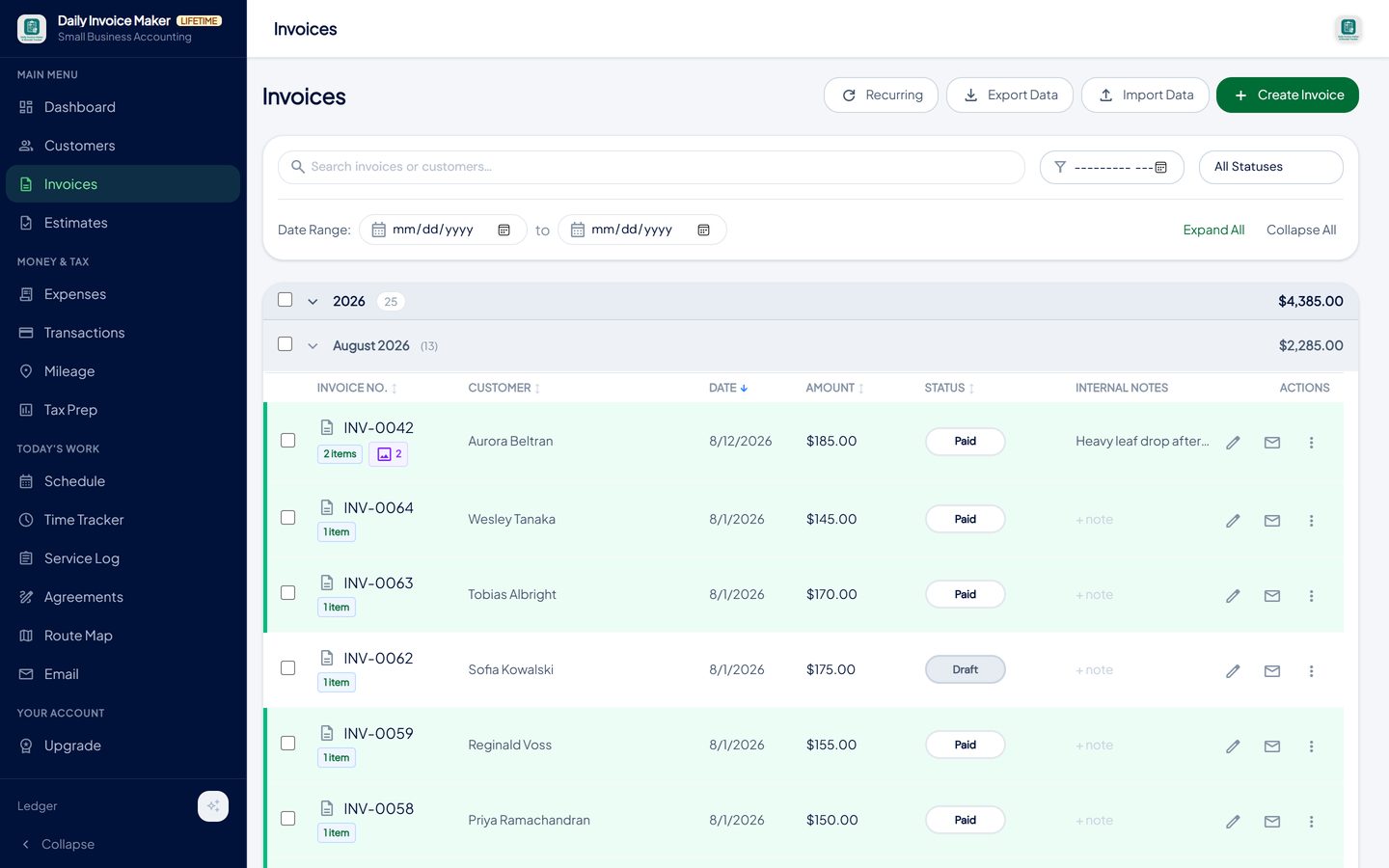
The converted invoice keeps the customer, lines, sections, photos and signature, and references the estimate number. -
Reuse what works: templates and the price list
Settings → Products & Rates holds your price list: products with a unit price and labour rates per hour. Insert them into any estimate or invoice line, and prices stay consistent across customers. Trade template packs add ready-made job templates and service agreements for pool, lawn, HVAC, plumbing, cleaning, handyman and auto-repair businesses.
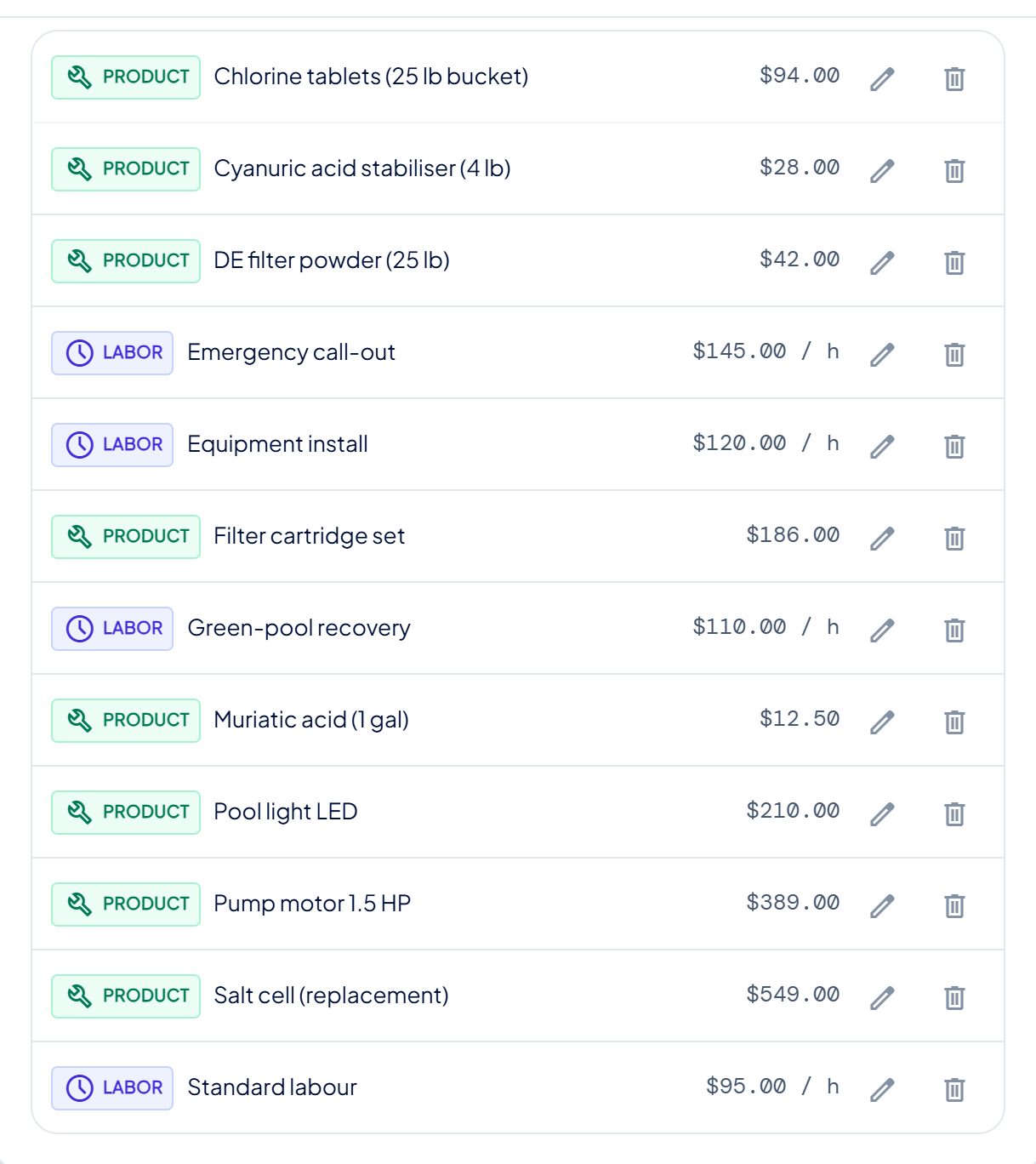
Products and labour rates saved once in Settings are inserted into any estimate or invoice line in one click.
What else is in the app
Job types and sections
Start from a template; group lines under headings with subtotals for multi-trade work.
Parts and labour
Hours at a rate and parts at a unit price, printed in separate tables for repair trades.
Signatures on estimates and invoices
Customer signs on screen; your signature and licence line print as Approved by.
Service agreements
Turn an accepted quote into a maintenance agreement with e-signature and an audit log.
Invoices, receipts and tax
The converted invoice is income; parts bought for the job are expenses; the year exports for tax.
Every platform, offline
Windows, Mac, Linux and Android. Data on your devices; Google Drive sync included.
Try it on your own books
The free demo is the full app for your first 7 invoices, 7 customers and 7 expenses — no account, no card. It runs 100% offline on Windows, Mac and Linux: $149.99 once, or $5.99 a month if you would rather not commit. The Android app is a separate Google Play purchase.
Questions
Is the estimate maker free?
The free demo is the full app, including estimates, with a limit of seven invoices and a sample watermark on PDFs. Estimates are not limited. Paid plans are $5.99 a month or $149.99 once.
Can the customer sign the estimate on my phone?
Yes. Hand them the phone or tablet, they sign on screen, and the signature and date are stored with the estimate and printed on the PDF. A signature image can also be imported.
Can I quote parts and labour separately?
Yes. Mark a line as labour and it is quoted as hours at an hourly rate; parts are quantities at unit prices. The PDF prints two tables, and the split carries over to the invoice.
What happens to the estimate number when I convert?
The invoice gets the next invoice number and records the estimate number it came from, so both documents can be traced to each other.
Can I send an estimate by text?
From the Android app, yes: SMS or WhatsApp with the PDF attached. From the desktop, email. The status changes to Sent either way.
Does it do change orders?
Add the approved extra as a new line, or a new section, on the converted invoice. State on your estimate terms that work outside the scope is quoted and approved in writing first; the default terms field is where that line lives.
Does it work offline?
Yes. Estimates are created, signed and stored on your own device. A connection is needed only to email or message one.
The short version
A good estimate defines the scope, prices it in lines the customer can read, states the terms that would otherwise become arguments, and gets a dated signature. Then it becomes the invoice without being retyped. Daily Invoice Maker's free demo includes the full estimate maker, so you can quote your next job with it before deciding.
Related guides

Invoice Maker Guide
What every invoice must contain, the payment terms that get you paid faster, why a real invoice maker beats a one-off generator, and how paid invoices become your…

Contractor Invoicing Guide
What a contractor's invoicing and field-service software has to do between the first call and the paid invoice: estimates, agreements, scheduling, service records…

Billing Software Guide
How monthly billing should work for a service route: recurring invoices, billing many customers at once, tracking paid, partial and overdue, and chasing without the…
How to turn an approved estimate into an invoice · Free invoice templates · All guides · Quick how-to answers · Training guide for the app